Configure the products per page selector #
The General section of the Number of Products per Page – Pagination Manager for WooCommerce plugin is where you turn the selector on, choose where it appears, style its template, and set the options shoppers can pick from. Products per Page groups these controls into four blocks: Products per Page, Position Options, Template Options, and Select Options.
Go to WPFactory > Products per Page (also reachable at WooCommerce > Settings > Products per Page). The General section opens by default.
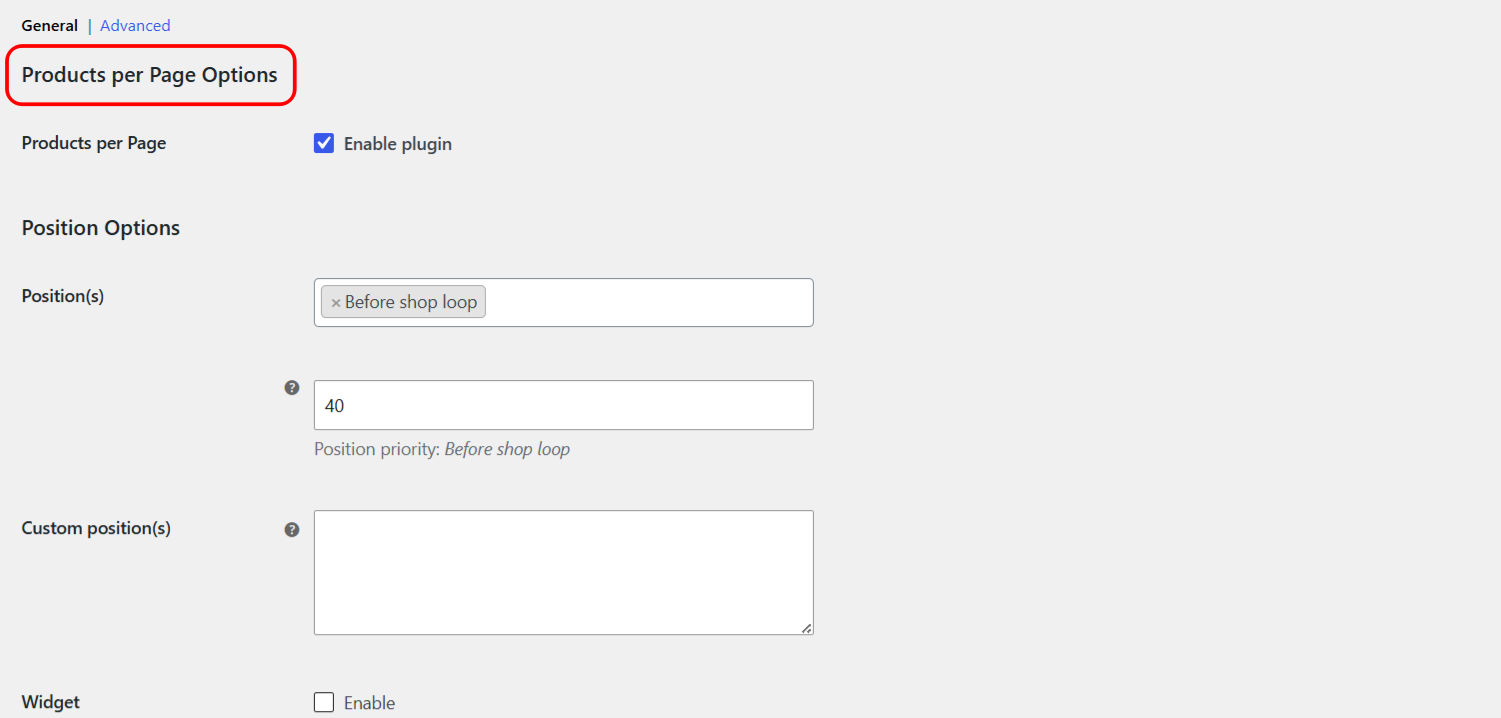
Products per Page #
| Label | Option ID | Type | Default | Free/Pro |
|---|---|---|---|---|
| Products per Page (Enable plugin) | alg_wc_products_per_page_enabled |
checkbox | yes | Free |
Position Options #
The Position(s) setting decides where the selector is rendered. You can pick more than one position. All positions are available in the free version.
| Label | Option ID | Type | Default |
|---|---|---|---|
| Position(s) | alg_products_per_page_position |
multiselect | Before shop loop |
| Position priority (per selected position) | alg_wc_products_per_page_position_priorities[...] |
number | 40 |
| Custom position(s) | alg_wc_products_per_page_position_custom |
textarea | (empty) |
| Widget (Enable) | alg_wc_products_per_page_widget_enabled |
checkbox | no (Pro) |
The built-in positions are: Before main content, In archive description, Before shop loop, After shop loop, After main content, Before pagination, and After pagination.
Custom position(s): list WordPress action hook names here, one per line, to hook the selector onto any theme or plugin action. This field takes hook names, not CSS selectors. To set a priority for a hook, add a vertical bar and a number, for example your_custom_action|40.
Note: the Widget checkbox is a Pro feature. In the free version it is disabled. See Products per Page Pro for the widget.
Template Options #
Template Options control the markup and styling of the selector. All of these are free.
| Label | Option ID | Default |
|---|---|---|
| Template | alg_products_per_page_text |
Products %from% – %to% from %total%. Products on page %dropdown% |
| Selector class | alg_wc_products_per_page_select_class |
sortby rounded_corners_class |
| Selector style | alg_wc_products_per_page_select_style |
(empty) |
| Before HTML | alg_wc_products_per_page_before_html |
<div class=”clearfix”></div><div> |
| After HTML | alg_wc_products_per_page_after_html |
</div> |
| Radio glue | alg_wc_products_per_page_radio_glue |
(single space) |
The Template field accepts these placeholders: %from%, %to%, %total%, %dropdown%, and %radio%. For what each one outputs, see the Products per Page template placeholders reference.
Select Options #
Select Options define the choices shoppers see in the selector, plus the default value.
| Label | Option ID | Default | Free/Pro |
|---|---|---|---|
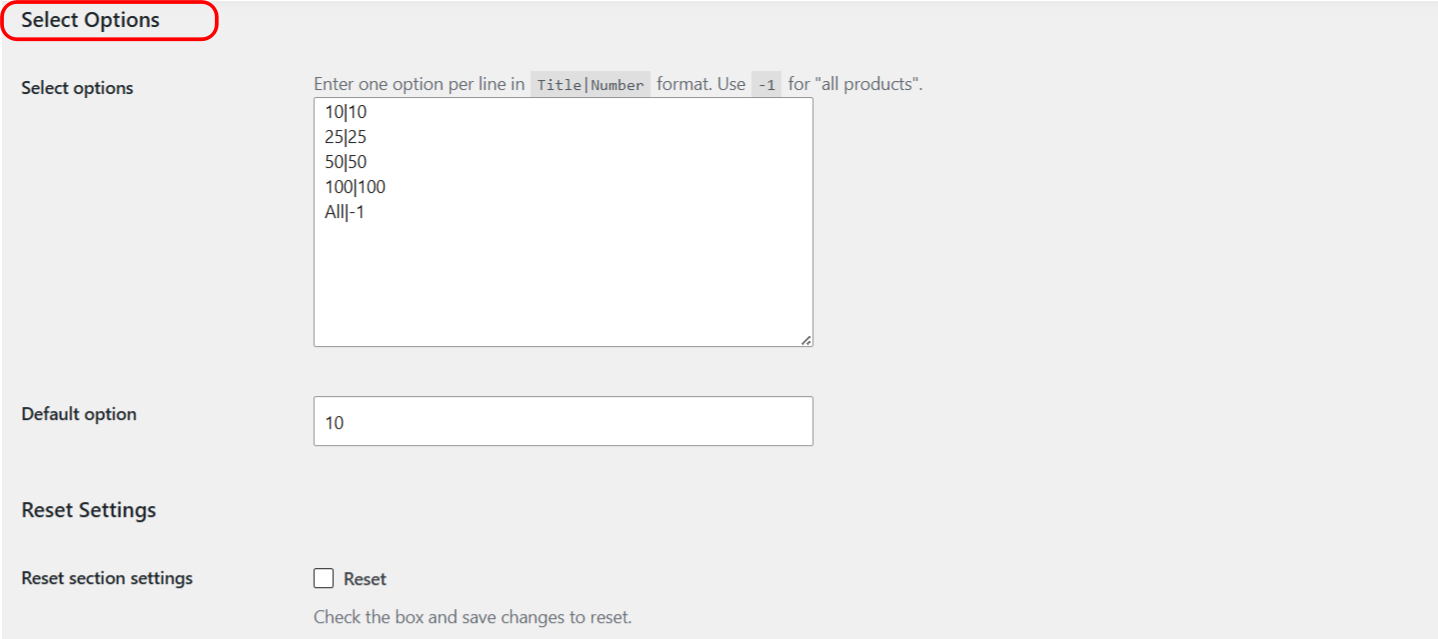
| Select options | alg_products_per_page_select_options |
10|10, 25|25, 50|50, 100|100, All|-1 | Pro (read-only in Free) |
| Default option | alg_products_per_page_default |
10 | Free |
Enter one option per line in Title|Number format, so the title is on the left and the number of products on the right. Use -1 for “all products”, for example All|-1. In the free version this list is fixed to the five defaults above and the field is read-only. Editing the list requires Pro. The Default option value is free and takes the number of any option you want pre-selected.
Reset section settings #
Each settings section has a Reset section settings checkbox at the bottom (option id alg_wc_products_per_page_[section]_reset). Check it and save to restore that section to its defaults.
Quick Setup: Add a Products per Page Selector #
This quick guide gets a products per page selector onto your shop pages with the Number of Products per Page – Pagination Manager for WooCommerce plugin. For the full option reference, see the General settings guide. Products per Page settings live at WPFactory > Products per Page (also reachable at WooCommerce > Settings > Products per Page).
Step 1: Enable the plugin #
Make sure Products per Page (option id alg_wc_products_per_page_enabled) is checked. It is on by default, so the selector works as soon as the plugin is active.
Step 2: Choose a position #
Under Position(s), pick where the selector appears. Two common, reliable choices are:
- Before shop loop: shows the selector above the product grid (this is the default).
- After shop loop: shows the selector below the product grid.
You can select more than one position at once. For a position your theme does not expose, use the Custom position(s) field, which takes WordPress action hook names.
Step 3: Adjust the template (optional) #
The Template field controls the text and controls around the selector, using these placeholders:
%from%: first product number on the current page.%to%: last product number on the current page.%total%: total number of products.%dropdown%: the selector as a dropdown menu.%radio%: the selector as radio buttons.
Selector class, Selector style, Before HTML, After HTML and Radio glue let you style and wrap the control. All of these are free.
Step 4: Set the options and default #
The Select options list holds the choices shoppers see, one per line in Title|Number format, with -1 meaning all products, for example All|-1. In the free version this list is fixed to 10, 25, 50, 100 and All; editing it requires Products per Page Pro. The Default option value is free: set it to the number you want pre-selected (for example 25). Avoid -1 as a default on large catalogs, since loading every product at once slows the page.
Get more control #
Positions, template, cookies and the default value are all free. Number of Products per Page – Pagination Manager for WooCommerce Pro adds an editable Select options list and a Products per Page widget. See what Pro unlocks.