Table of Contents
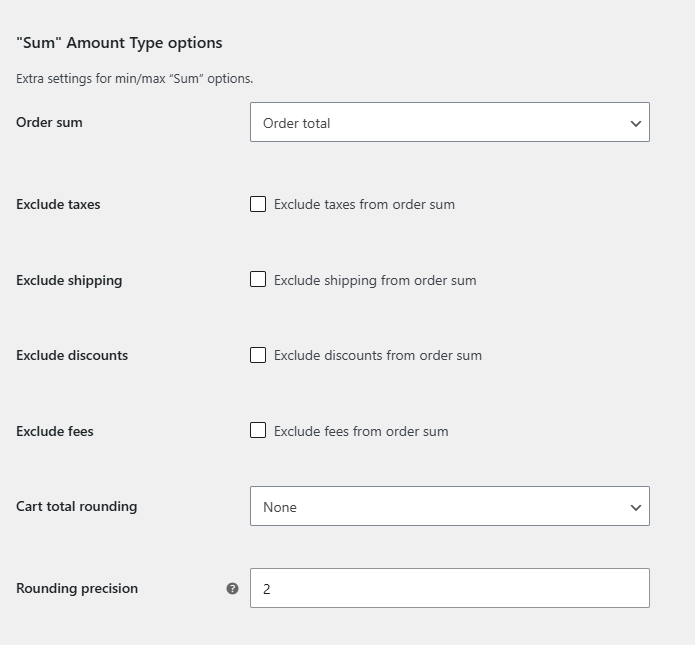
When you limit orders by Sum, Order Minimum/Maximum Amount Limits for WooCommerce lets you decide exactly what goes into that figure: order total or subtotal, with or without taxes, shipping, discounts, and fees, and rounded however you like. These “Sum” amount type options are free and live on the General tab.
Before you start #
- WooCommerce, active, with Order Minimum/Maximum Amount Limits for WooCommerce installed.
- Sum selected as an amount type in the General tab.
Step-by-step #
- Go to WPFactory > Order Min/Max (also reachable at WooCommerce > Settings > Order Min/Max Amount) and open the General tab.
- Find the “Sum” Amount Type options group.
- Set the options below to match how you want the total measured, then click Save changes.
Options #
| Label | Option ID | Default |
|---|---|---|
| Order sum (total or subtotal) | alg_wc_oma_order_sum |
Order total |
| Exclude taxes | alg_wc_oma_exclude_taxes |
No |
| Exclude shipping | alg_wc_oma_exclude_shipping |
No |
| Exclude discounts | alg_wc_oma_exclude_discounts |
No |
| Exclude fees | alg_wc_oma_exclude_fees |
No |
| Cart total rounding | alg_wc_oma_type_sum_cart_total_rounding |
None |
| Rounding precision | alg_wc_oma_type_sum_cart_total_rounding_precision |
Store decimals |
Good to know #
- Order subtotal ignores shipping and fees before your exclusions are even applied. Order total starts from the full cart total.
- Cart total rounding offers None, Round, Ceil, and Floor. Use it when a limit like “50 or more” should treat 49.999 as 50.
- The exclusions only affect the Sum type. Other amount types (quantity, weight, and so on) are unaffected.
Get more control #
These options are free. Order Minimum/Maximum Amount Limits for WooCommerce Pro adds per-currency, per-shipping, and per-gateway limits on top. See what Pro unlocks.