A quantity dropdown swaps the standard number input on the product page for a select box whose values match your price-by-quantity levels, so customers pick a tier instead of typing a number. This is a Pro feature of Price by Quantity & Bulk Quantity Discounts for WooCommerce, configured in the Qty Dropdown section.
Before you start #
- WooCommerce active.
- Price by Quantity Pro (the dropdown section is disabled in the free version).
- A product with pricing levels set up, so the dropdown has quantities to list.
Step-by-step #
- Go to WPFactory > Product Price by Quantity (also reachable at WooCommerce > Settings > Product Price by Quantity).
- Open the Qty Dropdown sub-tab.
- Turn on Dropdown.
- Optionally set a Dropdown label template so each option shows more than the raw quantity (for example a price or saving).
- Save changes and open a product to confirm the dropdown replaces the quantity field.
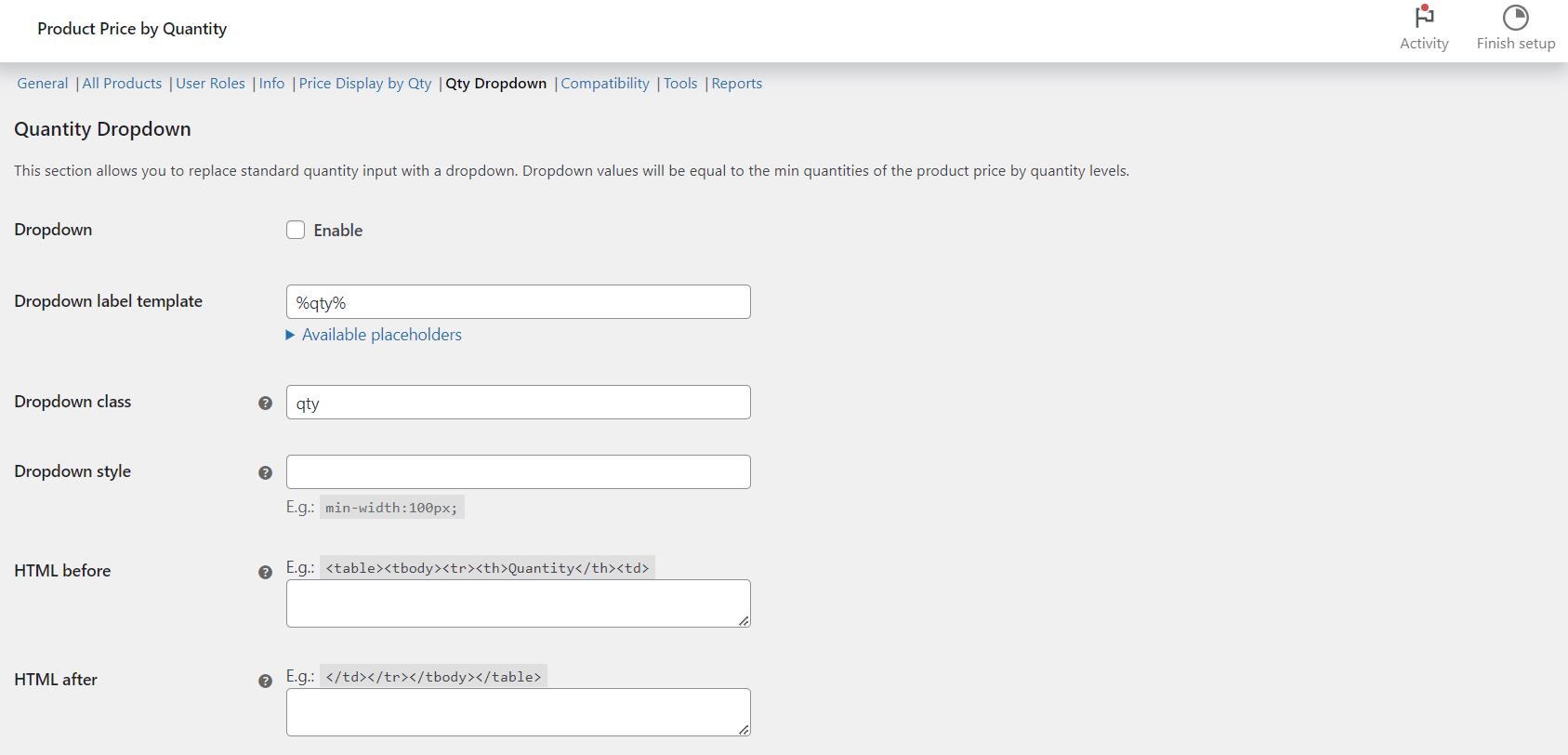
Options reference #
| Label | Option ID | Default | Free/Pro |
|---|---|---|---|
| Dropdown (enable) | alg_wc_wholesale_pricing_dropdown_enabled |
No | Pro |
| Dropdown label template | alg_wc_wholesale_pricing_dropdown_label_template |
%qty% |
Pro |
| Dropdown class | alg_wc_wholesale_pricing_dropdown_class |
qty |
Pro |
| Dropdown style | alg_wc_wholesale_pricing_dropdown_style |
empty | Pro |
| HTML before | alg_wc_wholesale_pricing_dropdown_before |
empty | Pro |
| HTML after | alg_wc_wholesale_pricing_dropdown_after |
empty | Pro |
| Filter values | alg_wc_wholesale_pricing_dropdown_filter_values |
No | Pro |
| Custom dropdown values | alg_wc_wholesale_pricing_dropdown_custom_values |
empty | Pro |
By default the dropdown lists each level’s minimum quantity. Use Custom dropdown values to override that with your own comma-separated list, for example 1,2,3,5,10,15,20. Turn on Filter values to keep only quantities allowed by the product’s step, minimum and maximum.
Label template placeholders #
The Dropdown label template accepts %qty%, %qty_total%, %old_price_single%, %old_price_total%, %new_price_single%, %new_price_total%, %discount_value%, %discount_percent%, %discount_single%, %discount_total%, and the tax-specific variants of the price placeholders. See the placeholders reference for the full list.
Use cases #
- Guide customers straight to a discounted tier by listing only wholesale quantities.
- Show the per-unit price beside each quantity, for example
%qty% pcs. - %new_price_single% each.
Troubleshooting #
- Dropdown not appearing? Confirm the product has pricing levels, or set Custom dropdown values.
- Real-time price not updating with the dropdown? In the Price Display by Qty section, turn on Force standard quantity input.
Ready to set this up? #
This is a Pro feature of Price by Quantity. If you are still on the free version, upgrading takes a couple of minutes and unlocks the quantity dropdown along with the rest of the Pro toolkit. Get Price by Quantity Pro.