Table of Contents
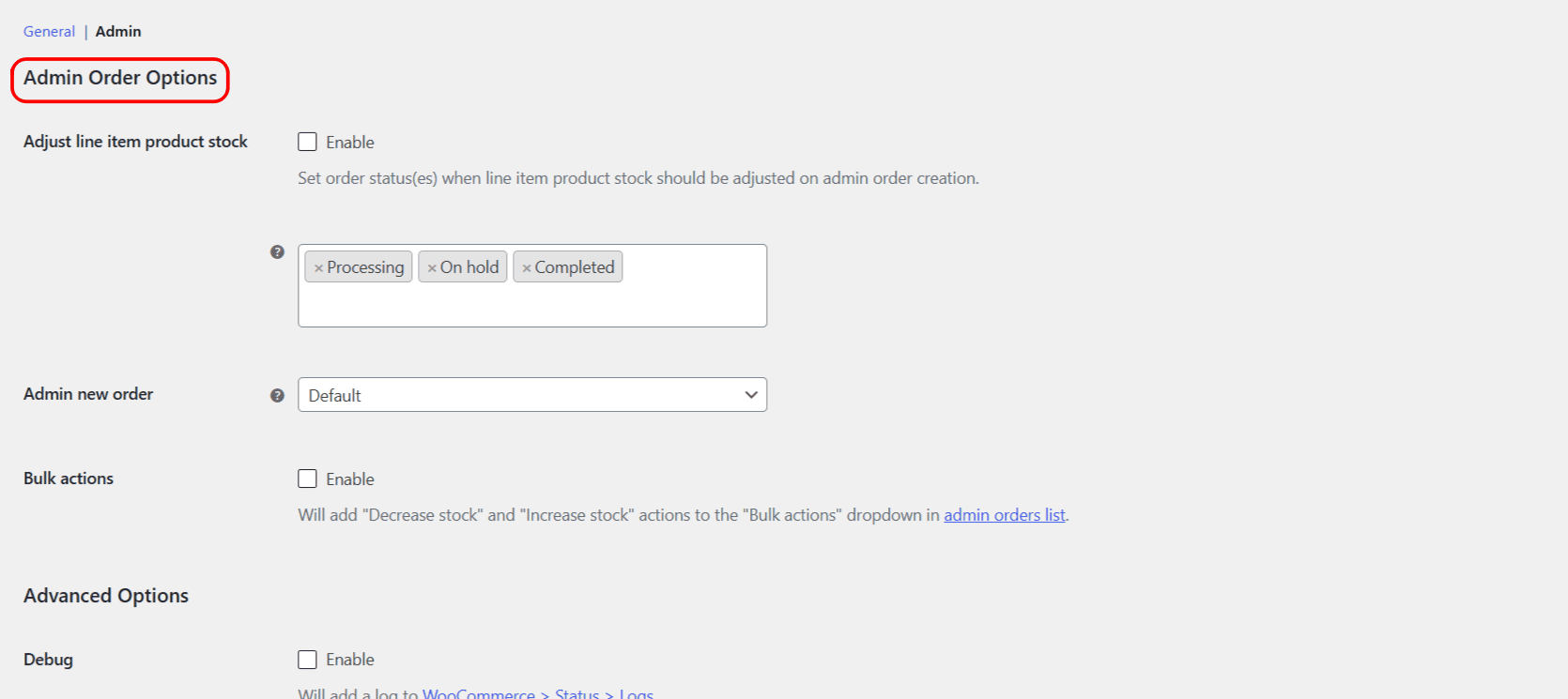
To adjust stock for several orders at once, enable the bulk actions in Automated Stock Update Triggers for WooCommerce. This adds Decrease stock and Increase stock to the Bulk actions dropdown on the WooCommerce orders list. The feature is free.
Before you start #
- WooCommerce, active.
- Access to the orders list (works with both the classic orders screen and the HPOS orders screen).
Turn it on #
- Go to WPFactory > Stock Triggers (also reachable at WooCommerce > Settings > Stock Triggers), then open the Admin sub-section.
- Enable Bulk actions (
alg_wc_stock_triggers_shop_order_bulk_actions). - Click Save changes.
Use it #
- Go to WooCommerce > Orders.
- Select the orders you want to process with the checkboxes.
- In the Bulk actions dropdown, choose Decrease stock or Increase stock, then click Apply.
- A notice reports how many orders were processed.
How it behaves: both actions use WooCommerce’s “maybe” stock functions, so Decrease stock reduces stock for orders that have not already been reduced, and Increase stock restores stock that was previously reduced. This respects WooCommerce’s own guard against double counting.
When this is useful #
- Correcting stock after a batch of orders was imported or edited outside the normal flow.
- Restoring stock for a group of cancelled orders in one step.
Get more control #
Bulk stock actions are free in Automated Stock Update Triggers for WooCommerce. The Pro version adds custom triggers and custom order statuses for your automatic rules. See what Pro unlocks.