To hide the wishlist button on shop and archive pages for certain products in Wishlist for WooCommerce Pro, go to WooCommerce > Settings > Wishlist, open the Button tab, enter the product tag in the Hide by Tag option, and save. The button is then hidden on shop and archive pages for products with that tag.
If you’re using our WooCommerce Wishlist Pro plugin, you can seamlessly hide the wishlist button from your shop or archive pages, creating a more tailored shopping experience. This feature is easily achievable through the “Hide by Tag“ option under the “Button” tab.
Here’s a straightforward guide on how to implement this #
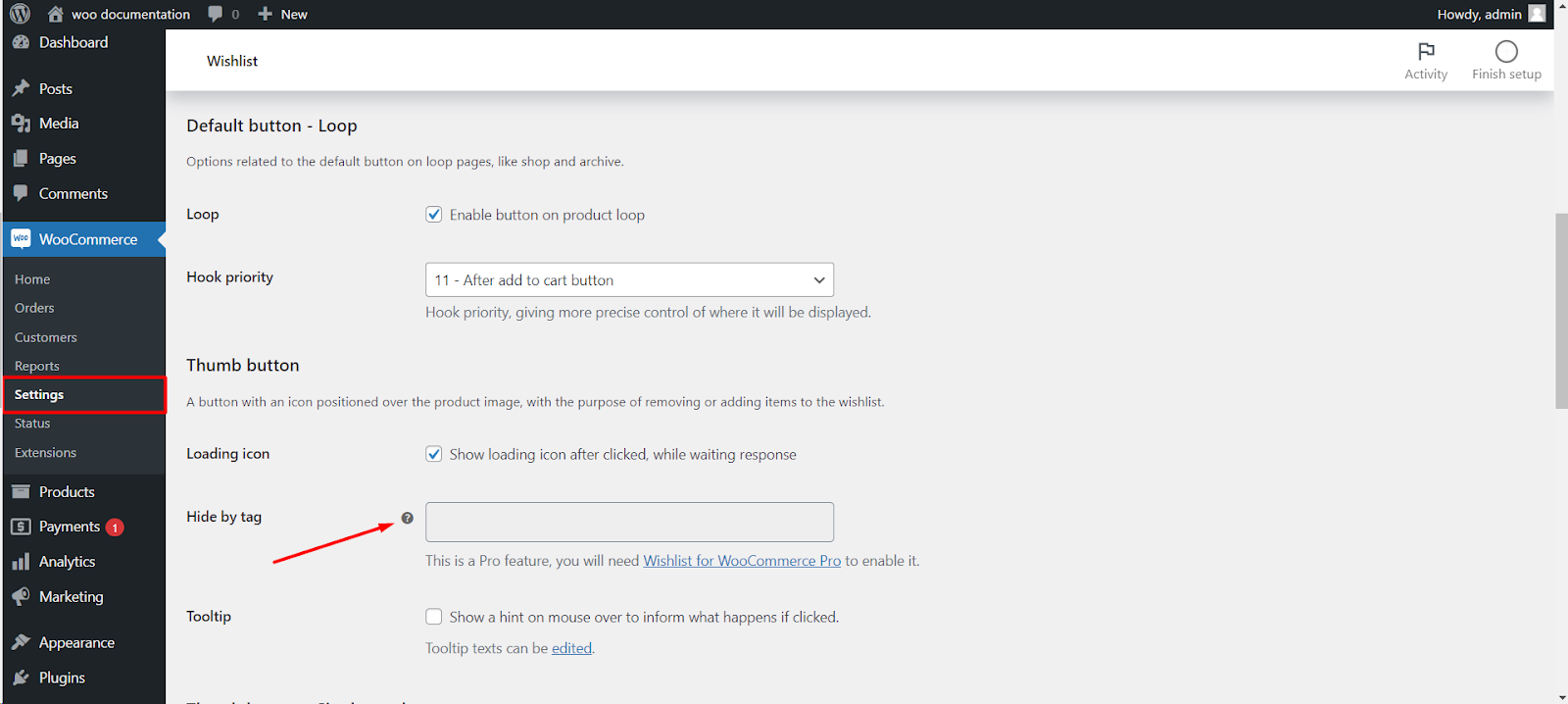
Step 1: Navigate to WooCommerce Wishlist Settings #
- Log in to your WordPress dashboard.
- Locate and click on “WooCommerce“ in the left-hand menu.
- Find the “Wishlist“ tab and click on it.
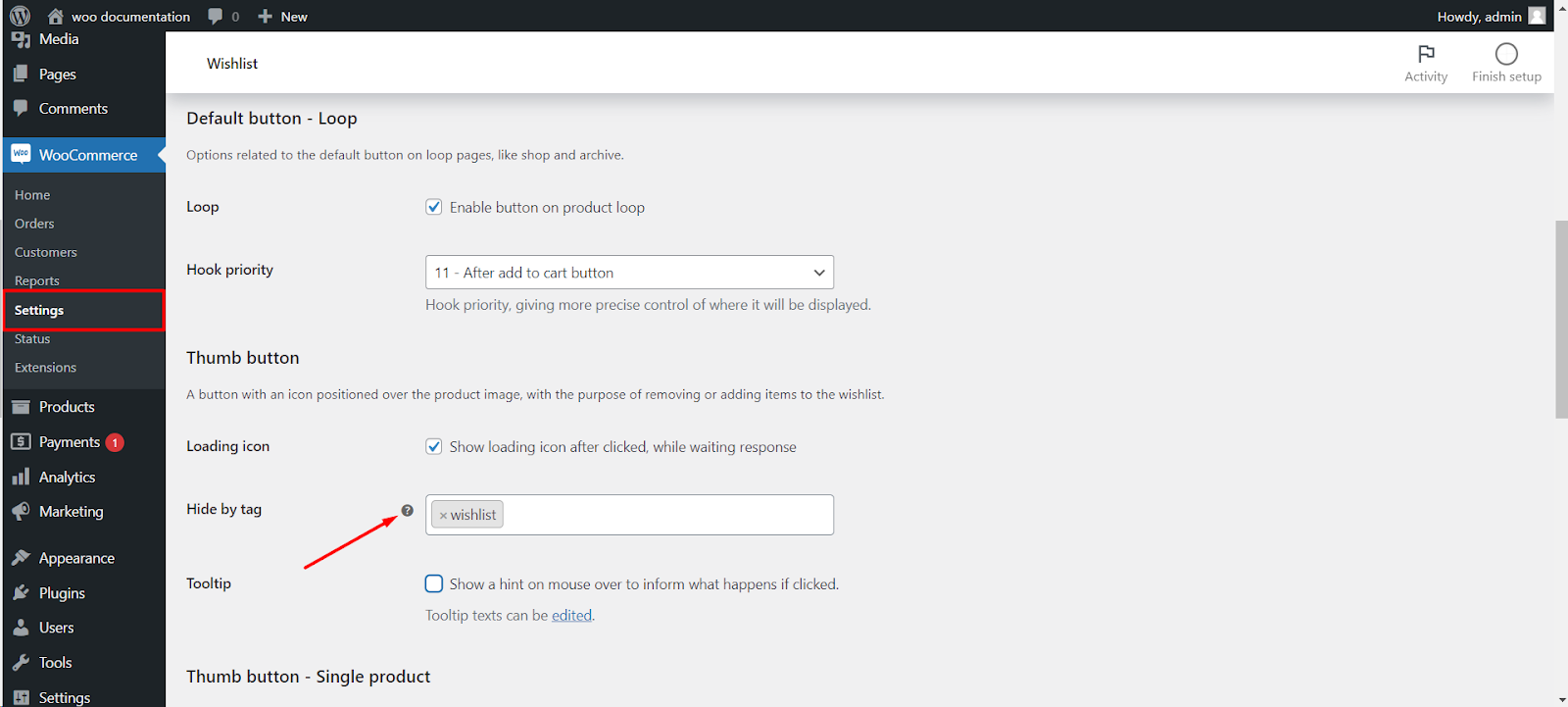
Step 2: Access the Button Settings #
- Within the Wishlist settings, find and click on the “Button“ tab
- Under the “Button“ tab, you’ll discover various options related to the wishlist button.
- Look for the “Hide by Tag“ option
Step 3: Add Product Tag #
- Enter the product tag for which you want to hide the wishlist button.
Step 4: Save Changes #
- Don’t forget to save your changes.
Now, the wishlist button will be discreetly hidden on the shop or archive pages for products associated with the specified tag. This ensures a cleaner and more streamlined presentation on your product listing pages.
