Table of Contents
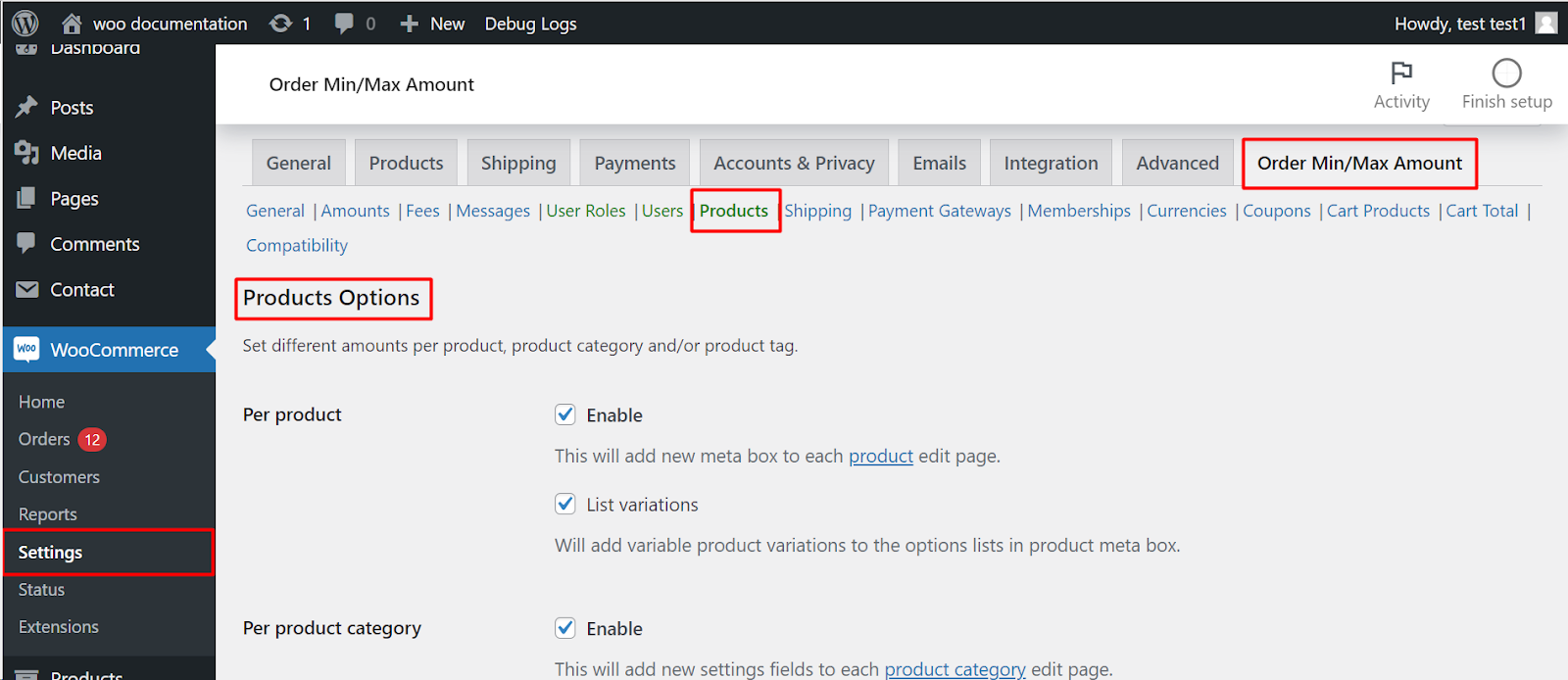
To set minimum and maximum amounts by product, category, or tag in Order Minimum/Maximum Amount Limits for WooCommerce Pro, go to WPFactory > Order Min/Max > Products and enable Per product, Per product category, or Per product tag. Save, then enter the limits on the product, category, or tag edit page. This is a Pro feature.
Before you start #
- WooCommerce, active.
- Order Minimum/Maximum Amount Limits for WooCommerce Pro: the Products section (per product, per category, per tag) is a Pro feature.
Step-by-step #
- Go to WPFactory > Order Min/Max (also reachable at WooCommerce > Settings > Order Min/Max Amount) and open the Products sub-tab.
- Enable the scopes you want: Per product, Per product category, and/or Per product tag.
- Click Save changes.
- Enter the limits where they belong: on the product edit page for per-product limits, and on the category or tag edit page for per-category and per-tag limits.
Options in this section #
| Label | Option ID | Default |
|---|---|---|
| Per product (enable) | alg_wc_oma_per_product_enabled |
No |
| Per product category (enable) | alg_wc_oma_per_product_cat_enabled |
No |
| Per product tag (enable) | alg_wc_oma_per_product_tag_enabled |
No |
| List variations | alg_wc_oma_per_product_list_variations |
No |
Good to know #
- Per-product limits are stored on the product as meta keyed
_alg_wc_oma_{min|max}_{type}. - An amount of 0 is ignored; a negative value such as -1 removes the limit for that item.
- Turn on List variations to set limits on individual variations of a variable product.
- Use the per-product placeholder
%product_title%, and the per-term placeholders%term_title%,%term_link%, and%term_title_with_link%in your messages.
Ready to set this up? #
Per-product, category, and tag limits are part of Order Min/Max Amount Pro. Get Order Min/Max Amount Pro.