To add email verification to WooCommerce, install Customer Email Verification for WooCommerce from Plugins > Add New, activate it, then open WPFactory > Email Verification (also at WooCommerce > Settings > Email Verification). With the default settings, new customers must click the activation link in their email before they can log in.
Can WooCommerce verify customer emails without a plugin? #
No. WooCommerce core does not confirm that a customer owns the email address on a new account, and the account works as soon as it is created. The closest core option, under WooCommerce > Settings > Accounts & Privacy, emails new customers a link to set their password, but it does not block logins from unconfirmed addresses.
Installing the Customer Email Verification plugin #
Email Verification checks that customers own the email address on their account, which cuts down on fake sign-ups and keeps your customer list clean.
Before you start #
- WordPress with WooCommerce active.
- The free build is on. The Pro build is downloaded from your WPFactory account after purchase.
Install the free version (Free) #
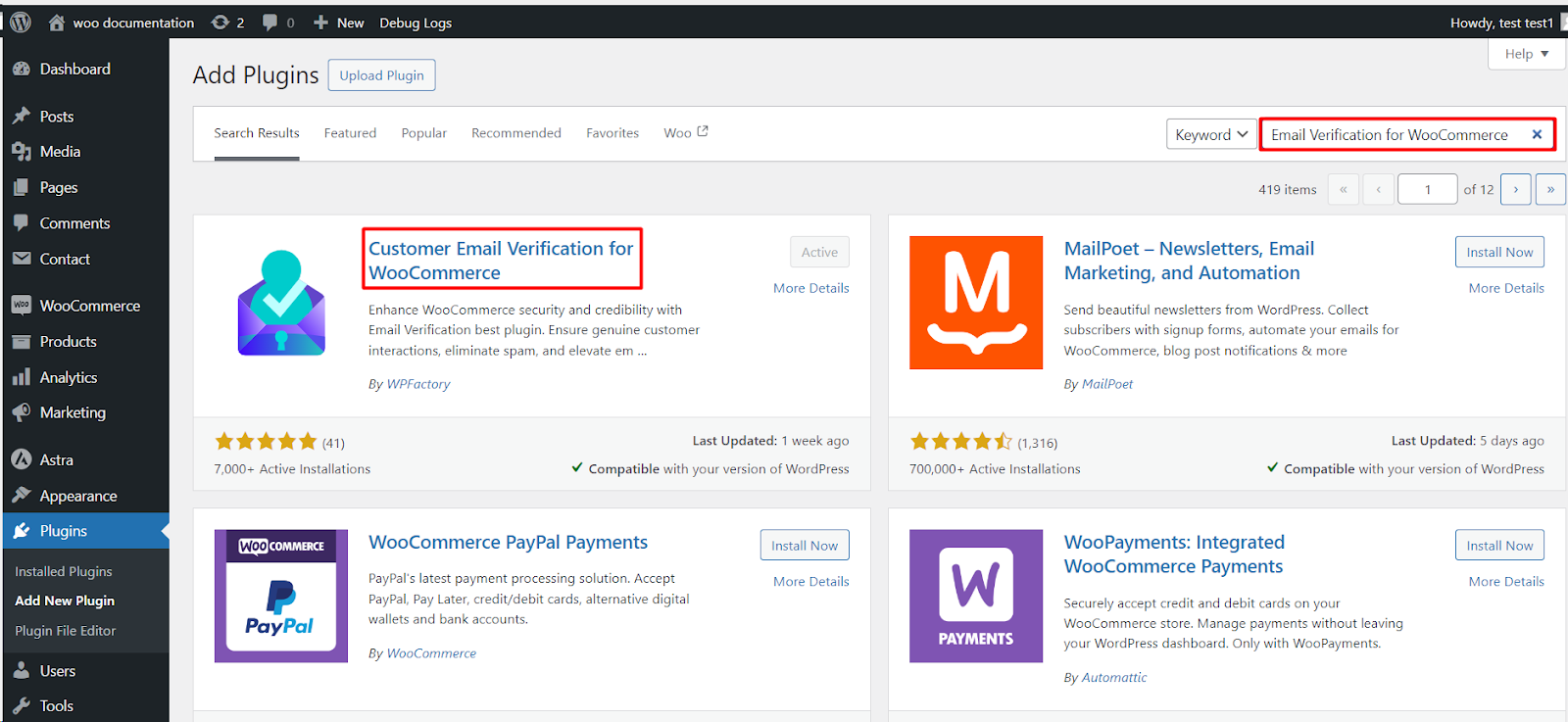
- Log in to your WordPress dashboard and go to Plugins > Add New.
- Search for Customer Email Verification for WooCommerce by WPFactory.
- Click Install Now, then Activate.
Install the Pro version (Pro) #
- Download the Pro zip from your account at wpfactory.com.
- Go to Plugins > Add New > Upload Plugin, choose the zip, and click Install Now.
- Click Activate, then add your license key when prompted so the plugin can receive updates.
Open the settings #
After activation, go to WPFactory > Email Verification (also reachable at WooCommerce > Settings > Email Verification). From here you can:
- Require verification for new users and skip it for chosen roles.
- Customize the activation email content, subject and heading.
- Turn on verification for guest checkout (free, classic checkout only) and for existing customers.
Prefer watching? This short video walks through the same steps: Customer Email Verification setup video.
Frequently asked questions #
Do customers who registered before I installed the plugin have to verify? #
Not by default. Turn on Pre-plugin users (Demand pre-plugin users to verify account) on the General section if you want existing unverified accounts to verify too.
Do administrators have to verify their email? #
No. Ignore user roles skips the Administrator role by default, and you can add other roles that should not need verification.
Can customers log in before they verify? #
Not with the default settings, because Block unverified login is on. If you turn it off, verification becomes optional. See restricting logins for unverified users.
Can I verify guest customers or delete accounts that never verify? #
Yes, both are free. Tick Guest users (Verify guest users) on the General section to verify the billing email of guest orders on the classic checkout. To remove accounts that never verified, see How to Delete Unverified Users in WooCommerce.
Does the activation link expire? #
By default the link stops working after its first use, through One-time activation link. Setting an Expire time for the link is a Pro option; a value of 0 means no expiry.
Get more from Email Verification #
The free version verifies new sign-ups, blocks unverified logins, verifies guest checkout emails (classic checkout), blocks non-paying users and deletes unverified users on demand or on a schedule. Customer Email Verification for WooCommerce Pro adds checkout and add-to-cart blocking, order-email blocking, the email denylist, activation link expiry, the REST API verify endpoint and more. See what Pro unlocks.
Need a hand? Our team answers every ticket on the Email Verification support forum.