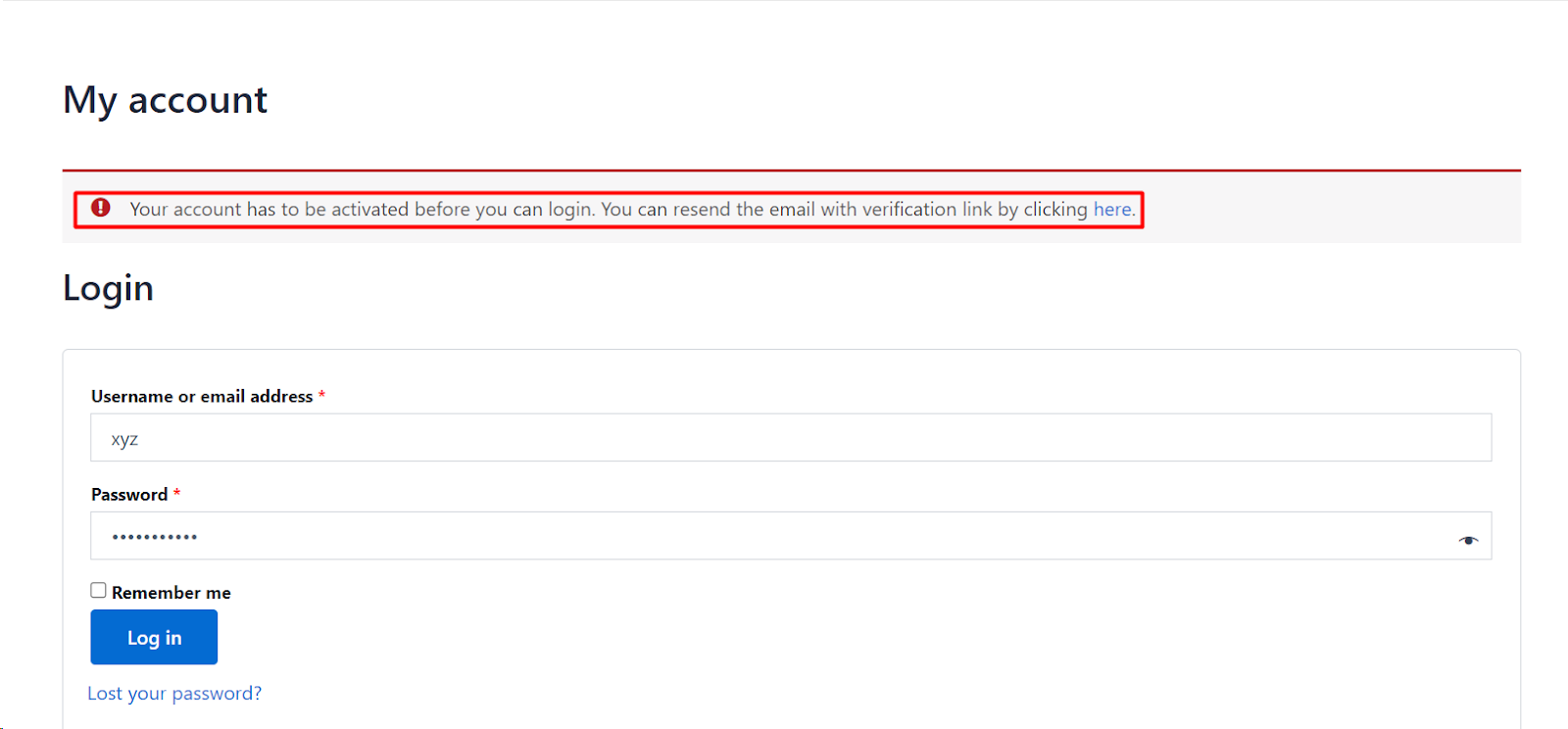
To block unverified users from logging in, keep Block unverified login on at WPFactory > Email Verification (also reachable at WooCommerce > Settings > Email Verification) > General in Customer Email Verification for WooCommerce. It is on by default and free. Until a customer clicks their activation link, a login attempt is refused and shows the Error message with a resend link.
Step-by-step #
- Go to WPFactory > Email Verification (also reachable at WooCommerce > Settings > Email Verification) and open the General sub-tab.
- Find Block unverified login (option
alg_wc_ev_block_unverified_login, on by default) and tick Block login from unverified users. - Check Ignore user roles. Roles listed there (administrator by default) never need to verify.
- Click Save changes.
Related login options #
| Label | Sub-tab | Default | Free/Pro |
|---|---|---|---|
| Login on activation | General | Yes | Free |
| Pre-plugin users (demand verification from accounts created before the plugin) | General | No | Free |
| Redirect on failure | General | No | Free |
| Prevent login after register | Advanced | Yes | Free |
| Prevent login after checkout | Advanced | Yes | Free |
| Log out unverified users on “My Account” page / on every page | Blocking | No | Free |
What the customer sees #
- An unverified user who tries to log in is refused and shown the Error message from the Messages sub-tab.
- That message can include the
%resend_verification_url%placeholder so they can request a fresh activation email. - After they click the activation link, Login on activation signs them in automatically.
- With Redirect on failure on, the refused user is sent to your custom URL, with
?alg_wc_ev_email_verified_erroradded.
If verification should be optional #
If you turn Block unverified login off, verification becomes optional. In that case you will usually want to:
- Reword the Activate message on the Messages sub-tab so it no longer says login is blocked.
- Turn off the login prevention options on the Advanced sub-tab.
- Show verification status on the account page with the My Account page option. See How to Display Verification Information.
If unverified users can still log in #
- Their role is ignored: remove it from Ignore user roles.
- The account is older than the plugin: turn on Pre-plugin users. Without it, existing accounts count as verified.
- A custom login form bypasses the check: open the Advanced sub-tab and enable Block auth cookies, or switch the Authenticate filter to
authenticate. Theauthenticatefilter also shows the verification error before an “incorrect password” error. - They were already logged in: enable Log out unverified users on every page on the Blocking sub-tab.
FAQ #
Is blocking unverified logins free? #
Yes. Block unverified login and all options in the table above are in the free version.
Will this lock me out as an admin? #
No. The administrator role is in Ignore user roles by default.
Can I verify a user manually so they can log in? #
Yes, from the Users screen. See Managing User Verification from the Admin Panel.
Get more control #
Blocking unverified logins is free. Customer Email Verification for WooCommerce Pro adds checkout and cart blocking, editable email content, link expiry and third-party integrations. See what Pro unlocks.
Need a hand? Our team answers every ticket on the Email Verification support forum.