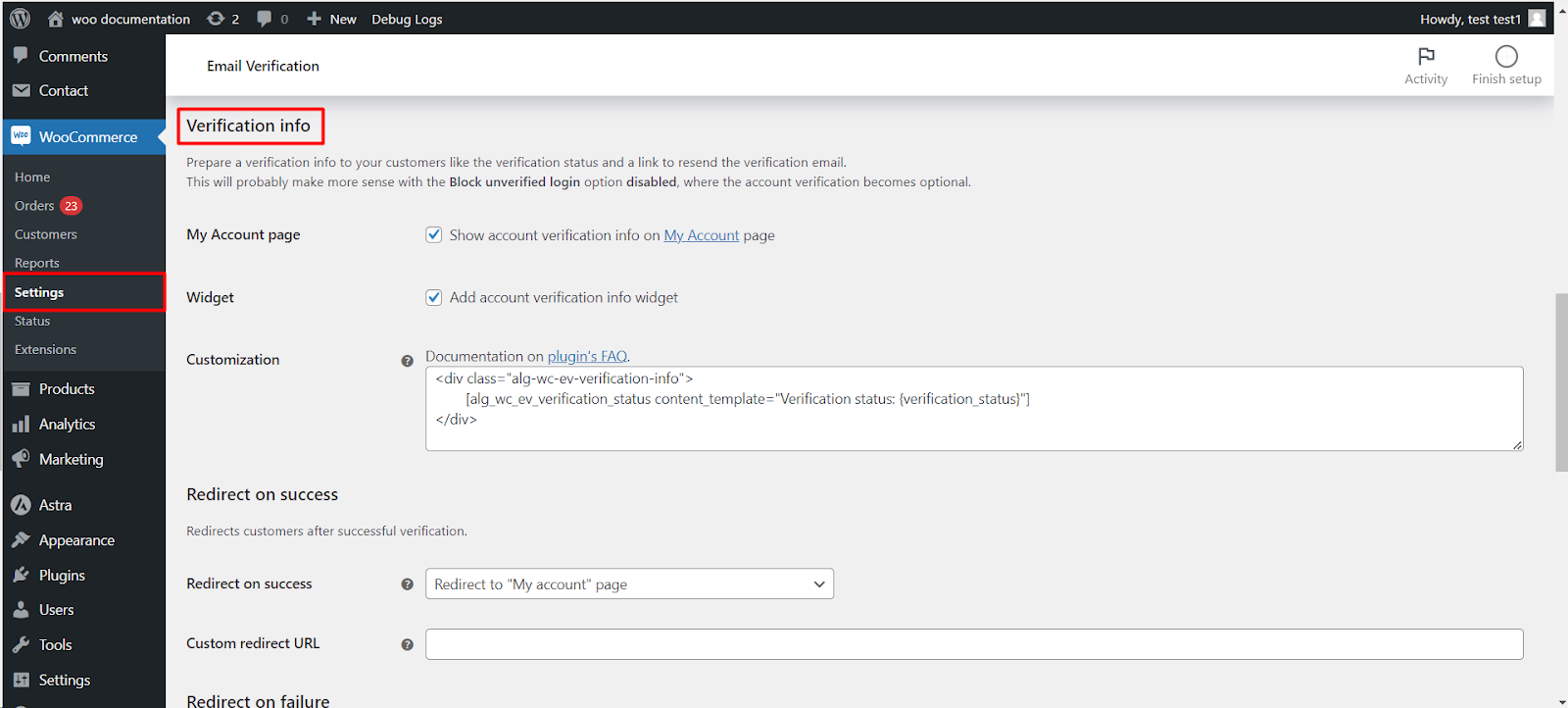
To show customers whether their account is verified, turn on My Account page or Widget in the Verification info group at WPFactory > Email Verification (also reachable at WooCommerce > Settings > Email Verification) > General in Customer Email Verification for WooCommerce. Customers then see their status and, if unverified, a resend link. Both toggles are free; editing the text is Pro.
Options reference #
| Label | Option ID | Default | Free/Pro |
|---|---|---|---|
| My Account page | alg_wc_ev_verification_info_my_account |
No | Free |
| Widget | alg_wc_ev_verification_info_widget |
No | Free |
| Customization | alg_wc_ev_verification_info_customization |
Built-in template | Pro (read-only in Free) |
Step-by-step #
- Go to WPFactory > Email Verification (also reachable at WooCommerce > Settings > Email Verification) and open the General sub-tab.
- Tick My Account page to show account verification info on the My Account page, and/or Widget to add the verification info widget.
- In Pro, optionally edit the Customization field.
- Click Save changes.
- If you enabled the widget, go to Appearance > Widgets and add the Verification info widget to a sidebar.
What the customer sees #
On the My Account dashboard (the first tab), a logged-in customer sees “Verification status: Verified” or “Unverified“. Unverified customers also see “Hi [name], You can resend the email with verification link by clicking here.” The resend line is hidden for verified users and guests. The widget shows the same content.
Customizing the text (Pro) #
The default template uses the [alg_wc_ev_custom_msg] shortcode:
[alg_wc_ev_custom_msg content_template="Verification status: %verification_status%."]
[alg_wc_ev_custom_msg hide_clauses="verified,guests" content_template="Hi %user_display_name%, You can resend the email with verification link by clicking <a href='%resend_verification_url%'>here</a>."]hide_clausesacceptsverified,unverifiedandguests.verified_statusandunverified_statuschange the status words.- You can also use
[alg_wc_ev_resend_verification_url]. The older[alg_wc_ev_verification_status]is deprecated; use[alg_wc_ev_custom_msg].
The same shortcodes work in any page or block, free, so you can place the status anywhere. See Shortcodes Guide: Email Verification.
When to use it #
It is most useful when Block unverified login is off and verification is optional, since it nudges customers to finish. See Restricting Logins for Unverified Users.
If it does not work #
- Nothing on My Account: the info appears on the dashboard tab only, not on Orders or Account details.
- Widget missing: the widget is only registered while Widget is on, and must then be placed in a widget area.
- Shortcode shows as text:
[alg_wc_ev_custom_msg]is enabled in the Shortcodes sub-tab by default; check it has not been switched off. - Customization edits are ignored: the field is read-only and not applied in the free version.
FAQ #
Where do customers confirm their email in WooCommerce? #
By clicking the link in the activation email. This info block shows whether that has happened and lets them request a new link.
Can guests see it? #
The My Account dashboard is for logged-in customers only. The widget is visible to guests: with the default template they see the status as Unverified and no resend line. In Pro, add hide_clauses="guests" to hide it.
Can I change the resend link destination? #
Yes. Set Messages > Resend verification URL, free.
Get more control #
The verification info display is free. Customer Email Verification for WooCommerce Pro adds checkout and cart blocking, editable email content, link expiry and third-party integrations. See what Pro unlocks.
Need a hand? Our team answers every ticket on the Email Verification support forum.