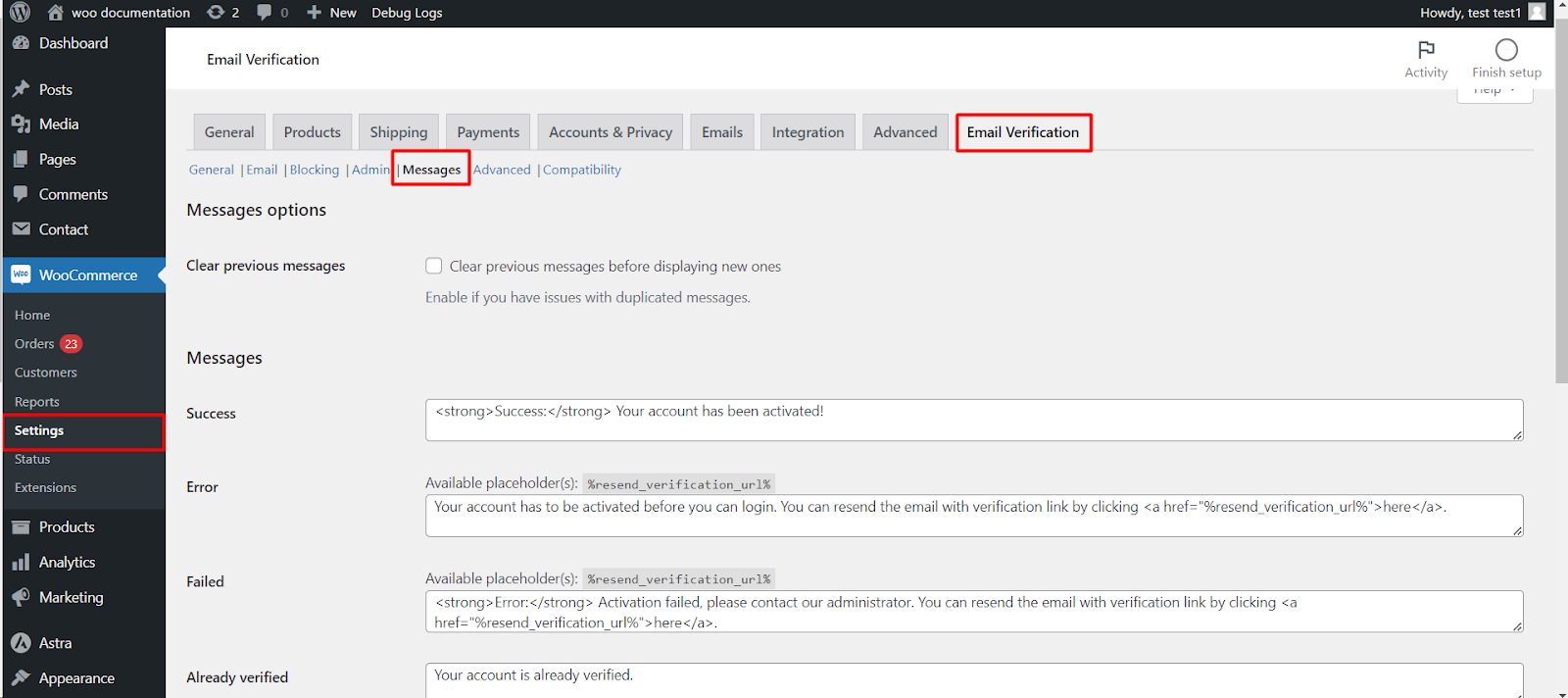
To change the on-screen notices customers see during verification, edit the Messages sub-tab at WPFactory > Email Verification (also reachable at WooCommerce > Settings > Email Verification) in Customer Email Verification for WooCommerce. It holds six messages, from the post-registration “Activate” notice to the resend confirmation, plus guest checkout texts. All of these options are free.
Options reference #
| Message | Option ID | Shown when | Placeholders |
|---|---|---|---|
| Success | alg_wc_ev_success_message |
An account is verified successfully. | None |
| Error | alg_wc_ev_error_message |
An unverified user tries to log in. | %resend_verification_url% + user placeholders |
| Failed | alg_wc_ev_failed_message |
A verification attempt fails, for example an already-used link. | %resend_verification_url% + user placeholders |
| Already verified | alg_wc_ev_already_verified_message |
A verified user clicks a link again. | User placeholders |
| Activate | alg_wc_ev_activation_message |
Just after registration, asking the user to check their email. | %resend_verification_url% + user placeholders |
| Resend | alg_wc_ev_email_resend_message |
The activation email is resent. | None |
User placeholders: %user_login%, %user_nicename%, %user_email%, %user_url%, %user_registered%, %user_display_name%, %user_roles%, %user_first_name%, %user_last_name%, %admin_user_profile_url%. Full list: Email and Message Placeholders Reference.
Step-by-step #
- Go to WPFactory > Email Verification (also reachable at WooCommerce > Settings > Email Verification) and open the Messages sub-tab.
- Edit each message in its editor. HTML such as links and
<strong>is allowed. - Click Save changes.
- Test by registering a new account and trying to log in before verifying.
What the customer sees #
Messages appear as standard WooCommerce notices (success or error) at the top of the page. For example, the default Error message reads “Your account has to be activated before you can login,” followed by a resend link.
Other options on this sub-tab #
- Clear previous messages (
alg_wc_ev_clear_previous_messages, default No): clears other WooCommerce notices before showing a new one. Enable it if customers see the same notice twice. - Resend verification URL (
alg_wc_ev_resend_verification_url): set a fixed page for the resend link, or leave it empty to use the current page. - Guest checkout email verification: the link text (“Send Verify Email”), post-verification, already verified, resend, invalid token and unverified user messages shown to guests when General > Guest users is on.
Common variations #
- Optional verification: if Block unverified login is off, reword Activate so it does not say login is blocked.
- Multilingual stores (WPML): messages run shortcodes, so you can use
[alg_wc_ev_translate lang="EN" lang_text="..." not_lang_text="..."]for per-language text. - Expired links: the Expire notice lives on the General sub-tab and needs Pro.
Translate a message that contains a link #
In the current version (3.2.7), [alg_wc_ev_translate] outputs its text as plain text: any HTML inside the shortcode, such as a resend link, is shown as code instead of a working link. To keep the link working on a multilingual store, leave the link tag outside the shortcode and translate only the words:
[alg_wc_ev_translate lang="DE"]Ihr Konto muss aktiviert werden.[/alg_wc_ev_translate][alg_wc_ev_translate not_lang="DE"]Your account has to be activated.[/alg_wc_ev_translate] <a href="%resend_verification_url%">[alg_wc_ev_translate lang="DE"]E-Mail erneut senden[/alg_wc_ev_translate][alg_wc_ev_translate not_lang="DE"]Resend the email[/alg_wc_ev_translate]</a>The message is run through the shortcodes first and the %resend_verification_url% placeholder is filled in afterwards, so the link points to the right resend page in every language. Use the same language codes as your multilingual plugin, for example DE or de (matching ignores case).
If it does not work #
- A message never appears: the page template must print WooCommerce notices. Custom login pages built with page builders sometimes do not.
- The “Activate” notice is missing after registration: enable Advanced > Custom “logout” function.
- Duplicates: enable Clear previous messages. See Duplicate Messages.
FAQ #
Is editing the messages free? #
Yes. The whole Messages sub-tab is in the free version.
Can I link to a custom resend page? #
Yes. Set Resend verification URL; it is used by %resend_verification_url%.
Can I change the verification email text here? #
No. Email subject and content are on the Email sub-tab and need Pro. See Customizing the Verification Emails.
Get more control #
Message customization is free. Customer Email Verification for WooCommerce Pro adds checkout and cart blocking, editable email content, link expiry and third-party integrations. See what Pro unlocks.
Need a hand? Our team answers every ticket on the Email Verification support forum.