The General sub-tab of Customer Email Verification for WooCommerce holds the core options that decide who has to verify, what happens on activation, and where customers are sent afterward. This guide lists each option on that sub-tab with its real label and default, verified against the plugin source.
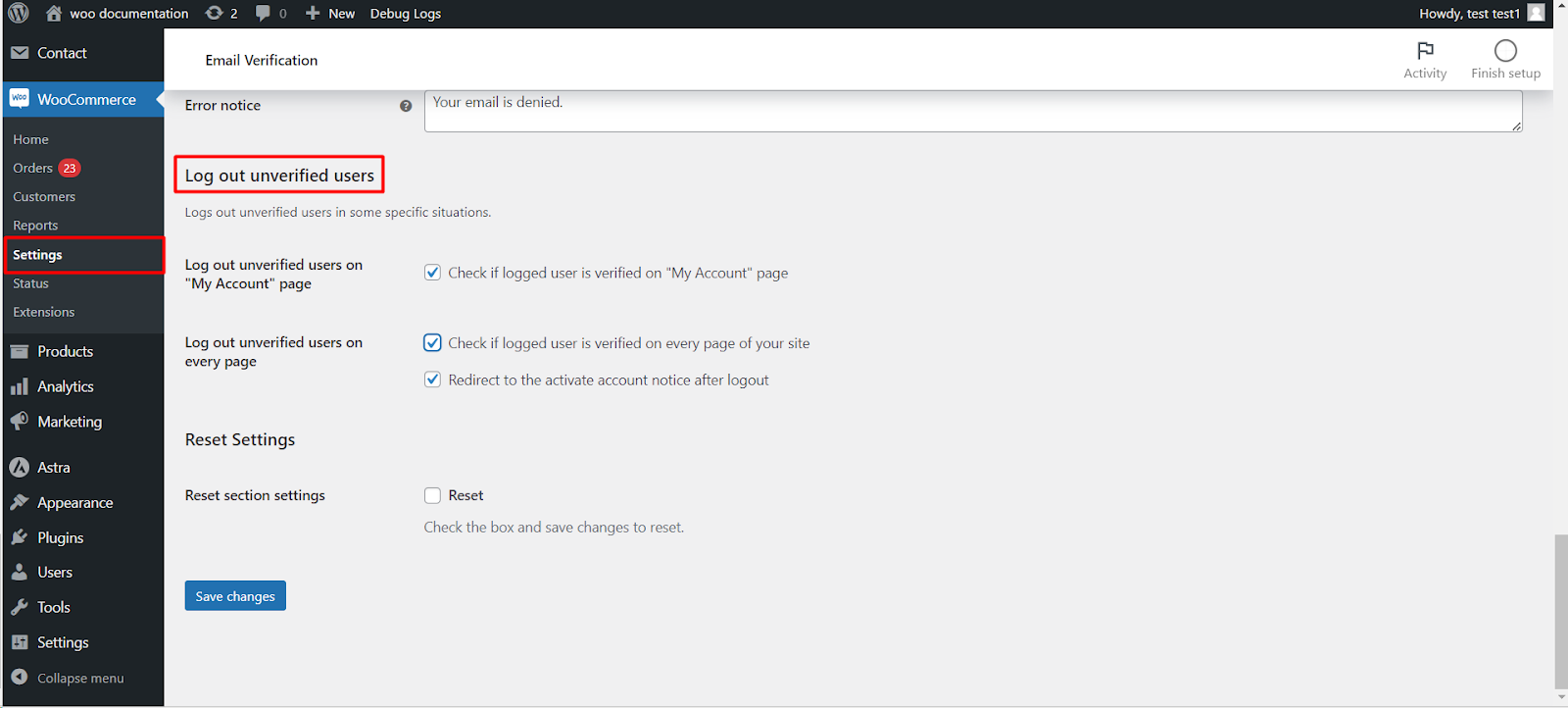
Where to find it #
Go to WPFactory > Email Verification (also reachable at WooCommerce > Settings > Email Verification) and open the General sub-tab.
General options #
| Label | Option ID | Default | Free/Pro |
|---|---|---|---|
| Block unverified login | alg_wc_ev_block_unverified_login |
Yes | Free |
| Verification parameter | alg_wc_ev_verification_parameter |
alg_wc_ev_verify_email |
Pro |
| Login on activation | alg_wc_ev_login_automatically_on_activation |
Yes | Free |
| Guest users | alg_wc_ev_verify_guest_email |
No | Free |
| Pre-plugin users | alg_wc_ev_verify_already_registered |
No | Free |
| Ignore user roles (Skipped user roles) | alg_wc_ev_skip_user_roles |
Administrator | Free |
| Password reset | alg_wc_ev_verify_account_on_password_reset |
No | Pro |
| Paying customers | alg_wc_ev_auto_verify_paying_user |
No | Pro |
| Email changing | alg_wc_ev_unverify_email_changing |
No | Pro |
| Required user meta | alg_wc_ev_required_user_meta |
Empty | Pro |
Block unverified login is the master switch: while it is on, unverified users cannot log in. If you turn it off, verification becomes optional, so you will usually want to show verification status on the account page (see below). Login on activation logs the customer in automatically the moment they click their activation link. Ignore user roles lists the roles that never have to verify (the administrator role is always skipped).
Verification info #
These options surface a customer’s verification status on the front end, which is most useful when Block unverified login is off.
| Label | Option ID | Default |
|---|---|---|
| My Account page | alg_wc_ev_verification_info_my_account |
No |
| Widget | alg_wc_ev_verification_info_widget |
No |
| Customization | alg_wc_ev_verification_info_customization |
Built-in template |
Activation link #
| Label | Option ID | Default |
|---|---|---|
| One-time activation link | alg_wc_ev_one_time_activation_link |
Yes |
| Expire time | alg_wc_ev_expiration_time |
0 (ignored) |
| Expire time unit | alg_wc_ev_expiration_time_unit |
Seconds |
| Expire notice | alg_wc_ev_activation_code_expired_message |
Built-in text |
Leave Expire time at 0 to keep activation links valid forever. Set a number and choose the Expire time unit (Seconds or Days) to make links expire; the Expire notice is shown when a customer clicks an expired link and can carry the %resend_verification_url% placeholder so they can request a fresh one.
Redirects #
Two groups control where customers land. Redirect on success (alg_wc_ev_redirect_to_my_account_on_success, default “Redirect to My account page”) sends a customer somewhere after they verify: My account, Shop, Home, a custom URL, or the page they were on before My account. Redirect on failure (alg_wc_ev_redirect_on_failure, default No) sends an unverified user who tries to log in to a custom URL, appending ?alg_wc_ev_email_verified_error so you can display your own message.
Note: the email denylist, the block-content and block-non-paying tools live on the separate Blocking sub-tab, and the prevent-login-after-register and encoding options live on the Advanced sub-tab, not on General.
Get more from Email Verification #
The core General options ship free. Verification parameter, Password reset, Paying customers, Email changing and Required user meta are unlocked with Customer Email Verification for WooCommerce Pro. See what Pro unlocks.