To stop chosen email addresses or whole domains from verifying an account, use the email denylist (a Pro feature) in Customer Email Verification for WooCommerce. It is handy for shutting out disposable-email services and cutting down on throwaway registrations.
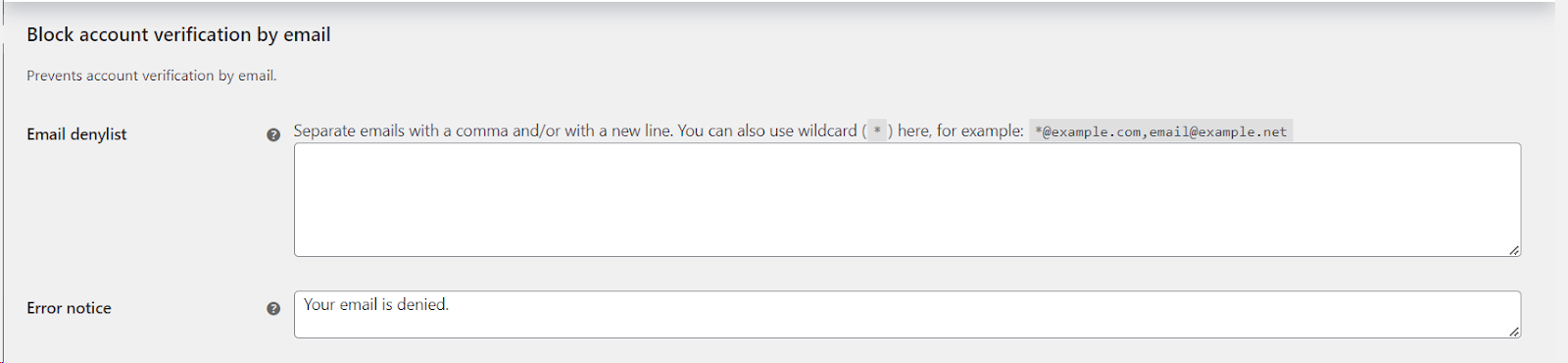
Where to find it #
Go to WPFactory > Email Verification (also reachable at WooCommerce > Settings > Email Verification) and open the Blocking sub-tab. Scroll to the Block account verification by email section.
Note: this option lives on the Blocking sub-tab, not the General sub-tab. To exempt whole user roles from verification instead, use Ignore user roles on the General sub-tab.
Options reference #
| Label | Option ID | Default |
|---|---|---|
| Email denylist | alg_wc_ev_email_blacklist |
Empty |
| Error notice | alg_wc_ev_blacklisted_message |
Your email is denied. |
How to fill the denylist #
- Separate entries with a comma, a new line, or both.
- Use the
*wildcard to match a whole domain, for example*@example.com. - Mix single addresses and wildcards freely, for example
*@example.com,sp*****@*****le.net. - Leave the field empty to turn the denylist off.
Step-by-step #
- Open the Blocking sub-tab and find Block account verification by email.
- Enter the addresses or domains in Email denylist.
- Edit the Error notice shown to a blocked visitor when they click their activation link.
- Click Save changes.
Get more control #
The email denylist is a Pro feature. Customer Email Verification for WooCommerce Pro also adds guest checkout verification, non-paying-user rules and scheduled cleanup of unverified accounts. See what Pro unlocks.