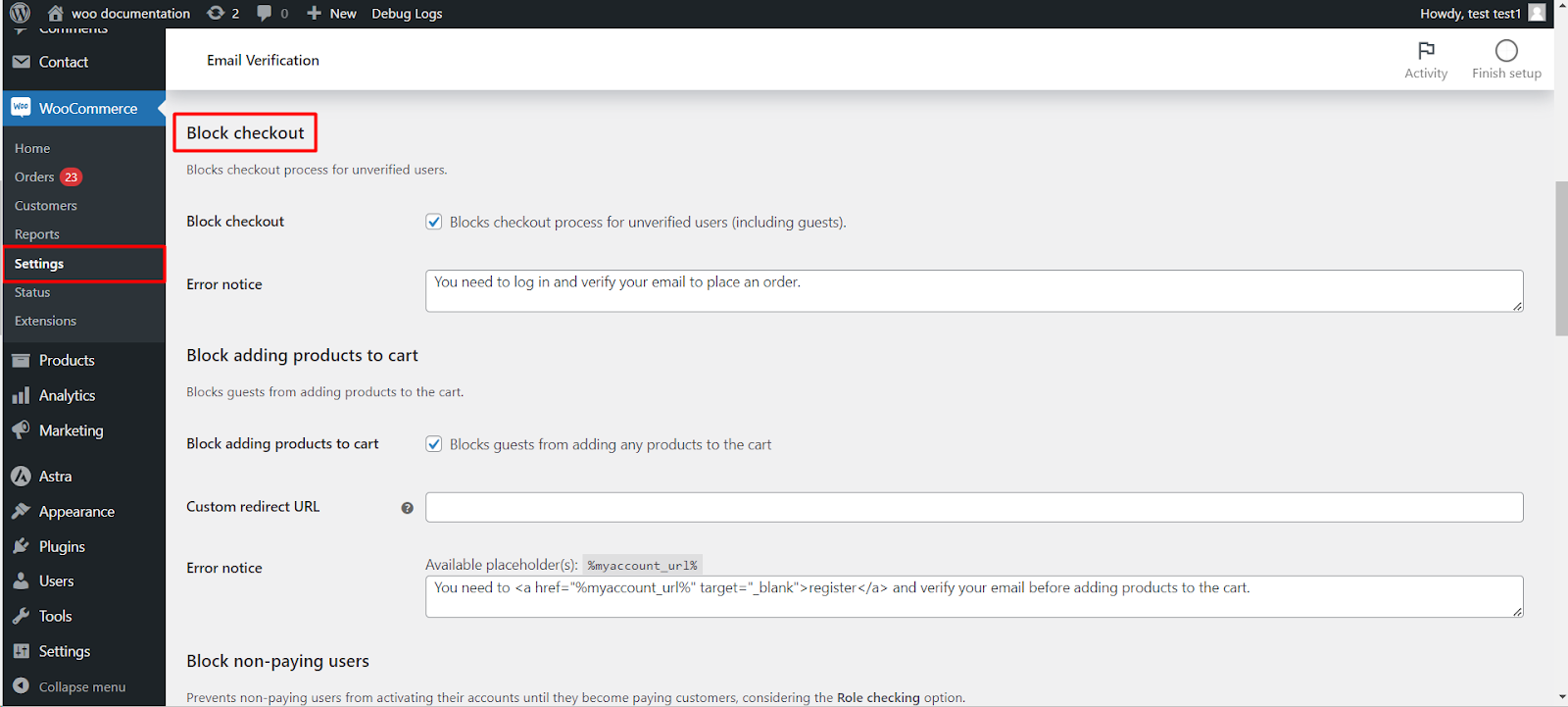
To restrict WooCommerce checkout to verified customers, turn on Block checkout at WPFactory > Email Verification (also reachable at WooCommerce > Settings > Email Verification) > Blocking in Customer Email Verification for WooCommerce. It stops logged-in users who have not verified their email from placing an order. To also stop guests, add Block adding products to cart. Both are Pro features.
Options reference #
| Label | Option ID | Default | Free/Pro |
|---|---|---|---|
| Block checkout | alg_wc_ev_block_checkout_process |
No | Pro |
| Block checkout error notice | alg_wc_ev_block_checkout_process_notice |
“You need to log in and verify your email to place an order.” | Pro |
| Block adding products to cart | alg_wc_ev_block_guest_add_to_cart |
No | Pro |
| Custom redirect URL | alg_wc_ev_block_guest_add_to_cart_custom_redirect_url |
Empty | Pro |
| Add-to-cart error notice | alg_wc_ev_block_guest_add_to_cart_notice |
Built-in text with a register link | Pro |
Step-by-step #
- Go to WPFactory > Email Verification (also reachable at WooCommerce > Settings > Email Verification) and open the Blocking sub-tab.
- Enable Block checkout, Block adding products to cart, or both.
- Edit the matching error notices.
- Click Save changes.
- Test with an unverified customer account and with a logged-out browser.
What the customer sees #
Block checkout #
A logged-in, unverified customer can fill in the checkout form, but clicking Place order shows the error notice and no order is created. Guests are not affected by this option, because they have no account to verify. The notice is processed for shortcodes.
Block adding products to cart #
Any visitor who is not logged in is stopped from adding products to the cart and sees the notice, which supports the %myaccount_url% placeholder. Set Custom redirect URL to send them to a page such as your registration page; leave it empty to stay on the same page. Logged-in customers are not affected.
Common variations #
- Verify guests without an account (free): General > Guest users adds a verification link under the billing email so guests confirm their address at checkout. It works with the classic checkout only. See How to Verify Guest Users at Checkout.
- Require an account for every order: combine Block checkout with WooCommerce’s own setting that disables guest checkout.
- Only paying customers get activated: see Activate Accounts Only for Paying Customers.
- Hide the order confirmation page too: Advanced > Block thank you page (Pro).
If it does not work #
- Guests can still check out: expected. Use one of the guest options above.
- An unverified customer can still order: check whether their role is in General > Ignore user roles, or whether the account predates the plugin while Pre-plugin users is off. Both count as verified.
- The options are greyed out: you are on the free version.
FAQ #
Does Block checkout stop guest orders? #
No. It only checks logged-in users. Use Block adding products to cart or guest verification for visitors without an account.
Can customers verify without leaving checkout? #
Guests can, with the free Guest users option, which sends a verification email from under the billing email field.
Can I show different text to different customers? #
The notices accept shortcodes, including [alg_wc_ev_translate] for per-language text on WPML sites.
Ready to set this up? #
Checkout and add-to-cart blocking are Pro features of Email Verification. If you are still on the free version, upgrading unlocks them along with the rest of the Pro toolkit. Get Email Verification Pro.
Need a hand? Our team answers every ticket on the Email Verification support forum.