Admin options: the product offers meta box #
To configure the product offers meta box in Name Your Price: Make Your Own Offer for WooCommerce, go to WPFactory > Price Offers and open the Admin section. You can enable the meta box, rename it, choose which columns it shows, and append the currency code to prices. All of these admin options are free.
Go to WPFactory > Price Offers (also reachable at WooCommerce > Settings > Price Offers) and open the Admin section.
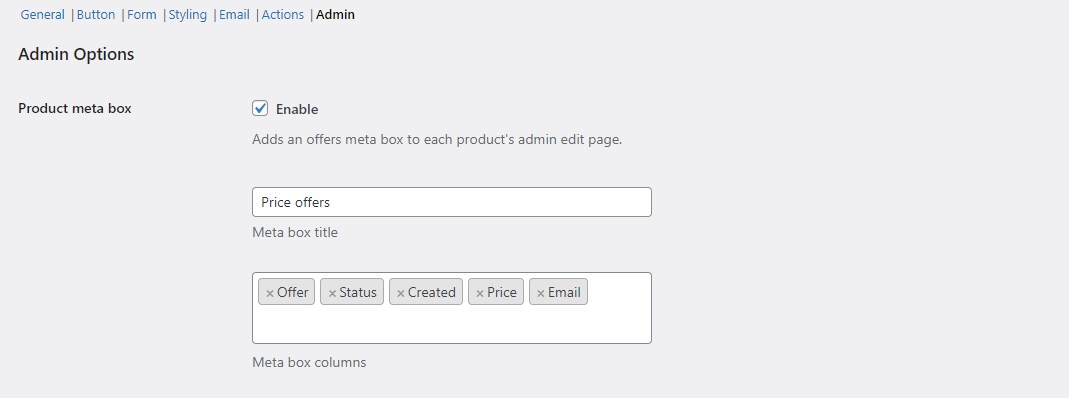
Correction to an earlier version of this article: the free version does not hide the price, quantity, message, or “sent to” details, and the meta box title is not fixed. All meta box columns and the title are editable in the free version.
Options (all free) #
| Label | Option ID | Default |
|---|---|---|
| Product meta box (Enable) | alg_wc_price_offerings_admin[meta_box_enabled] |
Yes |
| Meta box title | alg_wc_price_offerings_admin[meta_box_title] |
Price offers |
| Meta box columns | alg_wc_price_offerings_admin[meta_box_cols] |
Offer, Email, Created, Status, Price |
| Currency code | alg_wc_price_offerings_admin_currency_code |
No |
Meta box columns #
Meta box columns is a multiselect. You can show any of: Offer, Status, Created, Price, Quantity, Message, Name, Phone, Email, Customer ID, User IP, User Agent, and Sent to. The default selection is Offer, Email, Created, Status, and Price. Add or remove any column freely; none are Pro-restricted.
Currency code #
Enable Currency code to append the currency code to price values in the admin columns and meta boxes. This is useful on multi-currency stores where offers can arrive in different currencies.
Where to see all offers #
Beyond the per-product meta box, every offer is listed in the Offers dashboard in your admin menu, with columns for Created, Status, Customer, Product, SKU, and Price.
Get more control #
The offers meta box and its columns are free. Name Your Price: Make Your Own Offer for WooCommerce Pro adds per-product targeting and automatic accept/reject rules. See what Pro unlocks.