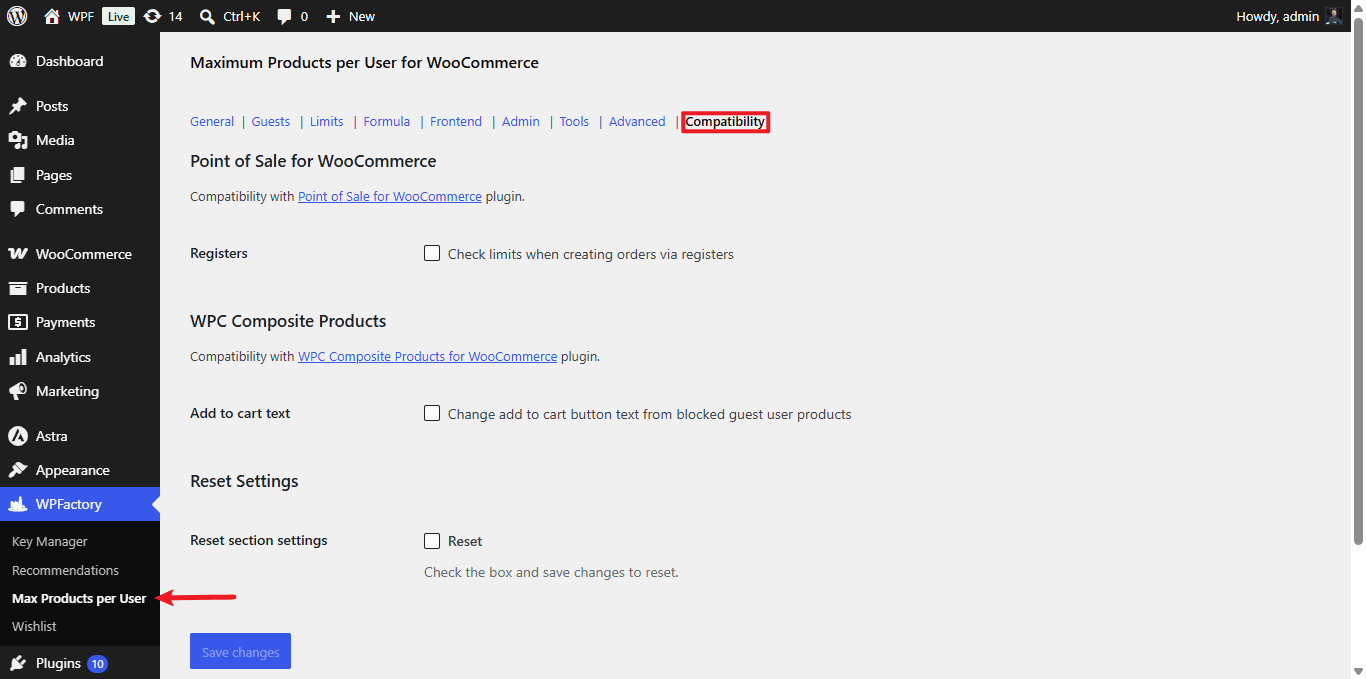
To enforce purchase limits on Point of Sale register orders or fix the button text on WPC Composite Products, open WPFactory > Max Products per User > Compatibility in Maximum Products per User for WooCommerce and tick the matching option. Both integrations are Pro and off by default; most other plugins need no setting.
Where to find it #
Go to WPFactory > Max Products per User (also reachable at WooCommerce > Settings > Maximum Products per User), then open the Compatibility section.
Options #
| Integration | Label | Option ID | Default | Free/Pro |
|---|---|---|---|---|
| Point of Sale for WooCommerce | Registers: Check limits when creating orders via registers | alg_wc_mppu_pos_wc_registers_check_limits |
No | Pro |
| WPC Composite Products | Add to cart text: Change add to cart button text from blocked guest user products | alg_wc_mppu_wpccp_change_add_to_cart_btn_text_from_guest_users |
No | Pro |
Point of Sale for WooCommerce: limits on register orders #
Register orders are created through the WooCommerce REST API, not the store checkout, so by default they skip the limit checks. With Registers ticked, Maximum Products per User checks each item of a new register order against the limits of the customer assigned to the order. If any item goes over, the order is refused and the limit message is returned as the error.
- Open Compatibility and tick Registers.
- Save changes.
- At the register, assign the customer to the order before completing it, so the right purchase history is checked.
The message text comes from the Frontend section. With Frontend > Multiple notices on (the default), the error lists every item over its limit; with it off, only the first.
WPC Composite Products: button text for blocked guests #
If you block guests from buying, Maximum Products per User can change a blocked product’s add to cart button to text such as “Login to purchase”. WPC Composite Products builds its own button, so this option applies the same text to composite products.
- In Guests, set Guests to Block guests from buying products.
- In the same section, tick Add to cart text (Change add to cart button text from blocked products) and set Custom add to cart button text (default: “Login to purchase”).
- In Compatibility, tick Add to cart text under WPC Composite Products and save.
Logged-out visitors then see your text on composite products they cannot buy, on both the product page and shop listings. Logged-in customers see the normal button.
Other integrations #
These plugins are supported through other sections, not Compatibility:
| Plugin | Where | Free/Pro |
|---|---|---|
| MemberPress | General > Date range options > Origin date: MemberPress subscription date (monthly limits reset on the subscription day) | Pro |
| WooCommerce Memberships, MemberPress, SUMO Memberships, Simple Membership | Formula attributes membership_plan, memberpress_plan_id, sumo_membership_plan, swpm_membership_id |
Pro (Formula) |
| WPML, Polylang | General > Multi-language | Free |
If it does not work #
- The checkboxes are greyed out: the Pro version is not active.
- Register orders still go through: the order has no customer assigned. Limits are checked for the order’s customer, and guest handling follows your Guests setting.
- Composite button text does not change: Guests is not set to Block guests from buying products, the Guests section’s Add to cart text box is off, or the visitor is logged in.
- Only some composites change: with Guests > Block method set to “According to limit options”, only products or terms with Block guests ticked are blocked.
FAQ #
Does Maximum Products per User work with WPC Composite Products? #
Yes. Limits apply to composite products like any other product. The Compatibility option only adds the guest button text change.
Are Point of Sale orders counted toward a customer’s limit? #
Register orders are WooCommerce orders, so they count once their status matches the Order statuses set in General.
Is compatibility included in the free version? #
No. Both Compatibility options are Pro. Multi-language support in General is free.
Related: How to handle guest purchase limits and Advanced options.
Ready to set this up? #
These integrations are Pro features of Maximum Products per User. Get Maximum Products per User Pro.
Need a hand? Our team answers every ticket on the Maximum Products per User support forum.