To import a WooCommerce variable product from one Excel row, list each attribute’s values in one cell, separated by a comma (or your configured separator), then tick Add Variable product from 1 row… on the mapping screen of WooCommerce Products Import & Export with Excel at WPFactory > Product Import/Export. Every variation is generated from that row.
Use it when all variations share the same data, such as price, stock and dimensions. A typical case is a t-shirt sold in several sizes and colors where the price and dimensions are identical across variations, but shoppers still need to pick a size and color before checkout.
Step by step #
- Create an Excel file with one row for each such product. In each attribute cell, enter the attribute values separated by the separator you have set in Settings > Main > Separator for multiple values import (a comma by default).
- Upload the file on the Import/Update Products tab and map your fields: title, SKU, price and each attribute column in PRODUCT TAXONOMIES – ATTRIBUTES.
- For each attribute that should create variations, tick its Used in Variations checkbox.
- Tick the checkbox Add Variable product from 1 row with attributes separated with separator defined in settings.
- Click Upload.
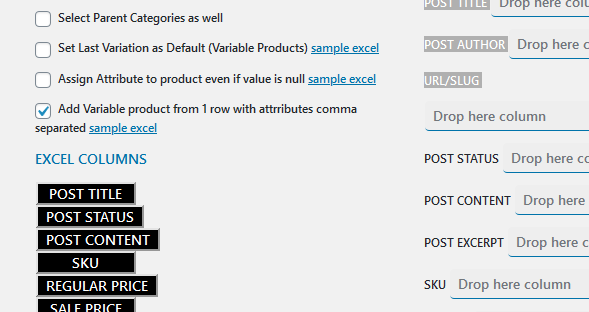
The product imports with all of its variations generated on the fly. If you later export the variations, you can update each variation’s data individually when you need to.
Related checkboxes #
| Checkbox | Use it when |
|---|---|
| Add Variable product from 1 row with attributes separated with separator defined in settings | All variations share the same data. |
| Set Last Variation as Default (Variable Products) | You want a variation pre-selected on the product page. |
| Assign Attribute to product even if value is null | Only some attributes change the data. See that guide. |
| Create only Simple Product with Attributes, if any ONLY, Not Variations | You want attributes shown but no variations. |
When to use one row per variation instead #
If variations have different prices, stock or images, use one row per variation with the parent product’s SKU in PARENT Product SKU. A sample file is linked next to Set Last Variation as Default on the mapping screen.
If it does not work #
- A simple product is created: Used in Variations is not ticked for the attributes.
- Values are merged into one term: the cell uses a different symbol from the configured separator.
- A value contains a comma: change the separator. See Import Products with a Comma in an Attribute Term Value.
FAQ #
How many variations are created? #
One for each combination of the values in the attributes marked Used in Variations.
Can I import variable products from a CSV file? #
The importer reads .xlsx Excel files. Save your CSV as .xlsx first.
Can I change one variation later? #
Yes. Export the variations, edit the rows you need and import them back.
Get the most from Products Import & Export with Excel #
WooCommerce Products Import & Export with Excel imports variable products from one row or many, and updates them later from the same Excel workflow. See everything it can do.
Need a hand? Our team answers every ticket on the Products Import & Export with Excel support forum.