Catalog health reports: CSV export and PDF audit #
Catalog health reports come in two forms in Catalog Health Scanner for WooCommerce Pro: a CSV export of any filtered issue list, for working through findings in a spreadsheet, and a designed PDF audit report you can hand to a client or a manager. Catalog Health Scanner generates the PDF itself, with no external library and no third-party service involved.
CSV export #
The CSV export is the working document: an issue list written out row by row, one row per affected product.
Exporting #
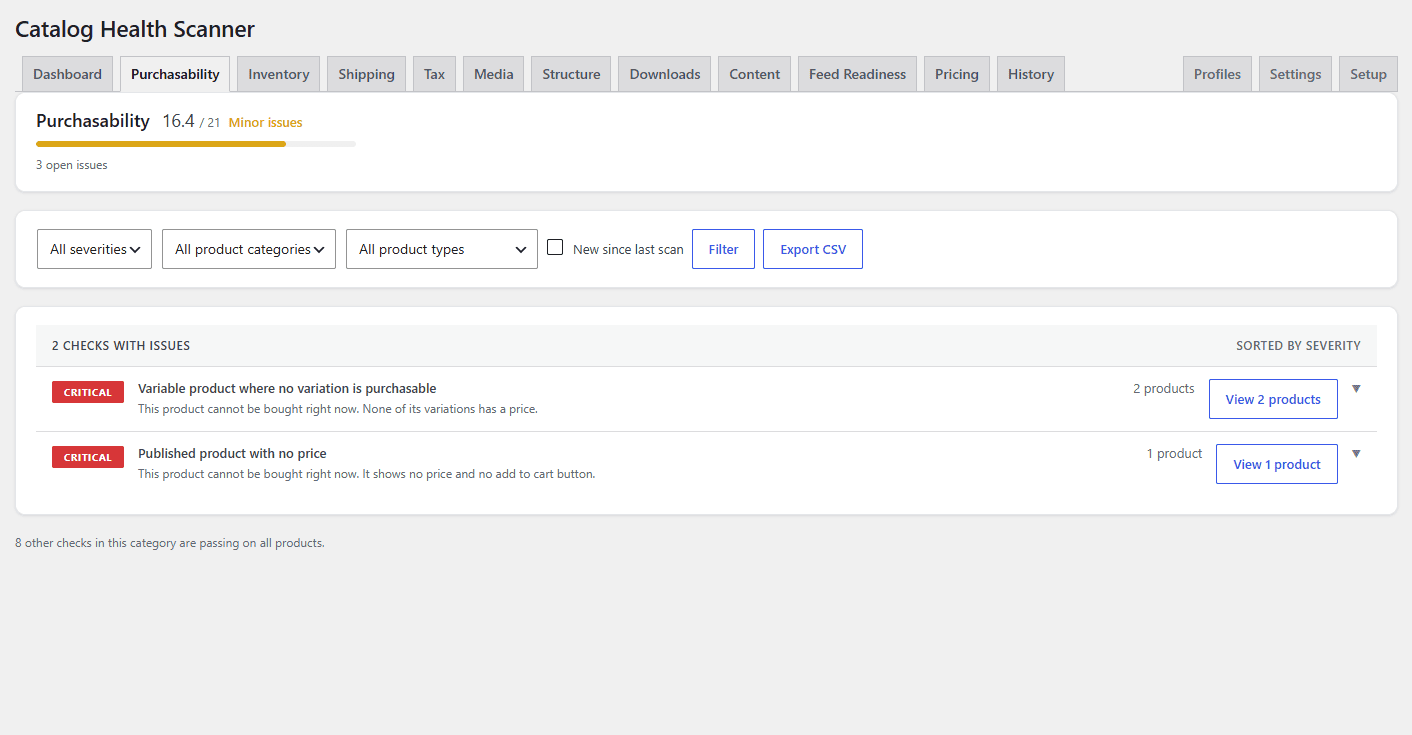
- Go to WPFactory > Catalog Health and open a category tab.
- Click Export CSV at the right-hand end of the toolbar.
The file downloads as catalog-health-issues-YYYY-MM-DD.csv, UTF-8 encoded, and covers the open issues of the category tab you are on. Note that the toolbar’s severity, product category, product type and “new since last scan” controls filter the view on screen; the export link is scoped by category. To narrow further, sort or filter in your spreadsheet: the Severity, Check and Status columns are all there for exactly that.
The export endpoint itself accepts a category, a check id, a status and a severity, so a bookmarked or programmatically built export URL can be narrower than the toolbar link.
What is in the file #
| Column | Contents |
|---|---|
| Product ID | The parent product id, so rows can be matched back to your catalog. |
| Product | The product name. |
| SKU | The product SKU, where there is one. |
| Category | The check category label, for example Purchasability or Media. |
| Check | The check label. |
| Severity | critical, high, medium, or low. |
| Status | open, resolved, or ignored. |
| Value | The offending value the check recorded, where the check captures one. |
| First seen | When this issue was first recorded. |
| Edit link | A direct admin URL to the product edit screen, so a spreadsheet becomes a clickable work queue. |
The export defaults to open issues and is capped at 100,000 rows per file, which is well beyond what a normal catalog produces.
What people use it for #
- Handing a filtered list of manual-only findings to whoever will do the editing.
- Sorting by SKU to fold the findings into a supplier or PIM spreadsheet.
- Keeping a dated record of exactly which products were affected before a bulk operation.
The PDF audit report #
The PDF is the presentation document: one score, a scorecard, and a full findings breakdown, laid out to be read rather than processed.
Downloading it #
- From the dashboard, the PDF report button builds the report for your most recent completed scan.
- From the History tab, the PDF link on any row builds the report for that specific scan.
Both are ordinary admin GET action links: the URL carries a nonce, and the handler verifies the nonce and your capability before generating anything. That means the link is not something you can email to someone who does not already have access, and a link left sitting in a stale browser tab eventually returns “Link expired.” Reload the page to get a fresh one. The file downloads as catalog-health-report-YYYY-MM-DD.pdf, dated by the scan’s completion.
Page 1: the cover #
- A dark brand band across the top with your logo and agency name, the words “Catalog Health Audit”, and your store domain plus the scan date on the right.
- The score, large, in its band colour, with the band label beside it: Healthy, Minor issues, Needs attention, or Critical.
- The number of products scanned, the number of open issues, and the profile the scan used.
- A horizontal score meter filled to the score.
- Four stat tiles: Products, Open issues, Critical, and the change against the previous completed scan.
- Severity chips: the open issue count for critical, high, medium and low.
- What to fix first: the five checks with the highest total severity weight, each with its affected product count.
The honesty line #
Directly under the headline numbers, the cover declares anything excluded from the score, in amber: “Excluded from this score: 12 issues ignored, 40 products not checked.”
This document gets handed to clients. A score that quietly omitted ignored findings or products the scan skipped would misrepresent the store, so both are stated on the same page as the number they affect. See ignore false positives and how the health score is calculated.
Page 2: the category scorecard #
One row per applicable category, each showing the label, the earned and possible points as a fraction, and a bar filled and coloured by that category’s own band. Below it, the severity distribution: a single stacked bar across critical, high, medium and low, with a labelled legend underneath.
Categories that did not apply to your store do not appear. They were excluded from both sides of the score fraction, so printing an empty row for them would be misleading.
Page 3 onward: all findings #
Every check with open issues, grouped under its category heading with that category’s score fraction on the right. Within each category the checks are ordered by severity and then by how many products they affect, each row carrying a severity colour block, the check label, the severity name, and the product count. The section paginates automatically, so a large catalog produces as many pages as it needs.
When there is nothing open, the section says so in green: “No open issues. Every applicable check passed.”
The comparison against the previous scan #
The report includes a like-for-like comparison in the form of the vs last scan stat tile on the cover: the score difference against the previous completed scan, in green when it improved, red when it dropped, and neutral when there is no earlier scan to compare with. For a check-by-check breakdown of what was fixed, what regressed and what is new, use the comparison view on the History tab, described in scan history and comparison.
One thing to know about timing #
The score, the product count, the date and the per-category fractions all come from the scan you selected, exactly as it was recorded. The severity counts and the findings list are read from your issue records as they stand at the moment you generate the file. If you fix or ignore issues after a scan and then download that scan’s report, the headline score is the scan’s and the findings list is current. For a document that matches a scan in every respect, generate it before you start fixing.
White-label branding #
Set the branding once under WPFactory > Catalog Health > Settings, in the PDF report branding (white label) panel. Values are stored in the wpfchs_branding option.
| Setting | Key | Falls back to |
|---|---|---|
| Agency / brand name | agency_name |
Your site name |
| Logo | logo_id (media library attachment) |
No logo; the name sits on its own |
| Report footer line | footer |
“Generated by Catalog Health Scanner for WooCommerce” |
Click Choose logo to pick an image from the media library, with a live preview and a Remove link. The footer line is printed on every page, alongside the page number.
Logo formats #
The PDF format only carries JPEG image data directly, so anything else is transcoded first. JPEG, PNG, WebP and GIF all work: the plugin converts non-JPEG images through the GD image library, flattening any transparency onto white, which is what a logo on a light report page needs anyway. The logo keeps its aspect ratio and is placed at a fixed width in the brand band.
On the rare server without GD, the settings screen says so directly and only JPEG logos can be rendered. Everything else in the report is unaffected.
The PDF writer is dependency free #
The report is written by a small PDF 1.4 generator built into the plugin. No PDF library is bundled, nothing is loaded from Composer, and no external rendering service is contacted, so producing a report sends none of your catalog data anywhere. Pages are A4, text is set in the standard Helvetica and Helvetica Bold faces built into every PDF reader, so there are no fonts to embed and the file stays small.
The same is true of the CSV export, which is streamed straight from your database. Note that this is a statement about the reports, not a claim that the plugin never makes an outbound request: two checks do make HTTP requests about your own site, a HEAD request per remote download URL you configured and one request to a single product page to test for structured data. Neither involves a vendor API and neither is part of report generation.
The trade-off worth knowing: the built-in fonts use a Western character set. Curly quotes, arrows, ellipses and dashes are transliterated to plain equivalents so they render as real glyphs, and characters far outside that set, such as non-Latin scripts, may not render in the PDF even though they are correct everywhere else in the plugin. If your product titles are in a non-Latin script, use the CSV export for reporting.
Which report to use #
| You want to | Use |
|---|---|
| Work through findings product by product | CSV export |
| Hand a client or manager a summary they will actually read | PDF audit report |
| Show progress over time | PDF reports from two dated scans, plus the History comparison view |
| Feed findings into another system | CSV export |
Related reading #
Need help? #
If a report will not download, or a logo does not appear on the cover, contact WPFactory support with the image format you used and whether the GD notice appears on the settings screen.