Table of Contents
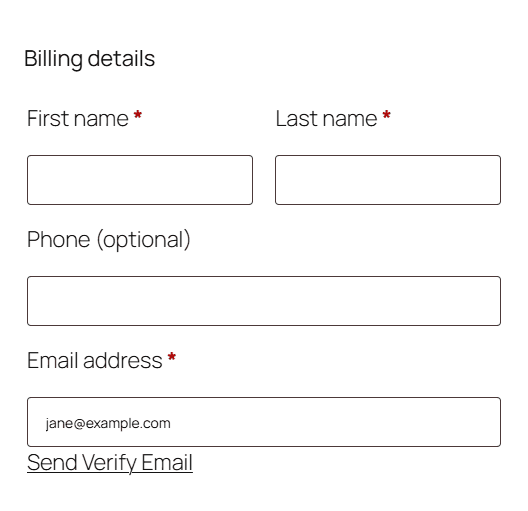
To confirm that a guest owns the email they enter at checkout, turn on guest verification in Customer Email Verification for WooCommerce. A verification link appears under the billing email field, and the customer confirms the address from their inbox before the order goes through. This is a free feature.
Before you start #
- WooCommerce, active, using the classic checkout. Guest verification does not yet run on the block-based checkout.
- Customer Email Verification for WooCommerce, installed and active.
- Guest checkout enabled in WooCommerce > Settings > Accounts & Privacy.
Turn on guest verification #
- Go to WPFactory > Email Verification (also reachable at WooCommerce > Settings > Email Verification) and open the General sub-tab.
- Find Guest users and tick Verify guest users (option
alg_wc_ev_verify_guest_email). - Leave Enable token verification on verify guest user (option
alg_wc_ev_nonce_verify_guest_email, on by default) enabled for the extra security token. If your checkout page is cached, you may need to turn this off. - Click Save changes.
Options reference #
| Label | Option ID | Default |
|---|---|---|
| Verify guest users | alg_wc_ev_verify_guest_email |
No |
| Token verification | alg_wc_ev_nonce_verify_guest_email |
Yes |
| Verification link text | alg_wc_ev_verify_guest_send_link_text |
Send Verify Email |
| Post-verification message | alg_wc_ev_verify_guest_verification_message |
Verification mail sent successfully… |
| Already verified message | alg_wc_ev_verify_guest_already_verification_message |
Email ID verified! |
| Resend link text | alg_wc_ev_verify_guest_resent_text |
Resend |
| Invalid token message | alg_wc_ev_guest_invalid_token_message |
The request could not be completed… |
| Unverified user message | alg_wc_ev_guest_unverified_user_message |
Your email is not verified… |
The Verification link text and all of the guest messages are set on the Messages sub-tab, under Guest checkout email verification.
What the customer sees #
- The customer enters their billing email at checkout and clicks the Send Verify Email link that appears below the field.
- They open the verification email and click the link to confirm the address.
- Once verified, the field shows the already-verified message and the order can be placed.
Get more from Email Verification #
Guest checkout verification is free. Customer Email Verification for WooCommerce Pro adds checkout blocking, non-paying-user rules, the REST API endpoint and scheduled cleanup of unverified users. See what Pro unlocks.