Table of Contents
To add dropdown sorting in Wishlist for WooCommerce Pro, go to WPFactory > Wishlist, open the Wishlist Page tab, enable Dropdown ordering in the Dropdown sorting section, and save. Customers can then reorder saved items by name, date, price, or SKU from a dropdown on the wishlist page. This is a Pro feature.
Before you start #
- WooCommerce, active.
- Wishlist for WooCommerce Pro.
Step-by-step setup #
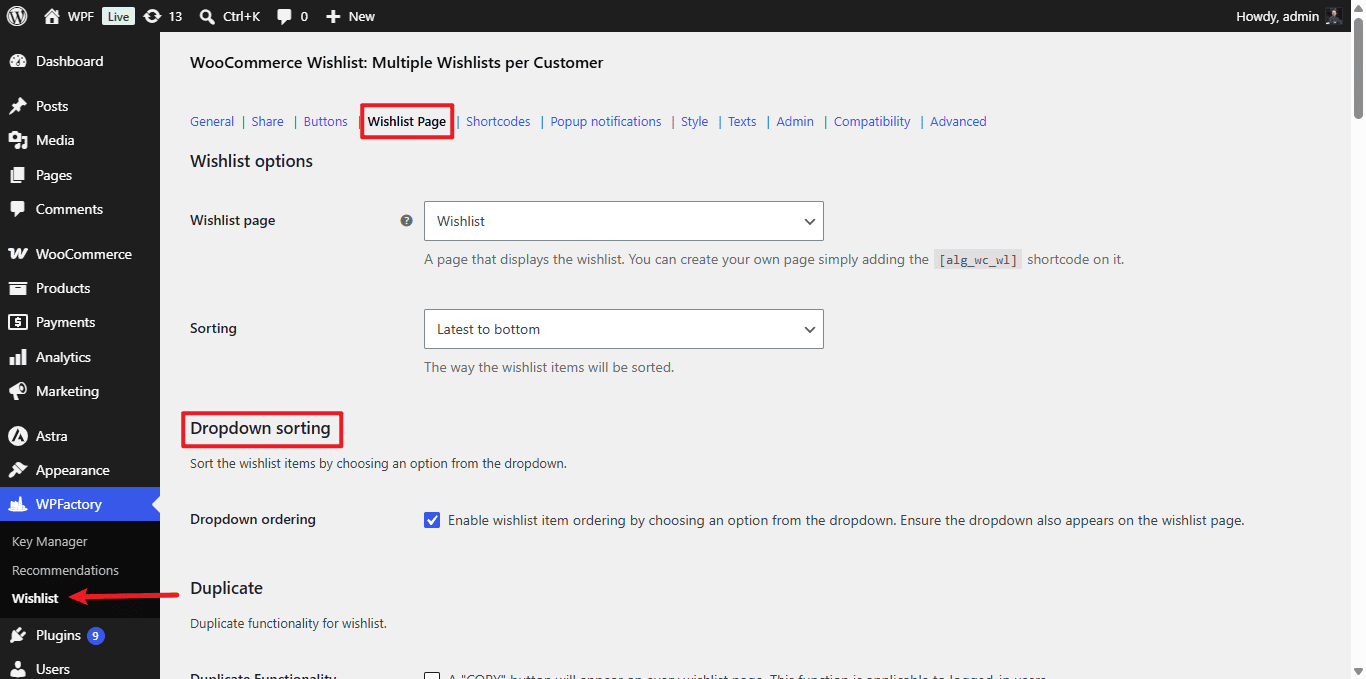
- Go to WPFactory > Wishlist (also reachable at WooCommerce > Settings > Wishlist).
- Open the Wishlist Page tab and scroll to the Dropdown sorting section.
- Enable Dropdown ordering (
alg_wc_wl_dropdown_sorting, default No). - Save changes, then confirm the dropdown appears on your wishlist page.
Wishlist for WooCommerce also offers two other sorting methods you can enable in the same tab: drag and drop (alg_wc_wl_drag_drop_sorting) and arrow ordering (alg_wc_wl_arrow_sorting). All three are Pro features.
Ready to set this up? #
This is a Pro feature of Wishlist for WooCommerce. Upgrading unlocks dropdown, drag-and-drop, and arrow sorting together. Get Wishlist for WooCommerce Pro.