To load pop-ups only on specific pages in Popups for WooCommerce: Add to Cart, Checkout & More Pro, go to WPFactory > Popups, open the Restrictive Loading group in the General section, and select Page(s), Conditional(s) such as Is Cart or Is Checkout, or both. The plugin loads when either one matches. This is a Pro feature.
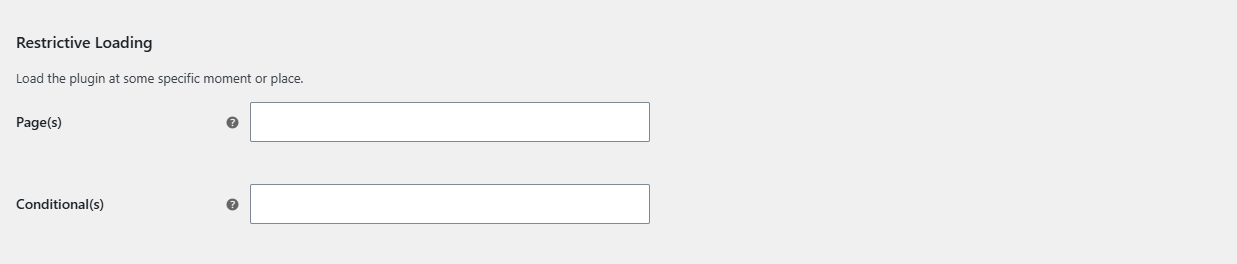
Before you start #
- WooCommerce, active.
- Popups for WooCommerce: Add to Cart, Checkout & More Pro.
Step-by-step #
- Go to WPFactory > Popups (also reachable at WooCommerce > Settings > Pop-up Notices).
- In the General section, open the Restrictive Loading group.
- Under Page(s), select one or more of your published WordPress Pages. Leave empty to allow all pages.
- Under Conditional(s), select one or more WooCommerce contexts. Leave empty to skip the conditional check.
- Save changes. The plugin loads when either the current page or a conditional matches.
Available conditionals #
The Conditional(s) option (ttt_pnwc_opt_restrictive_loading_conditionals) offers: Is WooCommerce, Is Shop, Is Product Category, Is Product Tag, Is Product, Is Cart, Is Checkout, Is Account Page, Is WC Endpoint URL, and Is AJAX.
| Setting | Option ID | What it lists |
|---|---|---|
| Page(s) | ttt_pnwc_opt_restrictive_loading_pages |
Your published WordPress Pages. |
| Conditional(s) | ttt_pnwc_opt_restrictive_loading_conditionals |
WooCommerce conditional tags. |
Note: Page(s) matches published Pages, not WooCommerce endpoints. To target the cart or checkout, use the Is Cart or Is Checkout conditional. Developers can add their own conditionals with the ttt_pnwc_conditionals_options filter.
Ready to set this up? #
Restrictive Loading is a Pro feature of Popup Notices. Get Popup Notices Pro.