In Product XML Feeds Manager for WooCommerce, every enabled feed updates automatically once a week through WP-Cron on the free version. To change the frequency, use the Pro Update period selector in the feed’s section at WPFactory > Product XML Feeds. For reliable timing, add the feed’s Manual Cron Job Command to a real server cron.
Where to find these settings #
Go to WPFactory > Product XML Feeds (also reachable at WooCommerce > Settings > Product XML Feeds) and open the XML Feed #1 section (or the section for the feed you want to schedule). The scheduling controls live in the General Options and Manual Cron Job Command groups.
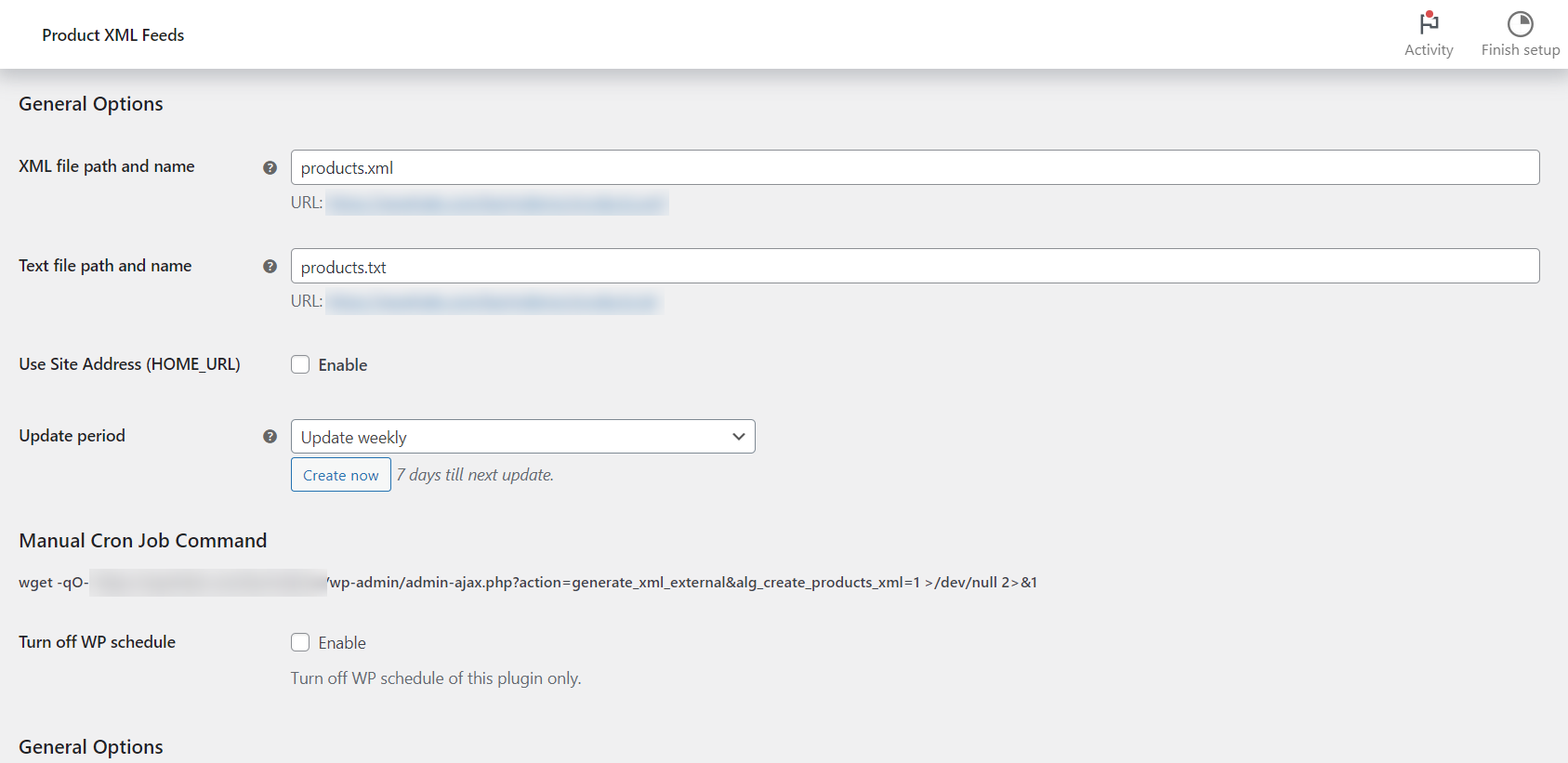
The free weekly schedule #
Every enabled feed updates automatically once a week on the free version. This runs through WP-Cron and needs no setup. The next run time is shown next to the Create now button as “… till next update”.
Change the update period (Pro) #
The Update period selector (alg_create_products_xml_period_1, default weekly) lets you pick how often the feed rebuilds. It is disabled on the free version, so free stores stay on the weekly schedule. Upgrading to Product XML Feeds Pro unlocks the selector with these choices:
| Label | Stored value | Runs |
|---|---|---|
| Update every minute | minutely |
Once a minute |
| Update hourly | hourly |
Once an hour |
| Update twice daily | twicedaily |
Every 12 hours |
| Update daily | daily |
Once a day |
| Update weekly | weekly |
Once a week (default) |
These are the only intervals the plugin defines. There is no “monthly” option and no custom “days until next update” field.
Note: the shorter intervals depend on real traffic. WordPress runs scheduled tasks through WP-Cron, which only fires when someone visits your site. On a quiet store, “Update every minute” will not truly run every minute. For reliable timing, use the manual cron job below.
Use a real cron job (recommended for tight schedules) #
The Manual Cron Job Command group shows a ready-made command you can add to your server’s crontab so the operating system, not site visits, triggers each rebuild. It looks like this:
wget -qO- https://your-store.com/wp-admin/admin-ajax.php?action=alg_wc_product_xml_feeds_generate_xml_external&secret=YOUR_SECRET&alg_create_products_xml=1 >/dev/null 2>&1Copy the exact command from the settings screen: the secret value is derived from your feed Security Key, and alg_create_products_xml is the feed number. Add it to your crontab at the frequency you want, for example every 15 minutes.
Turn off the WordPress schedule #
If you drive updates entirely from a server cron job, enable Turn off WP schedule (alg_products_xml_turn_off_wp_schedule_1, default No). This stops WP-Cron from scheduling this plugin’s events, so the feed only rebuilds when your cron command calls it. Leave it off if you rely on the built-in schedule.
Rebuild a feed manually at any time #
The Create now button rebuilds the feed immediately. Save your settings first, then click it. Learn more in Generate Your Feed and Find Its URL.
Get flexible scheduling #
The weekly schedule is free. Changing the update period is part of Product XML Feeds Manager for WooCommerce Pro, which also lets you run multiple feeds on independent schedules. See what Pro unlocks.