To add WooCommerce Brands to a product feed with Product XML Feeds Manager for WooCommerce, go to WPFactory > Product XML Feeds > XML Feed #1 and put [alg_product_terms taxonomy="product_brand"] inside a brand tag in the XML item template. There is no [alg_product_brand] shortcode. Brand output is free; filtering the feed by brand is Pro.
Before you start #
- WooCommerce Brands stores each brand as a term in the
product_brandtaxonomy. That slug is what the shortcode and the filter need. - If you use a different brands plugin, find its taxonomy slug (for example
pwb-brand) and use it instead ofproduct_brandeverywhere below. - Assign a brand to each product under Products > Edit product > Brands before you generate the feed.
Output the brand in the feed #
- Go to WPFactory > Product XML Feeds (also reachable at WooCommerce > Settings > Product XML Feeds) and open the feed, for example XML Feed #1.
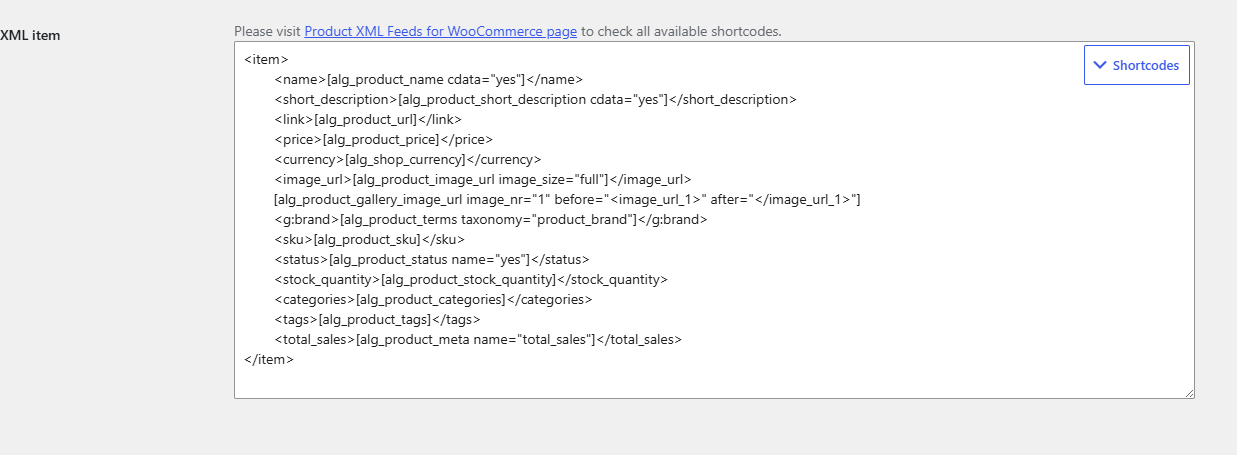
- In Template Options > XML item, add a brand line. For Google Merchant Center:
<g:brand>[alg_product_terms taxonomy="product_brand"]</g:brand>. For other channels, use the tag name they ask for, such as<brand>. - If the feed includes variations, add the same line to Variation XML item. A variation reads the brands of its parent product, so you do not need to set brands on variations.
- Click Save changes, then Create now, and open the feed URL to check the result.
Useful attributes #
| Attribute | Default | What it does |
|---|---|---|
taxonomy |
empty | Required. The taxonomy to read, product_brand for WooCommerce Brands. Empty outputs nothing. |
sep |
, (comma and space) |
Separator when a product has more than one brand. |
orderby |
name |
Order of several brands: name, term_id, parent_id or hierarchy. |
on_empty |
empty | Fallback text for products with no brand, for example your store name. |
Example with a fallback: <g:brand>[alg_product_terms taxonomy="product_brand" on_empty="My Store"]</g:brand>. The other shared attributes, such as cdata, find and replace, are listed in the global shortcode attributes reference.
Include only certain brands (Pro) #
- In the same feed, scroll to Extra Products Filtering Options.
- Enter
product_brandin Custom taxonomy to include. - Enter the brand slugs in Custom taxonomy slugs (comma separated), for example
lenovo,samsung,apple. Use the slug shown under Products > Brands, not the display name. - Click Save changes, then Create now.
The feed then contains only products assigned to at least one of those brands. Leave both fields blank to include all products.
Troubleshooting #
- The brand tag is empty. The product has no brand in that taxonomy, or the taxonomy slug is misspelled. Check the product’s Brands box and the
taxonomyvalue. [alg_product_brand]gives no brand. It is not a shortcode of this plugin. Use[alg_product_terms taxonomy="product_brand"].- The feed still shows the old content. Click Save changes and then Create now. See common issues and solutions.
For every shortcode you can use in a template, see shortcodes for generating XML fields.
Get more control #
Adding the brand to your feed is free. Product XML Feeds Manager for WooCommerce Pro adds the brand, stock, price and custom meta filters, extra feeds and a custom update schedule. See what Pro unlocks.
Need a hand? Our team answers every ticket on the Product XML Feeds support forum.