The image options control the thumbnails shown next to each related category in Related Categories for WooCommerce. You can pick the image size, set a fallback image for categories with none, or remove the images entirely. These options are free.
Find them under Image Options at WPFactory > Related Categories (also reachable at WooCommerce > Settings > Related Categories), on the Single or Archives sub-tab.
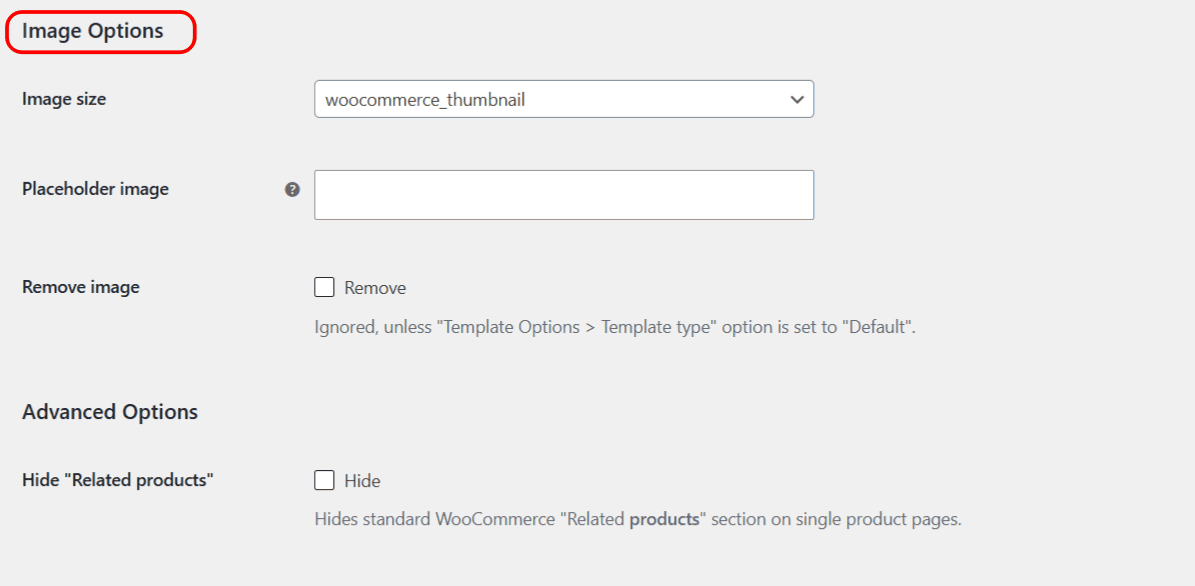
Options reference #
| Label | Option ID (array key) | Type | Default |
|---|---|---|---|
| Image size | image_size |
Select | woocommerce_thumbnail |
| Placeholder image | placeholder_image |
Text | (empty) |
| Remove image | remove_image |
Checkbox | No |
Image size #
Image size is the registered WordPress image size used for the category thumbnails. It defaults to woocommerce_thumbnail. The list contains the intermediate image sizes registered on your site, so you can switch to a larger or smaller size to match your layout.
Placeholder image #
Placeholder image sets the image used for categories that have no thumbnail. Enter an attachment ID or a full image URL. Left empty, the standard WooCommerce placeholder image is used instead.
Remove image #
Remove image hides the category thumbnails entirely. It applies only when Template type is set to Default. If you use a Custom template, control the image yourself by including or omitting the %category_image_link% placeholder in your markup.
Get more control #
The image options are free. Related Categories for WooCommerce Pro adds hand-picked related categories per product, category, tag and custom taxonomy. See what Pro unlocks.