To start tracking stock with Stock History & Reports Manager for WooCommerce, install and activate it, then go to WPFactory > Stock Snapshot (also reachable at WooCommerce > Settings > Stock Snapshot). It records stock on every product update and once a day by default, so history starts building right away.
What Stock History does #
Stock History takes stock snapshots: a record of a product’s stock quantity at a moment in time. It saves a snapshot each time a product is updated (for example after a sale, a refund or a manual edit) and also on a schedule for every product. From those snapshots you can:
- See each product’s stock history, with who or what changed it, in a box on the product edit screen.
- Run a stock change report for any date range, filtered by user, category or restocked products.
- Compare stock levels across days, months or years in one table.
- Export any of these views to CSV.
- Show recently restocked products on your store with a shortcode.
- Pro: receive snapshot emails and scheduled daily report emails.
Requirements #
- WooCommerce, installed and active.
- Products with Manage stock? enabled (on the product’s Inventory tab). Products that do not track a quantity have no stock number to record.
- Working WP-Cron for scheduled snapshots. The plugin uses Action Scheduler, which WooCommerce includes.
Install and activate #
- Go to Plugins > Add New Plugin.
- Search for the plugin name to install the free version, or click Upload Plugin and choose the Pro zip file from your WPFactory account.
- Click Install Now, then Activate.
- Go to WPFactory > Stock Snapshot, or click Settings under the plugin name on the Plugins screen.
If both the free and Pro versions are installed, the free copy steps aside while Pro is active.
First steps #
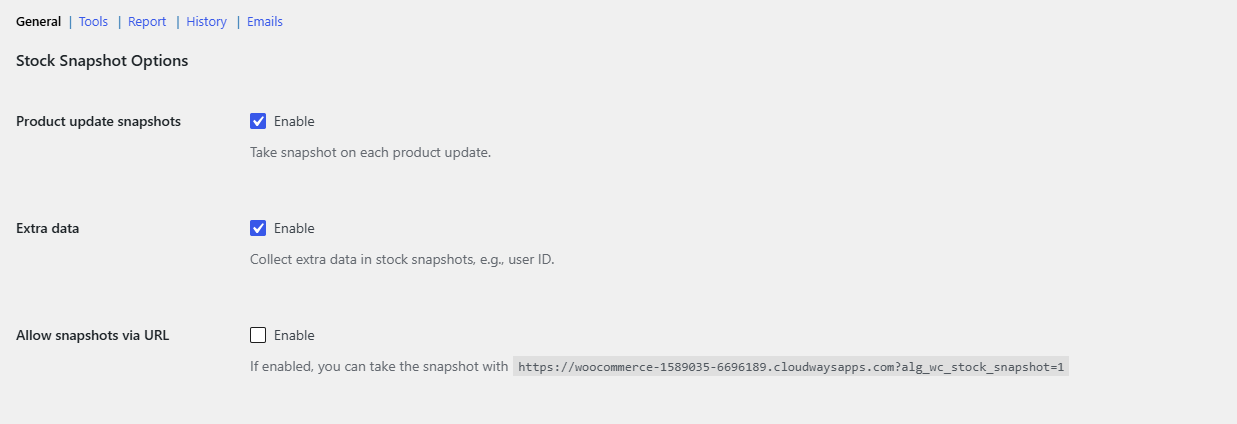
- On the General section, review the defaults. Product update snapshots, Extra data, Include variations and Periodic snapshots (every 86400 seconds, once a day) are all on.
- Take a first snapshot of your whole catalog so every product has a starting point: open the Tools section, tick Take snapshot and click Save changes. A message confirms how many products were recorded.
- Open any stock-managed product. Scroll to the Stock Snapshot box to see its history.
- Open the Report section later to see stock changes over the last day, or pick a longer range.
The settings screen at a glance #
- General: when snapshots are taken, what data they store, how variations are handled, and whether reports are prepared in the background.
- Tools: take a snapshot now, delete all snapshots, or clear the plugin’s cached report data.
- Report: a list of every stock change in a date range, with filters and CSV export.
- History: a table of stock levels per product across dates, with CSV export.
- Emails: snapshot emails and daily report emails (Pro).
Free and Pro #
Snapshots, the product history box, the Report and History sections, CSV exports, the shortcode and the tools are all free. The Emails section is Pro: in the free version its switches are disabled. See Stock History Free vs Pro.
Where to go next #
- How to See WooCommerce Stock History for a Product
- How to Create a WooCommerce Stock Change Report
- How to Schedule Automatic WooCommerce Stock Snapshots
- Stock History settings reference
Get more from Stock History #
Tracking and reports are free. Stock History & Reports Manager for WooCommerce Pro adds stock snapshot emails and scheduled daily report emails. See what Pro unlocks.
Need a hand? Our team answers every ticket on the Stock History support forum.