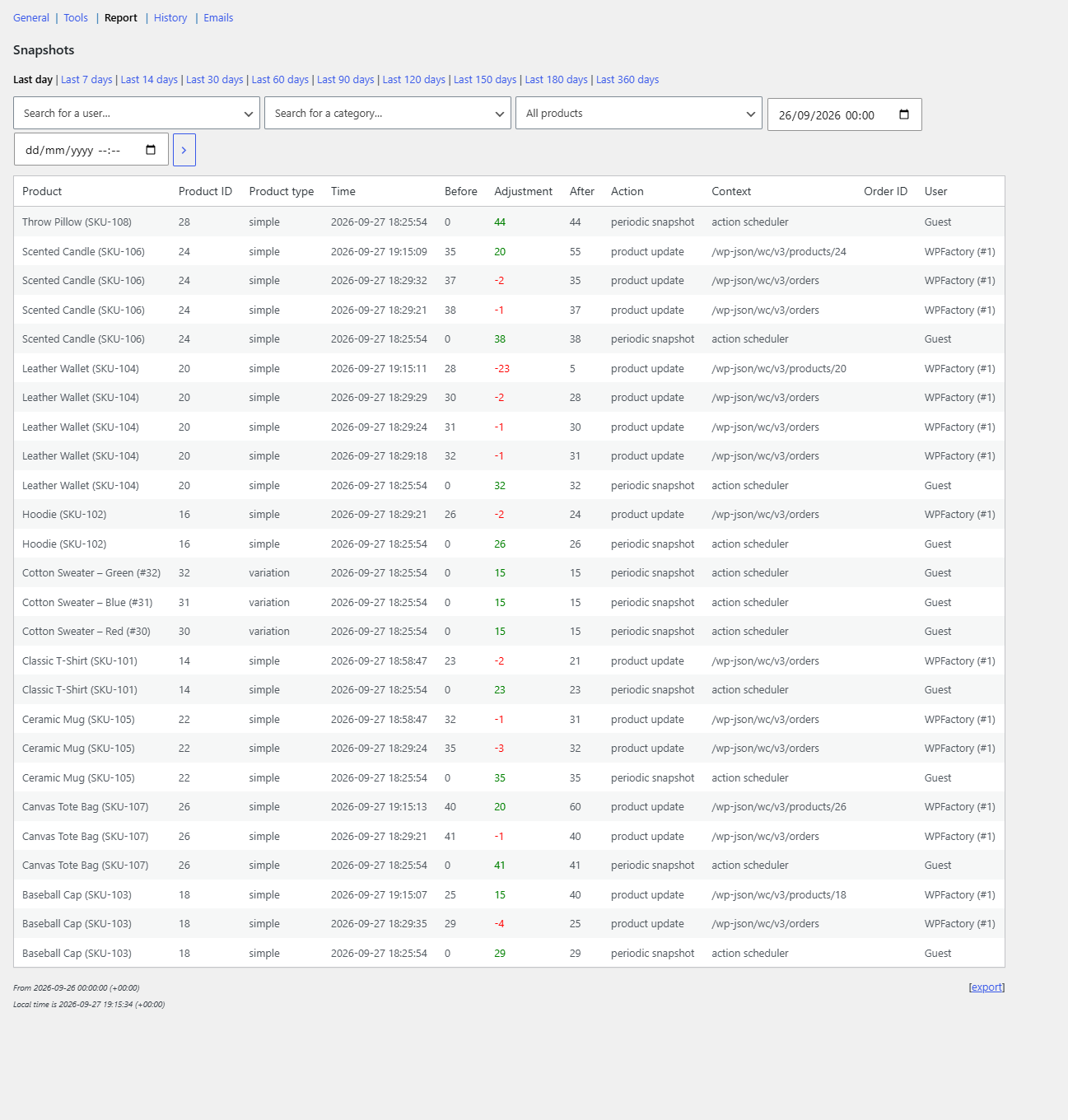
To create a WooCommerce stock change report, go to WPFactory > Stock Snapshot > Report in Stock History & Reports Manager for WooCommerce, pick a date range such as Last 7 days, optionally filter by user, category or restocked products, and click the arrow button. Click export to download the report as CSV.
Before you start #
- The report is built from stock snapshots, so it only covers changes recorded since the plugin was activated.
- To filter by user, Extra data must be on under General (it is by default). A notice on the Report page reminds you if it is off.
- The Report section and CSV export are free.
Steps #
- Go to WPFactory > Stock Snapshot (also reachable at WooCommerce > Settings > Stock Snapshot) and click Report. By default it shows changes since the start of yesterday.
- Click a preset range: Last day, Last 7 days, Last 14 days, Last 30 days, and so on up to Last 360 days.
- Or set exact start and end date and times in the two date fields.
- Optional filters:
- Search for a user: only changes made by that user, for example one shop manager or one customer.
- Search for a category: only products in that product category.
- Report type: All products, Restocked products, or Restocked products (excl. variations).
- Click the arrow button to run the report.
- To download it, click [export] above the footer. The file is named
stock-snapshot-report.csv.
The Report section has no Save button: filters are applied through the page address, so you can bookmark a report.
Report columns #
With the All products type, each row is one stock change, newest first:
| Column | Meaning |
|---|---|
| Product, Product ID, Product type | The product or variation that changed. |
| Time | When the change was recorded, in your site’s time zone. |
| Before, Adjustment, After | The previous quantity, the change (green up, red down), and the new quantity. |
| Action, Context | What triggered the snapshot and where the change came from, such as checkout or product edit. |
| Order ID | The related order, when known. |
| User | Who made the change. |
Snapshots where the quantity did not change are left out.
Restocked reports #
The Restocked products type lists, in alphabetical order, each product whose stock went up at least once in the range. If you also filter by user, a User column shows who restocked it. Restocked products (excl. variations) hides variations and appears only when both Include variations and Append variations are on under General.
Large stores: prepare reports in the background #
The report reads the snapshots of every product. On a large catalog the page can be slow or time out. To avoid that:
- Go to General > Advanced Options.
- Tick Prepare reports in background and save.
- Open the Report section. It shows Preparing data…, builds the report with Action Scheduler, checks every 5 seconds and reloads when the report is ready.
Finished reports are cached until the next snapshot is taken or settings are saved, so opening the same report again is fast.
Frequently asked questions #
Why does the report say “No snapshots found.”? #
No stock changes were recorded in that range, or no product matches your filters. Try a longer range, clear the filters, and check that your products have Manage stock? enabled.
Can I see which products a specific staff member restocked? #
Yes. Choose the user, set the type to Restocked products and run the report. Extra data must be on so the user is stored with each snapshot.
Can I get this report by email every day? #
Yes, with Pro. Set up Daily report emails on the Emails section. See How to Email WooCommerce Stock Reports Automatically.
Are CSV values quoted? #
Yes. Every value is wrapped in double quotes, and any double quote inside a value is replaced with a single quote so the file opens cleanly in spreadsheets.
Get more from Stock History #
This report is free. Stock History & Reports Manager for WooCommerce Pro can email it to you on a schedule. See what Pro unlocks.
Need a hand? Our team answers every ticket on the Stock History support forum.