WooCommerce Margin Alerts: Catch Low-Margin Products Before They Drain Profit

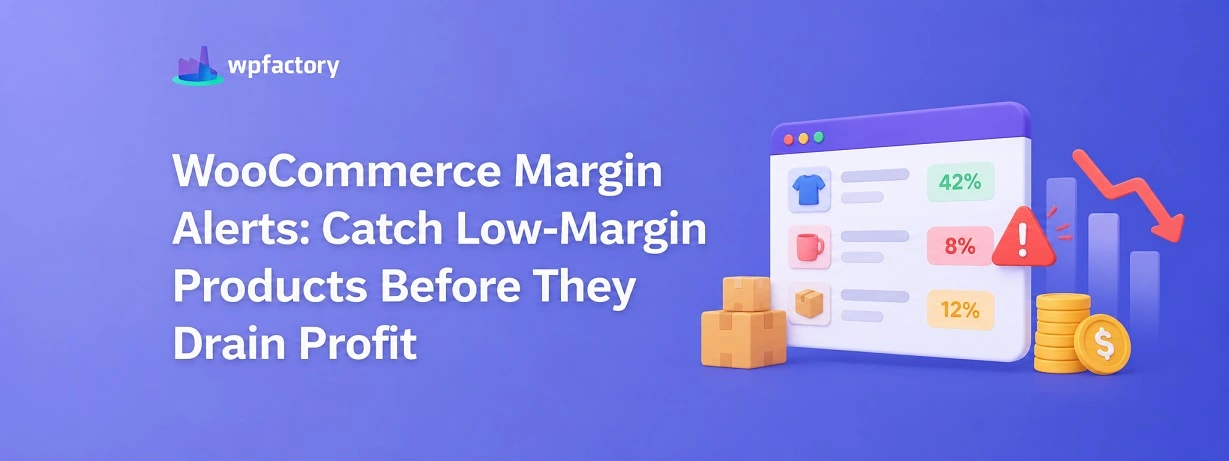
WooCommerce margin alerts are how you stop a healthy-looking store from hiding a handful of products that quietly lose money. The idea is simple to say and easy to skip.. pick a target margin, then watch for any product that slips under it. The catch is that WooCommerce shows you sales, not margins, so the products slipping under the line are the ones you are least likely to notice.
- Set a target margin: the line every product is measured against.
- Rank by margin, not by sales: best sellers and worst margins often overlap.
- Act on what falls below: reprice, re-source, or retire it.
The checker further down flags which of your own products sit below the line, and by how much, so you can see where the leak is before you read another word.
Your store had a good month. The totals say so.
Revenue up, orders up, the dashboard a cheerful shade of green. Somewhere inside that green, though, three products sold well and made you almost nothing. One of them might have lost a little on every sale.
You would not know. Nothing on the screen points at them.
That is the quiet problem with a healthy average. It is an average. It blends your strong margins and your weak ones into a single comfortable number, and the weak ones shelter inside it, selling briskly, costing you the profit you thought you were making.
Finding those products is the whole job here. Not calculating a margin, you can already do that, but spotting which items in a full catalog have drifted below the line you set for them.
What a Margin Alert Means for a Real Store
Let us be plain about what this is, because the phrase can sound more automatic than it is.
A margin alert is not a robot that taps you on the shoulder. It is a habit backed by the right data. You decide the lowest margin a product is allowed to earn, then you check your catalog against that number on a schedule, and anything under it gets flagged for a decision.
The margin itself is old news. If you want the formula and the difference between gross, operating, and net, the how to calculate profit margin guide lays it out. This piece assumes you have your number and moves to the part nobody automates for you, which is noticing.
Noticing is harder than it sounds, because the products that need noticing are very good at hiding.
Why Low-Margin Products Stay Hidden
Three things keep a weak product out of sight, and they work together.
The first is the blended average. A store margin of 40 percent feels safe, yet it can hold a product running at 8 percent and another at 70, averaged into calm. The number that reassures you is the number doing the hiding.
The second is sales volume. A low-margin product often sells well, precisely because it is priced keenly. Strong sales read as success, so the item that moves the most units can be the one quietly earning the least per sale.
The third is creeping cost. A product you priced correctly a year ago drifts as your supplier raises prices. The selling price held, the margin sank, and nothing in WooCommerce announced the change.
Put those together and you get a product that looks like a winner on every screen you normally check, while thinning your profit on every order.
Seeing It With Numbers
A short example shows how fast the picture changes once you rank by margin instead of by sales.
Say your target margin is 25 percent. Below that line, a product is not pulling its weight. Here are four items from a catalog, sorted the way your store never sorts them.
| Product | Price | Cost | Margin | Against 25% Target |
|---|---|---|---|---|
| Scented candle | $24.00 | $10.00 | 58.3% | Above |
| Ceramic mug | $15.00 | $12.00 | 20.0% | Below |
| Tote bag | $18.00 | $9.00 | 50.0% | Above |
| Enamel pin | $8.00 | $6.50 | 18.8% | Below |
Two of the four sit below the line. The mug and the pin.
Here is the part that stings.
If the mug and the pin are two of your better sellers, your sales report has been applauding the exact products your margin report would flag. Same store, same month, opposite story, and only one of those reports was ever in front of you.
The mug needs a dollar more on its price to clear the target. The pin needs about sixty-seven cents. Small moves, once you can see where to make them.
Setting Up Margin Monitoring in WooCommerce
To rank your catalog by margin, your store first has to know what each product costs. WooCommerce does not record that on its own, so this is where a cost plugin earns its place.
With the Cost of Goods for WooCommerce plugin, you store a true cost on every product and variation. From there, its reports show profit and margin per product, per category, and per date range, which is the view that lets you sort the catalog the way the table above did.
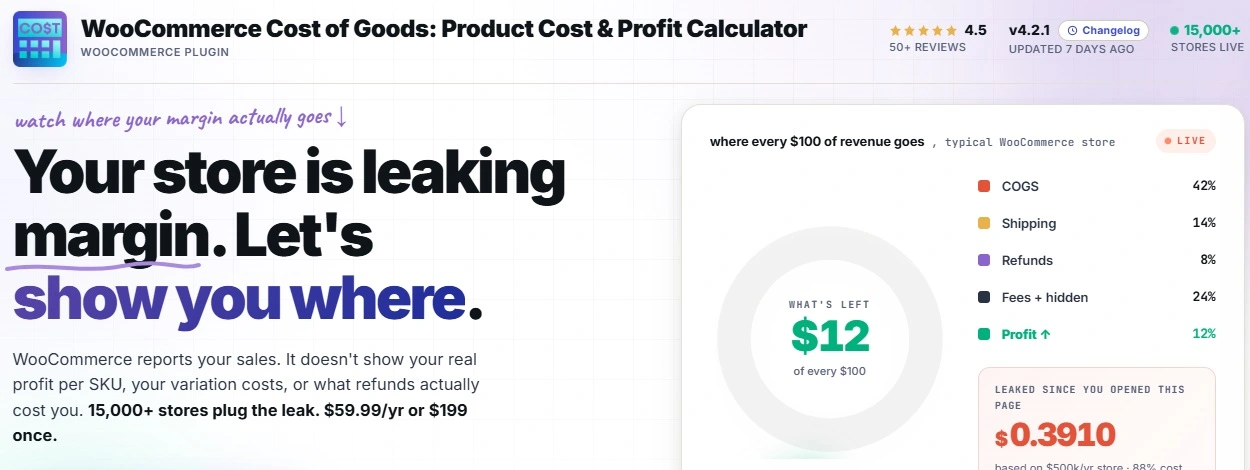
That sorted, margin-first view is your alert system. Rank by margin, and the products below your target rise to the top of the list on their own. No average left to hide inside.
The plugin also watches the order side. Its cost-of-goods information on order emails is built to catch a loss-making order before you fulfill it, so a sale that slips underwater shows its true profit while there is still time to act. The deeper mechanics of that per-order view live in the WooCommerce profit per order guide.
One honest note, so expectations are right. The plugin gives you the accurate costs and the margin reports. You set the target and make the call on each flagged product. The tool does the seeing, you do the deciding.
Rank Your Catalog by Margin, Not by Sales
The Cost of Goods for WooCommerce plugin stores a real cost on every product, then reports profit and margin per product so the items below your target rise to the surface. Loss-making orders even flag on the order email, before you ship. Join 15,000+ stores using it, rated 4.5 stars, with a 14-day money-back guarantee.
Manual Checks Versus Reporting That Does It for You
You can monitor margins by hand. Plenty of stores start there. It is worth seeing what that costs you compared with letting the data do the work.
| Aspect | Manual Spreadsheet | Margin Reporting in WooCommerce |
|---|---|---|
| Where costs live | A separate file, copied by hand | On the product itself, in your store |
| Staying current | You update it, or it rots | Reflects the cost on record, live |
| Finding the losers | Sort a sheet, hope it matches reality | Rank by margin in a click |
| Catching a bad order | You find out at month end | Flagged on the order email, before shipping |
A spreadsheet is fine for ten products. At two hundred, the hand-copied version is where margin leaks go to be forgotten.
Check Your Own Products Against Your Target
The table used four sample products. Yours are the ones that matter.
Set your target margin, then enter each product with its price and cost. Add as many rows as you like. The checker flags every product below the line and tells you how much more price each one needs to clear it.
Margin Alert Checker
If a product you were proud of came back red, that is the alert doing its one job. Better to meet the number here than to keep shipping it unseen.
What to Do With a Flagged Product
A flag is a question, not a verdict. Once a product shows below your target, you have a short list of honest responses.
-
Raise the Price
The simplest fix, and often the right one. The checker tells you the exact lift needed to clear the target, so the increase is measured, not a guess. Many stores find the market barely notices a one-dollar move.
-
Lower the Cost
If the price cannot move, the cost sometimes can. A better supplier rate, a larger order, or cheaper packaging can lift the margin without touching what the customer pays. Keeping each WooCommerce variable product cost of goods current is what makes this visible per option.
-
Let It Earn Its Place
Some low-margin products stay on purpose. A loss leader that pulls buyers toward higher-margin items is doing a job the margin number cannot see. The point of the alert is to make that a decision you chose, not one that happened to you.
Keeping Your Margin Alerts Honest Over Time
An alert system is only as truthful as the costs behind it. Those costs drift, so the check has a rhythm.
Supplier prices move, usually upward.
When a product cost rises and your stored figure does not, a product that was safely above your target slips under without a sound. Updating the cost the day it changes keeps the flag honest.
Your target itself may shift too.
A new sales channel with higher fees, or a season of heavier discounting, can mean the margin you accepted last year is too thin this year. Revisit the target when the business around it changes.
A short review once a quarter, plus an update whenever a cost changes, is enough to keep your woocommerce margin alerts pointed at the products that really need a look.
Related Resources
- Start with the WooCommerce cost of goods guide for the full picture of profit tracking.
- Learn the formula itself in how to calculate profit margin before you set your target.
- See the order-level view your alerts build on in WooCommerce profit per order.
- Rank the whole catalog at once with a WooCommerce profit report.
- Fold hidden costs in first by learning to add shipping and payment fees to WooCommerce cost of goods.
Find the Quiet Losers in Your Catalog
The Cost of Goods for WooCommerce plugin stores real product costs and reports margin per product, so the items below your target stop hiding inside the average. Loss-making orders flag on the order email before you ship. Join 15,000+ stores using it, rated 4.5 stars, backed by a 14-day money-back guarantee.
FAQs About WooCommerce Margin Alerts
What are margin alerts in WooCommerce?
They are a way to flag any product whose profit margin falls below a target you set. Rather than reading the store average, you check each product against the line and surface the ones underneath it.
WooCommerce does not store product costs on its own, so a cost plugin is what makes the margins, and the alerts, possible.
How do I find low-margin products in WooCommerce?
Store a real cost on each product, then rank your catalog by margin instead of by sales. The products below your target rise to the top of that ranked list, which is where a sales report never puts them.
The checker above does the same thing for a quick batch of products you enter by hand.
Does WooCommerce warn me about a product below my target margin?
Not by itself. WooCommerce records sales but not costs, so it has no margin to compare against a target.
With the Cost of Goods for WooCommerce plugin, margin reports let you rank products against your target, and loss-making orders can flag on the order email before fulfillment.
What target margin should I use for a WooCommerce store?
It varies by what you sell, but many physical-product stores treat anything under 25 to 30 percent gross margin as a product worth reviewing.
Set the number that fits your own costs and goals, then measure every product against it rather than against the store average.
Is there a plugin that reports profit margin per product in WooCommerce?
Yes. Cost of Goods for WooCommerce is available on WordPress.org and reports profit and margin per product, per category, and per date range, which is the view that lets you flag anything below your target.
It also shows cost-of-goods information on order emails, so a loss-making order is visible before you ship it.