WooCommerce Order Status List + How to Get Order Status (PHP)


Quick answer: WooCommerce has eight default order statuses: Pending payment, Processing, On hold, Completed, Cancelled, Refunded, Failed and Draft (used by the block checkout). To read an order’s status in code, load it with wc_get_order( $order_id ) and call get_status(), which returns the slug without the wc- prefix, such as processing.
Trying to understand WooCommerce order statuses or figure out how to get order status in code?
Most store owners and developers run into the same problem.. the default statuses are not always clear, and the documentation is often split between explanations and technical snippets.
In this guide, you’ll find both sides in one place.
First, a complete WooCommerce order status list with what each status means, what triggers it, and what happens next.
Then, a simple developer section showing how to get order status programmatically using wc_get_order() and get_status().
Whether you’re managing orders in your dashboard or building custom logic around them, this guide will help you understand how WooCommerce order statuses actually work in practice.
Quick Answer: WooCommerce Order Status List
WooCommerce includes several default order statuses that represent each stage of an order, from payment to completion or cancellation.
- Pending Payment → Order created, waiting for payment
- Processing → Payment received, order is being prepared
- On Hold → Waiting for manual confirmation or payment
- Completed → Order fulfilled and finished
- Cancelled / Failed → Order not completed
- Refunded → Payment returned to the customer
Keep reading to see what triggers each status, what happens next, and how to manage or customize them in WooCommerce.
WooCommerce Order Status List (Complete Reference)
If you’re trying to understand how WooCommerce order statuses work, this table gives you a complete, practical reference.
Instead of guessing what each status means, you can quickly see what triggers it and what usually happens next.
| Order Status | What It Means | What Triggers It | What Happens Next |
|---|---|---|---|
| Pending Payment | The order was created, but no payment has been received yet. | Customer selects a payment method but does not complete payment. | Waiting for payment. The order may be cancelled automatically after a timeout. |
| Processing | Payment is received, and the order is being prepared. | Successful payment for physical products. | Store owner fulfills the order (packing, shipping, etc.). |
| On Hold | The order is awaiting confirmation or manual review. | Manual payment methods (bank transfer, cash on delivery) or verification needed. | Order remains paused until confirmed or updated. |
| Completed | The order has been fulfilled and finalized. | Order is shipped or delivered, or digital product is fully delivered. | No further action required. Order is considered finished. |
| Cancelled | The order was cancelled and will not be processed. | Customer cancels the order or payment is not completed in time. | No fulfillment happens. Order is closed. |
| Refunded | Payment has been returned to the customer. | Store owner issues a full or partial refund. | Order is closed after refund is processed. |
| Failed | Payment attempt failed or was declined. | Payment gateway rejects or fails the transaction. | Customer may retry payment or abandon the order. |
| Trash | The order has been moved to trash. | Store owner deletes the order from the dashboard. | Order can be permanently deleted or restored. |
These are the default WooCommerce order statuses. If your store workflow requires additional steps (like “Awaiting Shipment” or “Quality Check”), you can extend this system using custom order statuses.
Where to Find Order Status in WooCommerce (Step by Step)
Fortunately, WooCommerce makes it easy to find this information right inside your WordPress dashboard.
Here’s how to do it, step by step:
-
Step 1: Log in to Your WordPress Dashboard
Start by logging in to your WordPress site. This is where all your WooCommerce settings and orders are managed.
-
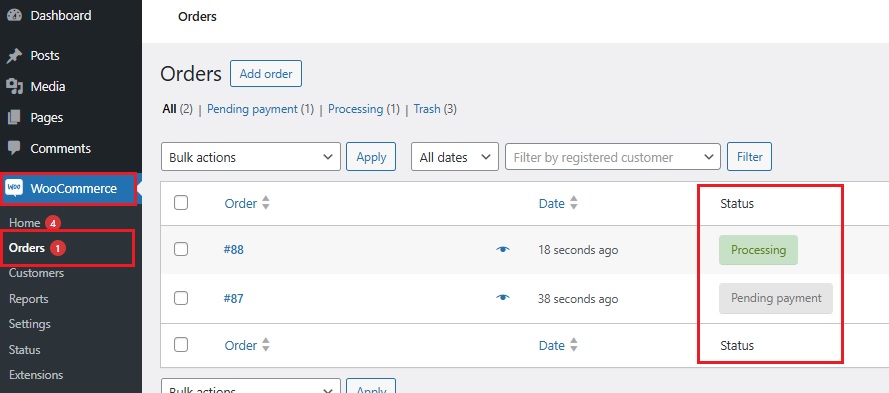
Step 2: Go to WooCommerce > Orders
From the left-hand menu, hover over WooCommerce, then click on Orders.
This opens a list of all your customer orders.
-
Step 3: Look at the “Status” Column
Each order is listed with a few key details — like order number, customer name, total amount, and status.
The status appears in a colored label (like “Processing,” “Completed,” or “On hold”) in the Status column.
That’s your order’s current stage in the WooCommerce order process.
-
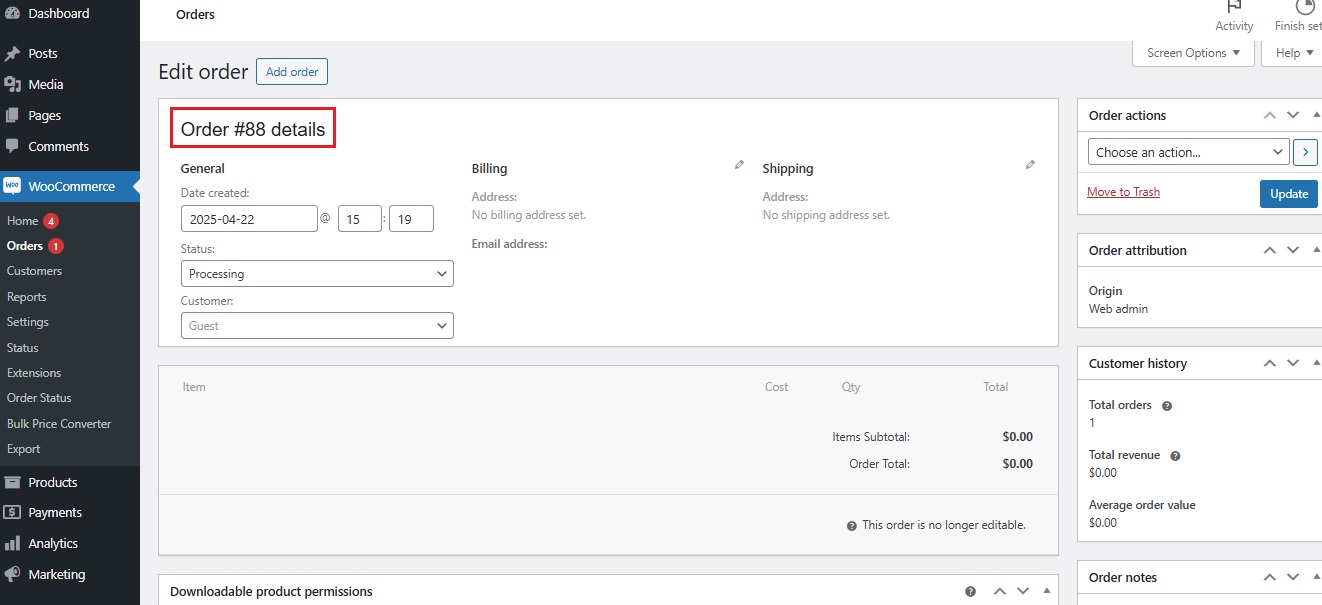
Optional: Click on Any Order for More Details
If you want to know more about a specific order, click on it.
Inside, you’ll see a detailed timeline, payment method, products ordered, and a dropdown where you can also manually change the order status if needed.
That’s it!
You’ve just learned how to get the order status in WooCommerce using the built-in admin tools.
It’s quick, easy, and helps you stay on top of your store’s workflow at a glance.
How to Get Order Status Programmatically in WooCommerce Using wc_get_order() and get_status()
If you’re working with WooCommerce programmatically, getting the order status is straightforward using built-in functions.
This is useful for custom workflows, integrations, or conditional logic based on order progress.
1. Get the Order Object Using wc_get_order()
Start by retrieving the order object using the order ID:
$order_id = 123; // Replace with your actual order ID
$order = wc_get_order( $order_id );
This function returns a WooCommerce order object that contains all order data, including status, items, totals, and customer details.
2. Get the Order Status Using get_status()
Once you have the order object, you can retrieve its status like this:
$status = $order->get_status();

echo $status; // Example output: 'processing', 'completed'
The returned value is the status slug (not the label), which you can use in conditions or logic.
3. Example: Run Logic Based on Order Status
if ( $order->get_status() === 'completed' ) {
    // Run your logic here (e.g., trigger an API, send custom email, etc.)
}
This approach is commonly used in custom plugins, automation workflows, or when integrating WooCommerce with external systems.
4. Optional: Get Human-Readable Order Status
If you need the readable label instead of the slug, you can use:
wc_get_order_status_name( $order->get_status() );This will return values like “Processing” or “Completed” instead of internal slugs.
You can run this safely using a plugin like Code Snippets, or add it to your child theme’s functions.php file
Note: Just be careful if you’re editing code directly.
Adding Custom Order Status in WooCommerce Without Code
The built-in order statuses in WooCommerce are helpful, but they don’t always cover every real store workflow.
If you need extra steps like “Waiting for Pickup,” “Packing,” or “Awaiting Approval,” adding custom order statuses gives you more control over how orders move through your process.
That’s where the Additional Custom Order Status for WooCommerce plugin comes in.
It lets you create and manage your own order statuses without writing code.

Setup guide: Creating Custom Order Statuses in WooCommerce walks through the settings step by step.
What This Plugin Lets You Do?
- Create unlimited custom statuses that match your actual workflow
- Add colors and icons to make statuses easier to spot
- Reorder statuses in your dashboard
- Move orders through clearer internal stages as work progresses
So instead of forcing everything into “Processing” or “Completed,” you can build an order flow that fits how your store really operates.
Want to Add Custom Order Statuses Step by Step?
If you’re ready to go beyond the default WooCommerce order status list, the next step is learning how to create your own statuses properly.
This guide walks you through the full setup:
How to Add Custom Order Status in WooCommerce
It’s the most natural next step if the default statuses are too limited for your fulfillment or approval process.
How to Use Order Status to Improve Store Management?
Order statuses in WooCommerce aren’t just labels, they’re tools to help your store run more smoothly.
When used right, they can keep your team organized, keep customers informed, and help you spot issues before they become problems.
➡ Here’s how smart use of order status can really help:
-
Stay on Top of Every Order
Instead of guessing what needs to be done next, you can glance at the status and know instantly:
-
-
“Processing” means it still needs to be packed.
-
“Ready for Pickup” means the customer can come collect it.
-
“Awaiting Supplier” might mean you’re waiting on restock before shipping.
-
Custom statuses like these help you track every step clearly — without sticky notes or guesswork.
-
Keep Customers In the Loop
Customers like updates.
When the status changes, like from “Processing” to “Shipped”, you can automatically trigger an email.
It shows you’re on top of their order, which builds trust and reduces “Where’s my order?” messages.
➡ Bonus:
You can also send updates for custom statuses like “Being Gift Wrapped” or “Out for Local Delivery.”
-
Make Team Communication Easier
If you’re not the only one managing orders, custom statuses can help your staff stay on the same page.
Instead of texting or asking, they can just check the order list and see what needs action.
-
Spot Delays Early
If you notice several orders stuck at the same custom status (like “Waiting on Supplier”), you can quickly address the issue before customers get frustrated.
Using order status in WooCommerce this way gives you a clearer workflow and a better customer experience, it’s one of those small things that quietly keeps your whole store running more efficiently.
Final Thoughts: Clear Status, Smoother Store
When you know exactly where each order stands, it’s easier to stay organized, avoid mistakes, and keep your customers happy.
- Checking status helps you act faster.
- Custom statuses give your team clearer steps to follow.
- Better communication leads to fewer questions and more trust.
Small changes = smoother process.
That’s the goal!
WooCommerce Order Status FAQs
What are the default order statuses in WooCommerce?
WooCommerce includes several default order statuses: Pending Payment, Processing, On Hold, Completed, Cancelled, Refunded, Failed, and Trash.
Each status represents a different stage in the order lifecycle, from payment waiting to fulfillment or cancellation.
How do I check the order status in WooCommerce?
You can check the order status by going to WooCommerce → Orders in your dashboard.
Each order will display its current status next to it, allowing you to quickly see whether it’s pending, processing, or completed.
What does “Processing” order status mean in WooCommerce?
“Processing” means that payment has been successfully received and the order is being prepared.
This usually applies to physical products that still need to be packed and shipped.
What is the difference between “Processing” and “Completed”?
“Processing” indicates that the order is still being fulfilled, while “Completed” means the order has been fully delivered or finalized.
Digital products often move directly to “Completed” after payment.
How do I get order status programmatically in WooCommerce?
You can retrieve the order status using wc_get_order() to get the order object, then call get_status().
This returns the status slug (like “processing” or “completed”), which you can use in custom logic.
Can I create custom order statuses in WooCommerce?
Yes, WooCommerce allows you to extend the default statuses by adding custom ones.
This is useful if your workflow includes additional steps like packing, quality checks, or approval stages.
Why would I need custom order statuses?
Custom order statuses help you better match your real workflow instead of forcing everything into generic stages.
They improve internal organization, team communication, and customer updates.
What happens if an order fails in WooCommerce?
A “Failed” status means the payment attempt did not go through.
Customers can usually retry payment, or you can follow up to recover the order.
Can WooCommerce automatically change order statuses?
Yes, WooCommerce automatically updates order statuses based on payment results and order actions.
For example, successful payments move orders to “Processing” or “Completed” depending on the product type.