WooCommerce Hide Add to Cart Button for Minimum Quantity

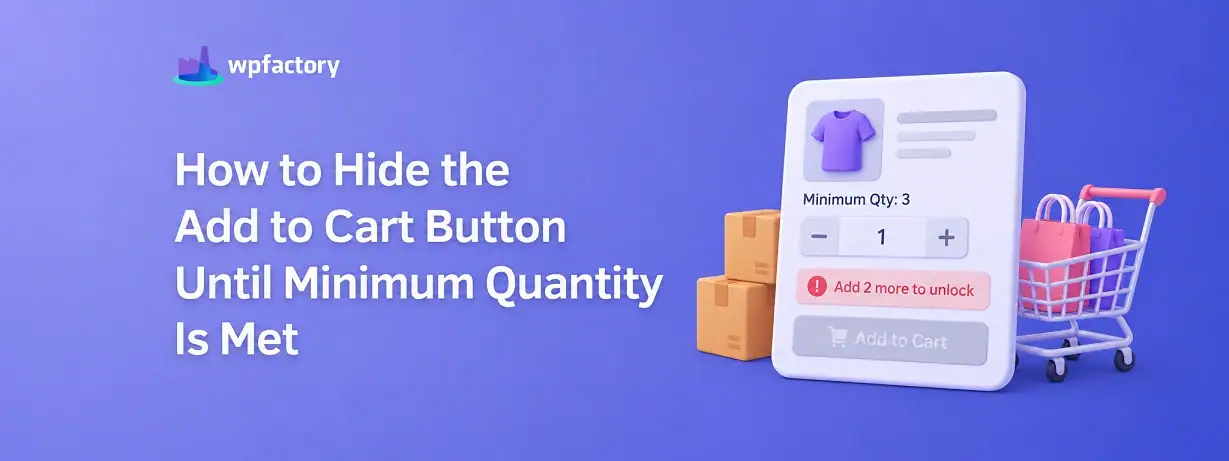
Quick Answer: WooCommerce Hide Add to Cart Button for Minimum Quantity
WooCommerce does not hide the Add to Cart button based on quantity rules by default. To do this, you need the WooCommerce Quantity Manager plugin, which gives you two separate controls.. one that hides the button when your stock falls below the minimum you set, and one that blocks the add-to-cart action when a customer selects a quantity below your minimum.
Most store owners set up one and assume they have both, which is why the rule seems to work on some products and silently fails on others.
- Stock-based hide: Button disappears automatically when available stock drops below your minimum quantity. Set in the Minimum Qty tab.
- Validation-based block: Customer sees an error and cannot add to cart if they choose a quantity below your minimum. Also set in the Minimum Qty tab.
The free checker tool below lets you test any combination of minimum, stock, and customer quantity to see exactly which rule fires and why.
A customer visits your product page, types “2” into the quantity field, and clicks Add to Cart.
Your minimum order is 6. WooCommerce adds 2 units to the cart anyway.
No error. No warning. The customer reaches checkout with a quantity your business cannot profitably fulfill, and you only find out when the order arrives in your dashboard.
This is not a bug. It is the default WooCommerce behavior.
The platform has no built-in concept of a quantity floor that blocks the Add to Cart button. That logic has to be added explicitly, and it works differently depending on whether you want to hide the button entirely or block it at the point of action.
This guide covers both mechanisms, how to configure each one using the WooCommerce Quantity Manager plugin, and when to use which approach for your store type.
Why WooCommerce Does Not Hide the Button by Default
WooCommerce is built to remove friction from the purchase path. From the platform’s perspective, the fewer barriers between a customer and the cart, the better.
Quantity minimums run against that principle. They are a seller-side constraint, not a buyer preference. So WooCommerce leaves them out of the core product and treats quantity enforcement as an extension concern.
The practical result is that any quantity rule you want enforced at the Add to Cart stage requires a plugin. The question is which mechanism you actually need.
The Two Mechanisms: Hide vs Block
These are not the same thing, and choosing the wrong one creates gaps in your enforcement.
Mechanism 1: Hide the Button When Stock Falls Below Minimum
This is a stock-aware rule. When your available inventory drops below the minimum quantity you have set, the Add to Cart button disappears from the product page entirely.
The customer sees the product but has no way to add it to their cart. This is the right approach when fulfilling the minimum order is physically impossible because there is not enough stock to do it.
Example: your minimum order for a product is 6 units and you have 3 left in stock. No customer can order 6, so showing the button serves no purpose. The plugin hides it until you restock above the minimum.
Mechanism 2: Block the Add to Cart Action When Quantity Is Below Minimum
This is a validation rule. The button stays visible. The customer can set a quantity and attempt to add it to the cart. If the quantity they chose is below your minimum, the plugin intercepts the action, shows an error message, and prevents the item from being added.
The customer sees clear feedback: “Minimum order is 6. Please add at least 6 to continue.” They can correct the quantity and try again.
This is the right approach when stock is sufficient to fulfill the minimum, but you want to prevent any order that falls short of it.
Which One Do You Need?
Most stores need both running at the same time.
The stock-based hide protects against the case where fulfillment is impossible. The validation block protects against the case where the customer simply does not know your minimum and picks an arbitrary quantity.
Neither one covers what the other is designed for.
A store running only the stock-based hide will still accept orders for 1 unit when 20 are in stock. A store running only the validation block will show a broken experience when stock dips below the minimum and the button leads nowhere.
The Plugin: WooCommerce Quantity Manager
Both mechanisms live in the WooCommerce Quantity Manager plugin by WPFactory, active on 10,000+ stores. The relevant settings are all inside the Minimum Qty tab.
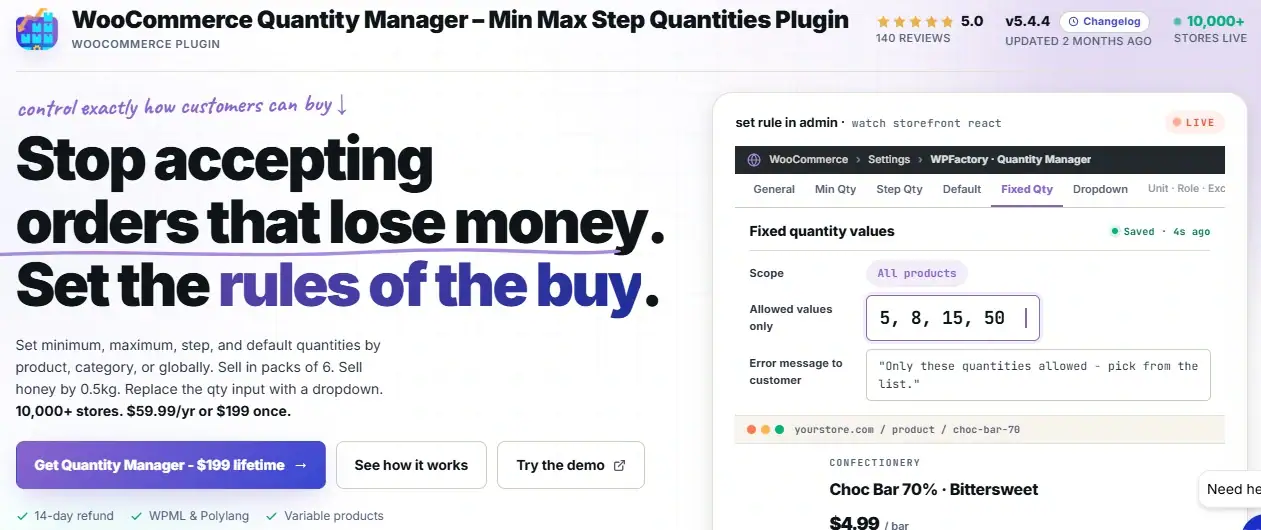
The plugin is free for core minimum quantity enforcement. The stock-based hide option and the validation block are both available without a Pro license. Per-category rules and role-based exclusions require Pro.
You can also find the free version on WordPress.org.
Hide the Add to Cart Button Without Writing Code
The WooCommerce Quantity Manager handles both the stock-based hide and the validation block from a single settings tab. Active on 10,000+ stores, rated 5.0. Pair it with the Order Minimum/Maximum Amount plugin if you also need a cart-level value floor.
A Worked Example: How the Two Rules Behave
Suppose you sell a product with a minimum order quantity of 6, and you want to protect both the stock edge case and the customer-input case.
Here is what each scenario looks like with both rules active:
| Scenario | Stock | Customer Qty | Result | Rule That Fires |
|---|---|---|---|---|
| Healthy stock, correct qty | 20 | 6 | Allowed | Neither |
| Healthy stock, low qty chosen | 20 | 2 | Blocked + error message | Validation block |
| Stock below minimum | 3 | Any | Button hidden | Stock-based hide |
| Stock exactly at minimum | 6 | 6 | Allowed | Neither |
| Zero stock | 0 | Any | Button hidden | Stock-based hide |
Reading the “Rule That Fires” column is worth a moment. The two rules guard different gaps.
A customer entering qty 2 with 20 in stock is a validation problem, not a stock problem.
A customer facing 3 units of stock with a min of 6 is a stock problem, not a validation one. The plugin handles each separately.
Step-by-Step Setup: How to Configure Both Rules
Step 1: Install and Activate the Plugin
Install from your WPFactory account. Upload ZIP File then activate.
Step 2: Navigate to the Minimum Qty Tab
Go to WPFactory menu → Quantity Manager → Minimum Qty tab in your WordPress admin panel.
Enable the Minimum Quantity feature at the top of the tab.
Step 3: Set Your Minimum Quantity
In the “All Products” field, enter your global minimum quantity. This applies to every product in your store unless overridden per product.
To set a different minimum for a specific product, open the product editor, scroll to the Product Data section, and enter the minimum in the Quantity Manager fields there.
Step 4: Enable the Stock-Based Hide
Still inside the Minimum Qty tab, find the option labelled “Hide Add To Cart button when stock is less than minimum quantity.”
Enable it. From this point, whenever a product’s available stock drops below your configured minimum, the Add to Cart button will not render on the product page.
Step 5: Configure the Validation Block
In the same tab, look for the “Selling below minimum” options. These control what happens when a customer tries to add a quantity below your minimum while stock is still sufficient.
Set the action to validate and show an error message. This prevents the item from being added to the cart and surfaces a message you can customize.
Step 6: Customize the Error Message
The plugin provides a message field for the validation error. Write something specific to your store.
Include the minimum quantity using the %min% placeholder so the message reads clearly.
A message like “Minimum order for this product is %min% units.
Please adjust your quantity to continue” converts better than a generic warning, because it tells the customer exactly what to do next rather than just what went wrong.
Step 7: Test Both Rules
Visit a product page on the front end. Confirm the quantity selector starts at your minimum. Try entering a lower value manually and clicking Add to Cart. Confirm the error fires.
Then temporarily reduce your test product’s stock below the minimum in the product editor. Reload the product page. Confirm the Add to Cart button disappears.
Both rules should behave independently and consistently before you consider the setup complete.
Free Tool: Minimum Quantity Button Status Checker
Enter your minimum quantity, current stock, and the quantity a customer chose. The tool tells you which rule fires and what the customer will see.
Comparison: Hide vs Block vs Validate
There are three distinct behaviors you can configure. Understanding the difference helps you pick the right combination for your store.
The middle column is the one most stores miss. Blocking is not the same as hiding, and validating on the cart page is not the same as blocking at the product page.
Each row here represents a real gap that the other two do not cover.
| Behavior | What Triggers It | What Customer Sees | Free or Pro |
|---|---|---|---|
| Button hidden | Stock falls below minimum quantity | Product page with no Add to Cart button | Free |
| Add to cart blocked | Customer chooses quantity below minimum (stock is fine) | Error message on product page, item not added | Free |
| Cart validation | Invalid quantity reaches the cart page | Error message on cart, checkout blocked | Free |
| Per-category minimum | Product is in a category with its own minimum rule | Same as above, per category | Pro |
| Per-role exclusion | Customer role is exempt from minimum rules | No restriction shown for that role | Pro |
Use Cases by Store Type
The right configuration depends on how your store operates and what problem you are actually solving.
Wholesale and B2B Stores
Wholesale stores need the validation block more than the stock-based hide.
The problem is not usually a stock shortage. It is a retail customer who finds your wholesale catalog and tries to order a single unit at your bulk price.
The validation block stops that cleanly at the product page, before the customer reaches cart or checkout.
Set your minimum globally to your smallest economical wholesale quantity.
If you have products with different minimum order sizes, use per-product overrides in the product editor.
Limited Stock and Limited Edition Products
For products where you manage stock carefully and run limited quantities, the stock-based hide is your primary tool.
When a limited-edition product drops below the minimum fulfillable quantity, the button disappears automatically.
You do not have to manually pause the listing or watch for low-stock notifications and intervene.
This is also useful for pre-order or made-to-order products where a batch below a certain size is not worth running.
Food and Portioned Products
For products sold in defined serving sizes or pack units, you want both rules active simultaneously.
The validation block stops a customer from ordering three sushi rolls when your minimum is six.
The stock-based hide removes the button when you have only four left in prep.
Both gaps are real in a food context, and both rules need to be set for the protection to hold.
Printing and Custom Manufacturing
Custom print and manufacturing stores often have a hard minimum run size below which the job is not economical.
Here the validation block is the critical control. Stock is often made-to-order, so the stock-based hide may not apply.
What matters is that no customer can submit an order for fewer units than your minimum run, and the block enforces that without any manual intervention per order.
Common Mistakes When Setting Up Minimum Quantity Rules
A few errors come up consistently when store owners first configure this.
- Enabling only the stock-based hide and assuming it covers everything.
It does not. A customer can still add 1 unit to the cart when 20 are in stock if the validation block is not also active.
- Not customizing the error message.
The default message is functional but tells customers nothing useful about what to do next. A message with the minimum quantity and a clear instruction to adjust converts far better than a generic “invalid quantity” notice.
- Setting a global minimum without excluding products that should not have one.
Gift cards, single-unit digital products, and sample items often should not carry a minimum.
The Pro version lets you exclude by product or category. In the free version, set the minimum to 1 on those individual products to override the global rule.
- Testing only on the product page.
Test the cart page too. If a customer somehow adds an invalid quantity through an unusual path (direct URL, external cart modification), the cart-level validation is the last line of defense.
Related Resources
- WooCommerce Quantity Rules: The Complete Guide
- How to Set Maximum Order Value in WooCommerce (Fraud and Stock Control)
- WooCommerce Limit Purchases Per Customer (Lifetime + Period)
- WooCommerce Case Quantity Pricing: Sell by Box or Pallet
- WooCommerce Minimum Order Amount by Payment Method (Cash on Delivery and More)
Ready to Hide the Add to Cart Button Until Minimum Quantity Is Met?
The WooCommerce Quantity Manager handles both the stock-based button hide and the validation block from a single settings tab. Core features are free. Pro adds per-category rules and role-based exclusions at $59.99 per year or $199 for a lifetime license on unlimited sites.
All purchases come with a 14-day money-back guarantee.
FAQs About WooCommerce Hide Add to Cart Button
Can I hide the Add to Cart button in WooCommerce without code?
Yes. The WooCommerce Quantity Manager plugin includes a setting that hides the Add to Cart button automatically when stock falls below your configured minimum quantity. No code required.
Enable the option in the Minimum Qty tab and the button disappears from the product page whenever the stock condition is met.
What is the difference between hiding and disabling the Add to Cart button in WooCommerce?
Hiding removes the button from the page entirely, so the customer has no way to interact with it.
Disabling or blocking keeps the button visible but prevents the action from completing, usually with an error message.
The WooCommerce Quantity Manager plugin does both: it hides based on stock, and it blocks based on the quantity the customer selects.
Does the WooCommerce minimum quantity rule hide the Add to Cart button?
It depends on which rule you enable. The stock-based hide option removes the button when available stock drops below your minimum.
The validation block option prevents the add-to-cart action when a customer selects too few units but leaves the button visible. Most stores benefit from running both at the same time.
Can I set a minimum quantity per product in WooCommerce without affecting all products?
Yes. The WooCommerce Quantity Manager plugin lets you set a global minimum that applies to all products, then override it on individual products from the product editor. Set the global value, then open each product that needs a different rule and enter the per-product minimum in the Quantity Manager fields in the Product Data section.
Is hiding the Add to Cart button for minimum quantity a free feature?
Yes. Both the stock-based hide and the validation block are available in the free version of the WooCommerce Quantity Manager plugin.
Per-category minimum rules and per-user-role exclusions require the Pro version. The free version covers the core use case for most stores.
What message does the customer see when Add to Cart is blocked by a minimum quantity rule?
The message is fully customizable in the plugin’s Minimum Qty tab. You can use the placeholder %min% to insert your minimum quantity dynamically.
The default message states that the quantity does not meet the minimum, but it is worth rewriting it to include the exact number and tell customers what to do next.