How to Set Maximum Order Value in WooCommerce (Fraud and Stock Control)

Quick Answer: Maximum Order Value in WooCommerce
WooCommerce does not include a built-in maximum order value cap. To block orders above a set threshold, you need a plugin that enforces the limit at cart and checkout. The part most store owners miss is that the limit alone is not enough: where you set it, what it counts, and how you handle the edge cases determine whether it actually stops the orders you want to stop, or quietly fails on the ones that matter most.
- Fraud protection: A maximum order value blocks unusually large orders that flag as suspicious, reducing chargeback risk before payment is processed.
- Stock control: Caps prevent a single bulk order from clearing your inventory and leaving other customers empty-handed.
- Margin protection: Some order sizes are not profitable at your current pricing. A ceiling keeps you out of orders you cannot fulfill without a loss.
The free calculator below lets you test any threshold against a cart value instantly. The setup section shows exactly where each setting lives in the plugin and which ones are free versus Pro.
A customer puts $2,400 worth of product in their cart and clicks checkout. Is that a good day for your store, or a problem you are about to discover too late?
The answer depends entirely on your store type.
For a wholesale supplier, a $2,400 order is exactly what the business runs on.
For a specialty retailer with limited stock per SKU, it is a single order wiping out three months of carefully managed inventory.
For a store that has been hit by card testing fraud, it is a red flag that should never reach the payment processor.
WooCommerce does not give you a native way to cap order value. There is no “maximum order total” field in the default settings. That means stores that need this protection are either relying on manual order review, or they are not protected at all.
This guide covers how to set a maximum order value in WooCommerce using a plugin built specifically for this, what the settings actually control, and how to calibrate the limit so it stops the orders you want to stop without blocking legitimate customers in the process.
Why Store Owners Set a Maximum Order Value
The reasons vary, but they fall into three clear categories. Understanding which one applies to your store changes how you configure the limit.
Fraud and Chargeback Prevention
Card testing fraud often involves a single large transaction. Fraudsters who have obtained stolen card details want to convert them into goods as quickly as possible, and a large single order is the fastest route.
A hard ceiling on order value means that even if a fraudulent card clears your payment gateway initially, the order never reaches fulfillment.
Chargebacks on large orders are also disproportionately damaging.
A $1,500 chargeback carries the same processing fee structure as a $50 one, but the inventory loss and dispute cost are orders of magnitude higher.
Preventing the large order is cheaper than winning the dispute.
Inventory and Stock Control
If you sell physical products with limited stock, a single bulk order can hollow out your catalog.
A customer who buys 40 units of a product you stock 50 of leaves your next 20 customers staring at an out-of-stock notice.
This matters most for made-to-order or limited-run products, seasonal items, and stores where restocking takes weeks.
A maximum order value works alongside per-product quantity limits to create a layered protection that no single order can break.
Margin Protection on Bulk Orders
Some pricing structures are not designed for very large orders.
If you offer volume discounts that stack, or if your shipping costs do not scale linearly with order size, orders above a certain value can actually cost you money.
Setting a ceiling and directing those customers to a wholesale inquiry form is cleaner than fulfilling unprofitable orders.
What WooCommerce Does (and Does Not) Include by Default
The default WooCommerce installation gives you two order amount tools.. a minimum order amount for free shipping, and nothing else in terms of hard limits.
There is no maximum order total field in WooCommerce Settings.
There is no native way to block a cart above a threshold, hide the checkout button when a customer exceeds a value, or show a warning message at a configurable dollar amount.
This is a deliberate product decision. WooCommerce is built to process orders, not restrict them.
The assumption is that more orders are always better, and that restriction logic belongs in extensions.
The practical implication is that any maximum order value in WooCommerce requires a plugin.
The question is which plugin, and how to configure it correctly.
The Plugin: Order Minimum/Maximum Amount for WooCommerce
The plugin that handles maximum order value in WooCommerce natively is Order Minimum/Maximum Amount Limits for WooCommerce by WPFactory.
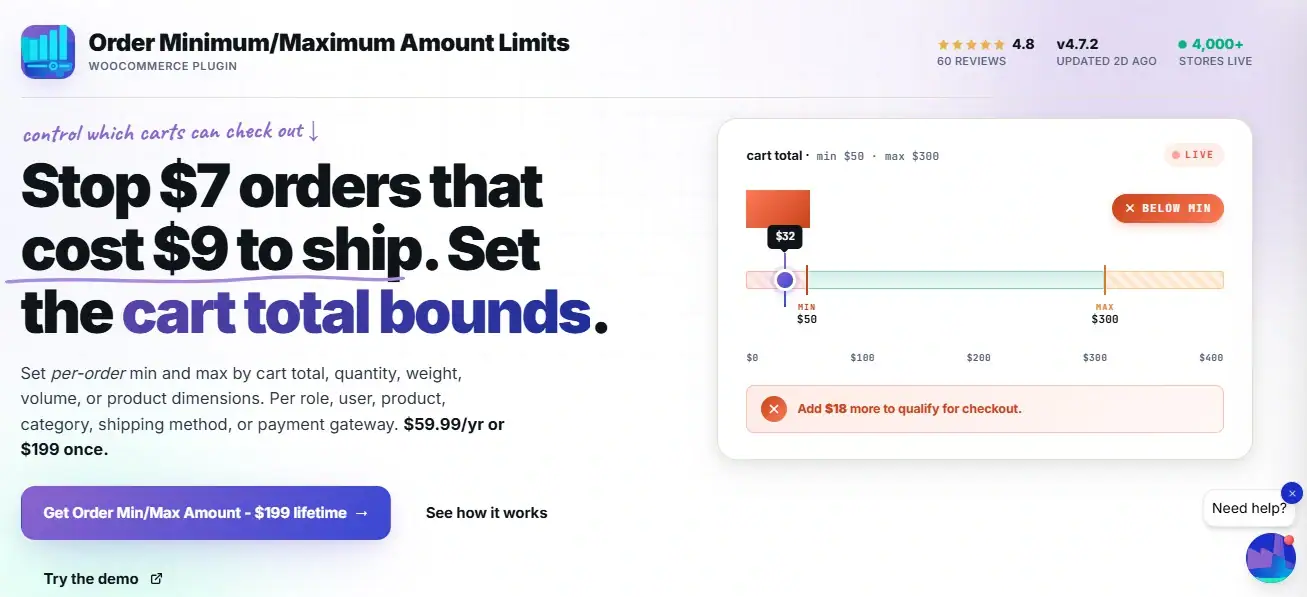
It is active on 4,000+ stores and covers both minimum and maximum limits across every order dimension WooCommerce exposes.
What makes it the right tool for this specific problem is the combination of what it measures and where it enforces.
It does not just check the cart subtotal. It can cap orders by total sum, by quantity, by weight, by volume, by number of unique products, or by any combination of those.
And it enforces at cart, mini-cart, and checkout simultaneously, so the block is real and not bypassable by navigating directly to the checkout URL.
Set Your Maximum Order Value Without Touching Code
The Order Minimum/Maximum Amount Limits for WooCommerce plugin handles the entire limit enforcement pipeline.. the value check, the customer message, and the checkout block. Active on 4,000+ stores. You can pair it with the WooCommerce Quantity Manager to add per-product caps on top of the order-level ceiling.
A Worked Example: Setting a $500 Maximum Order Value
Before going into the settings walkthrough, here is a concrete example of how the limit works in practice, so you know what to expect.
Suppose you run a specialty tea store. Your average order is around $85. You occasionally get orders in the $150 to $200 range from customers stocking up.
But anything above $400 is unusual enough to warrant a manual review, and you have had two chargeback incidents in the past year on orders over $600.
You decide to set a maximum order value of $500.
| Scenario | Cart Total | Result | What the Customer Sees |
|---|---|---|---|
| Normal purchase | $85 | Allowed | Proceeds to checkout normally |
| Larger gift order | $340 | Allowed | Proceeds to checkout normally |
| Bulk stock-up | $500 | Allowed (at the limit) | Proceeds to checkout normally |
| Suspicious large order | $620 | Blocked | Error message: “Orders cannot exceed $500. Please reduce your cart.” |
| Potential fraud attempt | $1,800 | Blocked | Error message shown at cart and checkout |
The key detail in that table: the limit is inclusive. A cart of exactly $500 is allowed. The block triggers on anything above your configured ceiling. Worth keeping in mind when you choose the number.
How to Set the Maximum Order Value: Step-by-Step
Here is the exact setup path inside the plugin. The core maximum limit is available in the free version. Role-based limits and payment gateway limits require Pro.
Step 1: Install and Activate the Plugin
Install from your WPFactory account or search for “Order Minimum Maximum Amount” in the WordPress plugin directory. Activate it from Plugins in your WordPress dashboard.
Step 2: Navigate to the Plugin Settings
Go to WooCommerce → Settings and look for the Order Min/Max Amount tab. This is where all the configuration lives.
Step 3: Enable the Plugin and Set Amount Type
In the General tab, check the Enable box. Under Amount Limits, select Max (or both Min and Max if you also want a minimum).
Under Amount Types, select Sum to cap by order total. Leave the field blank to apply to all amount types by default, or select specifically what you want measured.
Step 4: Enter Your Maximum Value
Go to the Amounts tab. Enter your ceiling in the Maximum Order Amount field.
Setting this to zero means no limit is applied, so make sure you enter an actual value. If you want to cap both total and quantity, you can set both fields independently.
Step 5: Configure the Customer Message
Go to the Messages tab. Customize what customers see when their cart exceeds the limit.
The plugin supports dynamic placeholders: %amount% shows your configured limit, %total% shows the customer’s current cart total, and %diff% shows how much they need to remove.
A clear message reduces friction: “Your order total of %total% exceeds our maximum of %amount%. Please remove %diff% to continue.”
Step 6: Set Checkout Behavior
In General → Checkout Options, choose whether to block checkout entirely or redirect users back to the cart.
You can also enable the option to validate the maximum when a customer clicks “Add to Cart” and hide the button once the ceiling is reached.
This creates a cleaner experience than letting customers build a large cart and discovering the block only at checkout.
Step 7 (Optional): Set Role-Based Limits (Free)
Under the User Roles tab, you can set different maximums for each role.
Wholesale customers might have a $5,000 ceiling while guests are capped at $300.
Role-based limits are available in the free version. Set the value to zero for a role to apply the global default, or to -1 to remove the limit for that role entirely.
Step 8 (Optional): Payment Gateway Limits (Pro)
The Payment Gateways tab in the Pro version lets you set different maximum values per payment method.
You might allow up to $2,000 for bank transfer orders while capping card payments at $500.
This is one of the more powerful risk management tools the plugin offers, and it is only available in the Pro version.
Free Calculator: Check Any Order Against Your Maximum
Enter your configured maximum and a customer’s cart total to see immediately whether the order would be allowed or blocked, and by how much.
Comparison: Maximum Order Value vs Maximum Order Quantity
These two limits sound similar but solve different problems. Choosing the wrong one leaves a gap in your protection.
It is worth reading every row of this table carefully.
The right control depends entirely on what you sell and what you are trying to prevent, and the distinction is sharper than it looks at first.
| Factor | Maximum Order Value | Maximum Order Quantity |
|---|---|---|
| What it measures | Cart total in currency | Number of items in cart |
| Best for | Fraud prevention, margin control, high-value product limits | Stock protection, per-product caps, physical fulfillment limits |
| Weakness | A customer can order 50 cheap items and stay under your value cap | A customer can order 2 expensive items and spend far more than intended |
| Plugin location | Order Min/Max Amount → Amounts tab → Max Sum | Order Min/Max Amount → Amounts tab → Max Quantity, or Quantity Manager per product |
| Free or Pro | Free (global limit); Pro for per-role or per-gateway | Free (global quantity); Pro for per-product via Quantity Manager |
| Combine them? | Yes → set both in the Amounts tab to close both gaps simultaneously | |
Maximum Order Value by Store Type
The right ceiling is not the same number for every store. Here is how the thinking works across common store types.
Specialty Retail (Gifts, Food, Artisan Products)
Fraud risk is real and chargeback rates on high-value orders are painful. A ceiling at roughly 3 to 5 times your average order value is a reasonable starting point.
If your average order is $90, a $450 ceiling catches suspicious outliers without blocking genuine bulk gift buyers.
The customer message matters here. If you block a legitimate large order, give them a clear path: “For orders above $450, please contact us directly to arrange a custom order.”
B2B and Wholesale Stores
A global maximum is often too blunt for wholesale. The better configuration is role-based: no limit for verified wholesale accounts, a conservative ceiling for guest or unverified users.
This keeps the cap as a security measure for anonymous customers while leaving your actual wholesale relationships unrestricted.
The role-based limit is free in the plugin. Set the global maximum to your conservative value, then override it to zero (no limit) for your wholesale and VIP roles.
Electronics and High-Value Products
Fraud pressure is highest in this category. Stolen cards disproportionately target high-value electronics orders.
A tight ceiling combined with a payment gateway maximum (Pro feature) gives you two layers: a value cap on all orders, and a tighter cap specifically on card payments where fraud risk is concentrated.
Subscription and Digital Products
Maximum order value is less relevant for digital-only stores where stock is not a constraint.
The fraud use case still applies, but a per-payment-method limit is usually more targeted than a blunt order ceiling.
What Happens When an Order Is Blocked?
Understanding the enforcement points helps you configure the experience correctly.
With the default setup, the block happens at checkout.
The customer can add items to cart, view the cart page, and click the checkout button, but they will see an error message and cannot complete the order until they reduce their cart.
You can tighten this in two ways. First, enable the option to validate the maximum when a product is added to cart.
This surfaces the error earlier, before the customer has gone through the checkout flow.
Second, enable the option to hide the “Add to Cart” button when the maximum is already reached on the product page. This prevents the overage from occurring at all.
Which approach is right depends on your catalog. If you sell a small number of high-value items, early validation makes sense.
If you sell hundreds of SKUs at varied price points, letting the customer build a cart and catching the overage at checkout is less disruptive.
Common Configuration Mistakes
A few errors show up consistently when store owners first set this up.
- Setting the limit to the wrong amount type.
If you select “Quantity” as your amount type but enter a dollar value, the plugin will apply that number as a quantity limit, not a value limit. Always confirm the Amount Types setting matches what you are trying to cap.
- Forgetting about taxes and shipping.
The plugin can calculate the limit against order subtotal or order total.
If your limit is set against the subtotal, a customer might technically be within the limit at the product level but exceed it once tax and shipping are added.
Decide which total you want to measure and configure accordingly.
- Setting a global limit that blocks wholesale customers.
If you have any B2B or wholesale accounts, set a role override to zero or -1 for those roles before publishing the global limit.
Otherwise your wholesale customers hit the ceiling on their first order and have a confusing experience.
- Not testing the message.
The default error message is functional but generic. Take five minutes to write a message that tells customers exactly what to do next.
Include the maximum amount using the %amount% placeholder and a contact option for customers who need a larger order.
Related Resources
- WooCommerce Quantity Rules: The Complete Guide | the hub article covering all order and quantity limits in one place
- Minimum Order Quantity vs Minimum Order Amount: Which to Use When | the same decision framework applied to minimums
- WooCommerce Minimum Order Amount by User Role | how role-based limits work in practice
- WooCommerce Minimum Order Amount | complete guide to setting order amount limits in WooCommerce
- How to Limit Order Minimum and Maximum Amounts in WooCommerce | a full plugin walkthrough covering all tabs
- How to Set Quantity Step Increments in WooCommerce | sell in multiples and control order granularity
- How to Limit Maximum Products per User in WooCommerce | per-customer lifetime and period limits
Ready to Set Your Maximum Order Value in WooCommerce?
The Order Minimum/Maximum Amount Limits for WooCommerce plugin handles the full enforcement pipeline. The global maximum order value limit is free. Role-based overrides are free. Payment gateway limits and per-product caps are available in the Pro version at $59.99 per year or $199 for a lifetime license.
All purchases come with a 14-day money-back guarantee, no questions asked.
Frequently Asked Questions
Does WooCommerce have a maximum order value setting built in?
No. WooCommerce does not include a native maximum order value cap in its default settings. You need a plugin to enforce a ceiling on cart or order totals. The Order Minimum/Maximum Amount Limits plugin adds this functionality with a dedicated Amounts tab where you set the maximum sum.
What is the maximum order value in WooCommerce and how does it work?
A maximum order value in WooCommerce is a configured threshold above which customers cannot complete a purchase. When a cart total exceeds your set ceiling, the plugin blocks the checkout and displays a customizable error message. The limit can apply to the order subtotal, the order total including tax and shipping, or just the product sum depending on your configuration.
Can I set different maximum order values for different customer roles?
Yes. The User Roles tab in the plugin lets you set different maximum values per role. This is available in the free version. Set the value to zero for a role to fall back to the global default, or to -1 to remove the limit for that role entirely. This is the right setup for stores with both retail and wholesale customers.
Can I set a maximum order value per payment method in WooCommerce?
Yes, but this requires the Pro version. The Payment Gateways tab lets you configure a different maximum for each payment method. A common use case is setting a lower cap on card payments (higher fraud risk) and a higher or unlimited cap on bank transfer orders (lower fraud risk, manual fulfillment).
Will the maximum order value block my wholesale or B2B customers?
Only if you do not configure role overrides. Set the global maximum for your retail and guest customers, then go to the User Roles tab and set the maximum to -1 (no limit) for your wholesale, VIP, or administrator roles. This ensures the cap only applies where you want it.
What happens when a customer tries to checkout above the maximum order value?
By default, they see an error message at checkout and cannot complete the order. You can configure the message text, its position on the page, and whether it shows as a notice or a hard error. You can also enable earlier enforcement at the cart page or even at the “Add to Cart” stage to prevent the overage from building up in the first place.
Is there a way to charge a fee instead of blocking orders above the maximum?
Yes. The Pro version includes a Fees tab that lets you apply a surcharge for orders that exceed the maximum rather than blocking them outright. This is useful if you want to allow large orders but recover the additional handling or risk cost through a fee.