WooCommerce Limit Purchases Per Customer (Lifetime + Period)


Quick Answer: WooCommerce Limit Purchases Per Customer
A WooCommerce limit purchases per customer rule caps how much one shopper can buy of a product, counted across every order they place rather than within a single cart. You choose the window it counts over, and the checker further down shows exactly when a customer would be blocked. The detail that catches stores out is the window itself: a lifetime cap and a monthly cap behave very differently, and picking the wrong one either never resets or resets too often.
- Lifetime: the customer can only ever buy that total, once, with no reset.
- Per period: the cap refills on your schedule (daily, weekly, monthly, or a custom range).
This is the piece a per-order limit cannot do, because it has no memory of what the same person bought last week. Here is how to set it up, with a worked example and a live checker.
You promised “limit one per customer” on the launch. It said so right on the product page.
Then the same buyer placed four separate orders in ten minutes, one unit each, and walked away with four. Your promise held inside each cart and collapsed across all of them.
That is the gap. Core WooCommerce, and most quantity plugins, only look at the cart in front of them. They have no memory of the order that shopper placed an hour ago, so “one per customer” quietly becomes “one per checkout, as many times as they like.”
Closing that gap needs a rule that counts a customer’s purchases over time, across orders. That is what a WooCommerce limit purchases per customer rule does, and the interesting part is choosing the window it counts over.
Per Order vs Per Customer: The Distinction That Matters
Most quantity rules are per order. They cap what fits in one cart, and once the order completes, the counter forgets everything.
A per customer rule is different in kind. It keeps a running total tied to the shopper, adding up everything they have bought of a product across all their orders, and it measures that total against the cap.
Picture a “limit 2” on a rare item. A per order rule stops a single cart of 3, but happily allows the same person to come back tomorrow for 2 more, and 2 the day after. A per customer rule remembers the earlier orders and shuts the door once the running total hits 2.
If your goal is fair distribution, one buyer, one allocation, only the per customer approach delivers it. The per order rule is a speed bump, not a limit.
Lifetime vs Period: Choosing the Window
Once you are counting per customer, the next decision is the window. This is where the lifetime and period split comes in, and it changes the whole behaviour of the rule.
A lifetime limit never resets. Whatever the customer buys counts forever, so a lifetime cap of 2 means two in total, across the entire history of that account.
It suits genuinely one-time situations: a single-use welcome bundle, a strictly limited edition, one allocation per person for life.
A period limit refills on a schedule. A monthly cap of 5 lets each customer buy 5 this month, then another 5 next month when the window rolls over.
It suits ongoing fairness rather than absolute scarcity: rationing high-demand stock, spreading a subscription-style product, keeping resellers from clearing a month’s supply in one go.
Getting this choice wrong is the usual misstep.
A lifetime cap where you meant monthly frustrates loyal repeat buyers who hit an invisible ceiling. A monthly cap where you meant lifetime lets a determined buyer simply wait for the reset. Match the window to the intent.
How to Limit Purchases Per Customer in WooCommerce
WooCommerce has no built-in memory of what a customer has bought before, so this runs through the Maximum Products per User plugin. It tracks each shopper’s history and enforces the cap for you.
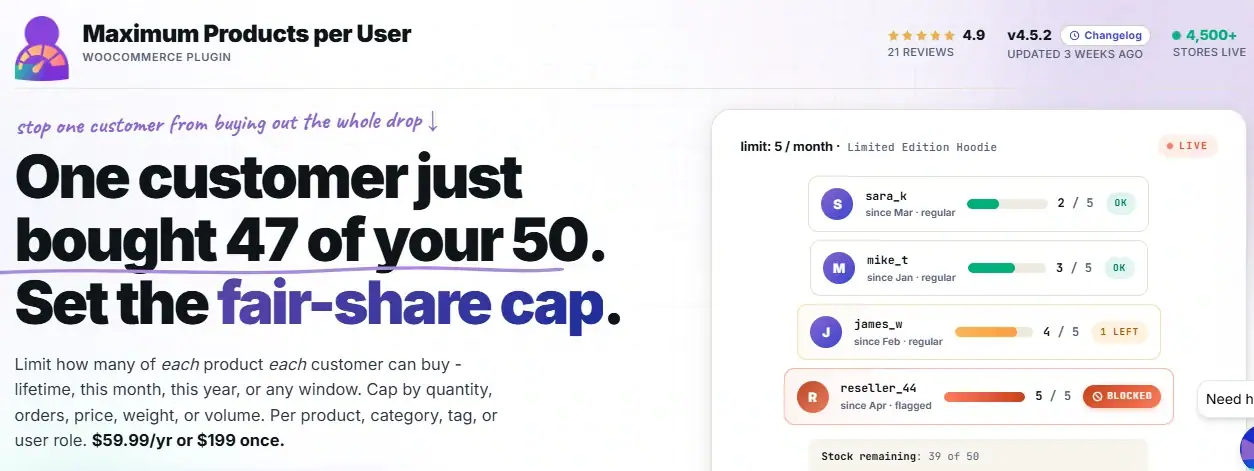
- Install and activate Maximum Products per User, then go to WooCommerce → Settings → Maximum Products per User → General.
- Enable the plugin, then set the Date Range.
This is the lifetime-or-period choice: pick Lifetime for a cap that never resets, or a window like This Month, This Week, or a custom range for one that refills.
The plugin resets the count automatically according to the window you choose.
- Next, set the Mode, which decides what gets counted: product quantities, whole orders, prices, weights, or volumes.
For a simple “limit 2 units per customer,” quantities is the one you want.
- Choose which Order Statuses count toward the total
So you can decide whether pending or only completed orders are included.
- Then open the Limits tab and set your number, either for All Products or Per Product.
- Save, and the rule is live.
From then on the plugin can show each customer their remaining allowance, cap the quantity field to what they have left, and disable the add-to-cart button once they reach the limit.
This is the deeper, time-aware layer of the wider WooCommerce quantity rules system.
For the store-wide and per-product basics without the time dimension, our guide on how to limit purchase quantity per customer covers the ground-level setup, and this article builds the lifetime and period control on top.
A Worked Example: Monthly Cap of 5
Numbers make the period behaviour clear. Say you cap a popular item at 5 per customer per month, counting product quantities on completed orders.
Follow one customer across a few weeks and watch the running total move.
| Event | Buys | Total this month | Result |
|---|---|---|---|
| Order 1 (week 1) | 3 | 3 | Allowed |
| Order 2 (week 2) | 2 | 5 | Allowed, now at cap |
| Order 3 (week 3) | 1 | 5 | Blocked |
| New month begins | —- | 0 | Cap refilled |
The third order is the telling one. The customer is refused not because of anything in that cart, but because their total across earlier orders already reached 5.
Then the month turns over and the allowance is whole again. Swap the window to Lifetime and that last row never happens: the cap stays at 5 forever, with no reset.
Enforce true per-customer limits, across every order.
Cap purchases by customer over a lifetime or any period you choose with Maximum Products per User. It counts across orders, resets on your schedule, and shows each shopper what they have left. You can also try the free version of Maximum Products per User on WordPress.org before upgrading.
Try It: Purchase Limit Checker
Enter the per-customer limit, how many the customer has already bought in the current window, and how many they want now. The checker tells you whether the new order is allowed and how many they have left.
Counting Guests, Not Just Logged-In Customers
A per-customer rule leans on knowing who the customer is, which raises an obvious question: what about guests who never log in?
Left unhandled, guest checkout is the loophole that undoes the whole rule. A determined buyer simply checks out as a guest each time, and the running total never attaches to them.
The plugin closes this by letting you identify guests, commonly by their IP address, so their orders still accumulate against a limit. It is not perfect, since IP addresses can change, but it turns guest checkout from a wide-open door into a much narrower gap.
For a genuinely strict allocation, pairing the limit with a requirement to create an account gives the cleanest tracking. The per-customer count is only as reliable as your ability to recognise the same customer twice.
What Counts Toward the Limit
One setting quietly shapes how the rule behaves: which order statuses count.
If you count only completed orders, a customer could load several pending orders before any of them tick over, briefly slipping past the cap.
If you count pending and processing orders too, the limit bites the moment they place an order, before payment even clears.
For scarce stock and fair-share drops, counting earlier statuses is usually safer, because it reserves the allocation the instant someone commits.
For softer limits where you mainly want to discourage bulk buying, completed-only counting is gentler on genuine customers.
There is no single right answer, only the one that matches how tightly you need to hold the line. It is worth setting deliberately rather than leaving on the default.
Common Scenarios by Store Type
Per-customer limits, tuned by window, fit a range of stores.
- Limited drops and collectibles: a lifetime cap of one or two per person for true one-per-buyer fairness.
- High-demand stock: a monthly cap that rations supply while still refilling for loyal customers.
- Promotions and vouchers: a lifetime limit so a one-time offer stays one-time.
- Wholesale allocations: a weekly or monthly cap that spreads scarce lines fairly across accounts.
- Regulated goods: period caps that mirror how much a customer may buy within a legal window.
Related Resources
Keep building out your customer and quantity controls with these guides:
- WooCommerce Quantity Rules: The Complete Guide
- How to Limit WooCommerce Purchase Quantity Per Customer
- Minimum Order Quantity vs Minimum Order Amount: Which to Use When
- How to Set Quantity Step Increments in WooCommerce (Sell in Multiples)
Set a WooCommerce limit purchases per customer rule that actually holds
Count every order, choose a lifetime or period window, and let the cap reset on your schedule with Maximum Products per User. Fair drops stay fair, and no one clears your shelves across a string of small orders.
It ships with a 14-day money-back guarantee, so you can put the limit live, watch the repeat-order loophole close, and decide with nothing at risk.
Frequently Asked Questions
How do I limit purchases per customer across multiple orders in WooCommerce?
Use Maximum Products per User, which tracks each customer’s running total across every order rather than just one cart. Set your cap and a date range, and the plugin blocks the customer once their combined purchases reach the limit.
What is the difference between a per-order limit and a per-customer limit?
A per-order limit caps a single cart and forgets it afterward, so the same person can order again immediately. A WooCommerce limit purchases per customer rule remembers earlier orders and enforces the cap across all of them.
Can I set a lifetime purchase limit per customer?
Yes. Choose Lifetime as the date range, and the cap never resets, so a customer can only ever buy that total of the product. It suits limited editions and one-time offers.
Can the limit reset every month or week?
Yes. Pick a period window such as This Week, This Month, or a custom range, and the allowance refills automatically when the window rolls over, giving each customer a fresh cap each cycle.
Does the limit apply to guest customers?
It can. The plugin lets you identify guests, commonly by IP address, so their orders still count toward the limit. For the strictest tracking, pair the rule with a requirement to create an account.
Can I show customers how many they have left?
Yes. The plugin can display the remaining allowance on the product page, cart, checkout, and My Account area, and it caps the quantity field to what the customer has left in the current window.