WooCommerce Quantity Step: Sell in Multiples (+Free Tool)

Quick Answer: What Is a WooCommerce Quantity Step?
A WooCommerce quantity step forces the quantity field to move in fixed jumps instead of one at a time, so shoppers can only choose amounts like 6, 12, 18, and 24. The fastest way to see it working for your own pack size is the preview tool further down, but the short version is this: WooCommerce has no built-in step setting, so you add one with a quantity plugin.
- Set the step alone → the quantity climbs in your chosen increment (step of 6 gives 6, 12, 18).
- Set the step and the minimum to the same number → you get true “packs only” ordering, where partial packs are impossible.
That second combination is the one most stores actually want, and it is the reason a plain minimum rule keeps letting broken packs through. The setup and the preview tool below make it click.
Picture the last time you shipped a “single” out of a product that was only ever meant to leave the warehouse in sixes.
Someone bought 7. You either broke a sealed case to send one loose unit, or you eyeballed it, packed 6, and hoped they would not notice the shortfall.
Neither is a real fix. The real fix is telling WooCommerce that this product does not sell in ones. It sells in sixes, or twelves, or whatever your case, carton, or print run happens to be.
That is what a WooCommerce quantity step does. It changes the quantity box from “pick any number” to “pick a multiple of my number,” and it takes about a minute to set up once you know where the setting lives.
What “Selling in Multiples” Really Means
By default, the quantity selector on a WooCommerce product page counts in ones. Up arrow, plus one. Down arrow, minus one. Type in any figure you like.
A step changes the size of that jump. Set a WooCommerce quantity step of 6, and the arrows now move in sixes. The shopper sees 6, then 12, then 18, and cannot land on 7 or 10 in between.
This is what people mean when they talk about selling in multiples or selling in packs. The product is still one line item, but the store refuses any amount that is not a clean multiple of the pack size.
It is a small mechanical change with an outsized effect on fulfilment, because every order that arrives is already packable without breaking a case.
Why a Minimum Alone Does Not Solve This
Here is the trap a lot of stores fall into. They set a minimum quantity of 6 and assume the job is done.
It is not. A minimum of 6 stops orders of 1 through 5, but it happily allows 7, 9, and 11. Those are exactly the amounts that force you to break a sealed pack.
The minimum controls the floor. The step controls the spacing. You need the spacing to guarantee whole packs, which is why the WooCommerce quantity step is the piece that actually delivers “packs only,” not the minimum on its own.
Combine the two and the problem disappears. A minimum of 6 with a step of 6 means the only valid amounts are 6, 12, 18, and so on. Every order is a whole number of packs, every time.
How to Set a WooCommerce Quantity Step?
WooCommerce has no native step control, so this runs through the Quantity Manager plugin. The steps are short.
Install and activate WooCommerce Quantity Manager, then open the WPFactory → Quantity menu and switch on the Step tab.
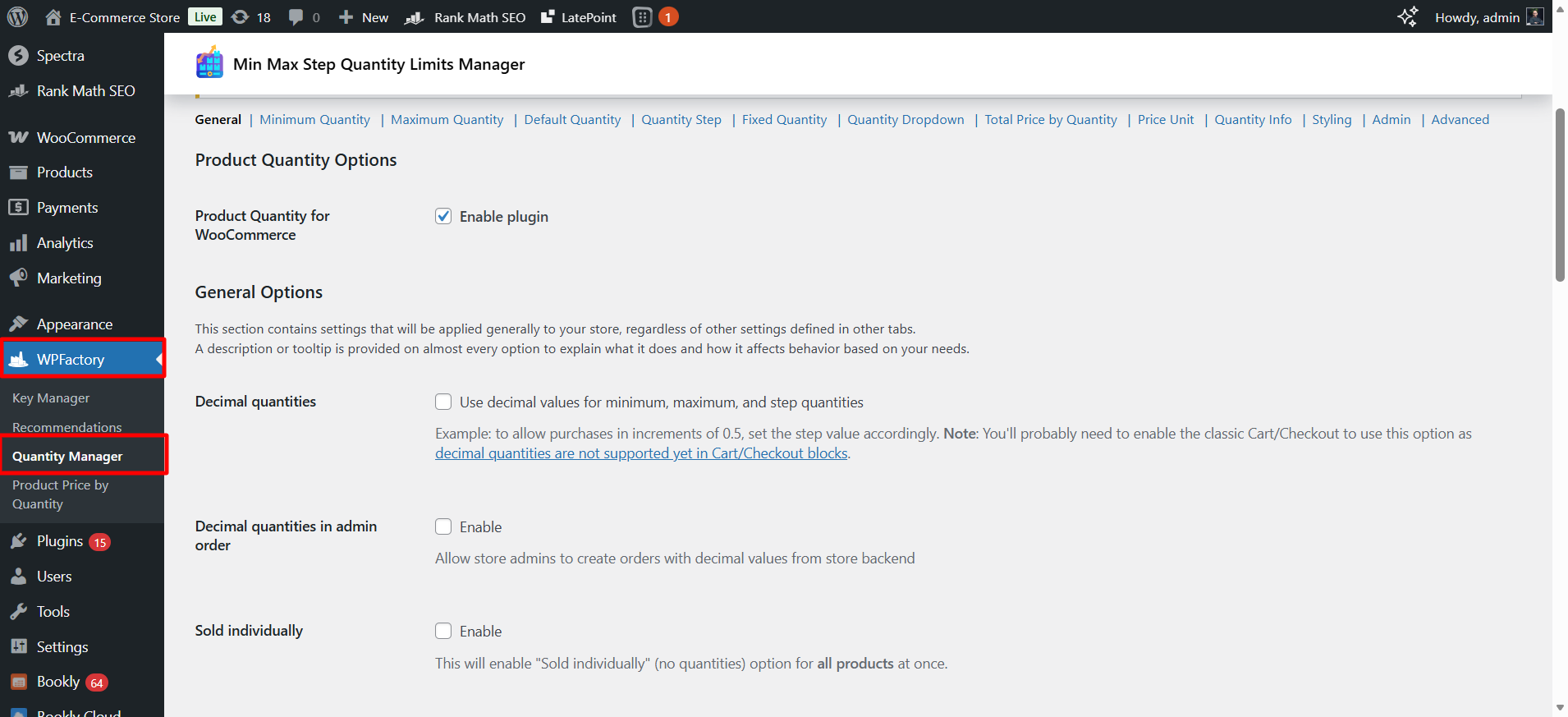
Enter your increment under “All Products” to apply it store-wide, or open a single product and set the step there to keep it product-specific. Save, and the quantity field on that product now moves in your chosen jumps.
To lock the product into whole packs, set the Minimum tab to the same value as the step. If your pack is 6, set both to 6. Now the smallest valid order is one full pack, and every step up adds another full pack.
The plugin handles this as part of the wider set of WooCommerce quantity rules, so you can layer a maximum or a default on top if you need one.
A Worked Example: Packs of 6
Numbers make the behaviour obvious. Take a product sold in packs of 6, priced at $5 a unit, with a step of 6 and a minimum of 6.
Watch what each attempted quantity does at the cart.
| Shopper tries to buy | Allowed? | What happens |
|---|---|---|
| 4 | No | Below the 6 minimum, blocked |
| 7 | No | Not a multiple of 6, blocked |
| 6 | Yes | One full pack, $30 |
| 12 | Yes | Two full packs, $60 |
| 18 | Yes | Three full packs, $90 |
Notice that 7 is refused even though it is above the minimum. That single row is the whole point of the step, and it is what a minimum-only setup can never give you.
Sell in clean packs, every order.
Set a WooCommerce quantity step, a minimum, and a maximum on any product, category, or your whole store with WooCommerce Quantity Manager. Trusted by 10,000+ stores and rated 5.0 stars, it turns “pick any number” into “pick whole packs” in a couple of clicks.
Step Quantity Preview Tool
Enter your pack size as the step, along with a minimum and a maximum, to see exactly which quantities a shopper would be able to choose. This is the same spacing your store enforces once the rule is live, and it is easier to trust when you can see it.
Where a Quantity Step Pays Off
Some businesses lean on this rule more than others. If your product ships in a fixed unit, it probably belongs here.
- Case and carton goods: beverages in 6s or 24s, canned goods, anything cased at the warehouse.
- Printing: business cards, flyers, and stickers sold in runs of 100 or 250.
- Textiles and materials: fabric, tiles, or flooring sold per box or per set length.
- Wholesale: inner packs and master cartons that must stay intact through the supply chain.
- Food and hospitality: trays, dozens, and set portions that only make sense whole.
In each case, the WooCommerce quantity step removes the awkward in-between orders before they ever reach your packing bench.
Combining Step With Other Rules
The step rarely works alone. It sits inside a small stack of settings that shape the quantity field together.
Pair it with a minimum to set your smallest pack, as shown above. Add a maximum if stock or shipping caps how much can go in one order. Set a default so the product page loads at a sensible pack count rather than a lonely 1.
If your constraint is really about cart value rather than units, that is a different tool entirely. Our guide on minimum order quantity versus minimum order amount draws that line clearly, so you set the rule that matches the actual problem.
What the Customer Sees on the Product Page
A step rule is only useful if shoppers understand it, so it helps to know how the change shows up on the front end.
The most visible difference is the quantity selector itself. The plus and minus arrows now jump by your step, so a tap moves the count from 6 to 12 rather than 6 to 7.
A shopper who types an invalid number is corrected or warned, depending on how you set validation.
You can also display the rule in plain language near the quantity box, something like “Sold in packs of 6.” That single line cuts support questions, because the shopper learns the pack size before they try to check out rather than after.
Quantity Manager gives you a few validation styles here. You can let the shopper type freely and correct them at the cart, show an inline error the moment they enter a bad number, or round their entry to the nearest valid step automatically.
Rounding tends to feel smoothest, since the customer never hits a hard stop.
Whichever you choose, the outcome at checkout is the same. Only clean multiples of your WooCommerce quantity step make it through to the order.
Common Mistakes to Avoid
A step rule is simple, but a few small missteps can make it behave in ways you did not intend. These are the ones that come up most often.
Setting a step without a matching minimum
A step of 6 on its own still lets a shopper start at whatever your minimum allows. If that minimum is 1, the valid amounts become 1, 7, 13, which is almost never what you want. Match the minimum to the step for true packs.
Forgetting variable products
On a variable product, each variation can carry its own quantity behaviour. If you set the step only on the parent and not the variations, some combinations may slip through counting in ones. Check each variation when the product has them.
Leaving the default at 1
If the product only sells in sixes, a product page that loads showing “1” invites confusion. Set the default quantity to your pack size so the starting figure already respects the rule.
Applying a store-wide step by accident
Setting the step under “All Products” applies it to everything, including items that should still sell singly. Use the per-product field when only some products ship in packs.
Avoid these four and the WooCommerce quantity step behaves exactly as expected, with every order landing on a clean multiple.
Related Resources
Keep building out your quantity setup with these guides:
- WooCommerce Quantity Rules: The Complete Guide
- WooCommerce Quantity Control: Set Min, Max, Step and More
- WooCommerce Minimum Order Quantity: Set It Per Product, Category or Cart
- Minimum Order Quantity vs Minimum Order Amount: Which to Use When
- How to Easily Force Minimum Order Quantity in WooCommerce
Set your WooCommerce quantity step in minutes
Turn “pick any number” into “pick whole packs” with WooCommerce Quantity Manager. Set the step, match it to a minimum, and every order arrives packable, with no broken cases.
It comes with a 14-day money-back guarantee, so you can put the rule live, watch the odd-number orders stop, and decide with nothing at risk.
Frequently Asked Questions
What is a quantity step in WooCommerce?
A quantity step is the increment the quantity field moves in. With a WooCommerce quantity step of 6, shoppers can only choose 6, 12, 18, and so on, instead of counting up one at a time. WooCommerce has no built-in step, so you add it with a quantity plugin.
How do I make customers buy in multiples in WooCommerce?
Set a step equal to your pack size using Quantity Manager. A step of 12 forces multiples of 12. To block partial packs completely, set the minimum to the same value as the step.
What is the difference between a minimum and a step?
A minimum sets the lowest amount a customer can buy. A step sets the spacing between valid amounts. A minimum of 6 still allows 7 or 9, while a step of 6 only allows 6, 12, and 18. Use both together for true packs-only ordering.
Can I set a different quantity step for each product?
Yes. Set the step under “All Products” for a store-wide rule, or open an individual product and set its own step there. That lets one product sell in sixes while another sells in tens.
Does WooCommerce support a quantity increment by default?
No. Core WooCommerce counts in ones and offers no increment or step setting. A WooCommerce quantity step requires a plugin such as Quantity Manager to enforce multiples at the product level.
Can I combine a quantity step with a maximum?
Yes. Add a maximum alongside the step to cap how much fits in one order, which is useful when stock or shipping limits apply. The quantities then run from your minimum up to your maximum in clean steps.