WooCommerce Restaurant Ordering: Quantity Rules for Food Stores

Quick Answer: WooCommerce Restaurant Ordering and Quantity Rules
WooCommerce does not come with restaurant-specific ordering rules out of the box. To control portion sizes, enforce minimum delivery amounts, and sell meals in the right increments, you need two plugins working together.. one that sets quantity rules per dish, and one that enforces a cart minimum before checkout.
The combination most restaurant stores get wrong is setting a minimum order value without controlling portion quantities separately, which means customers can technically meet the minimum with a single item while your kitchen runs an inefficient order.
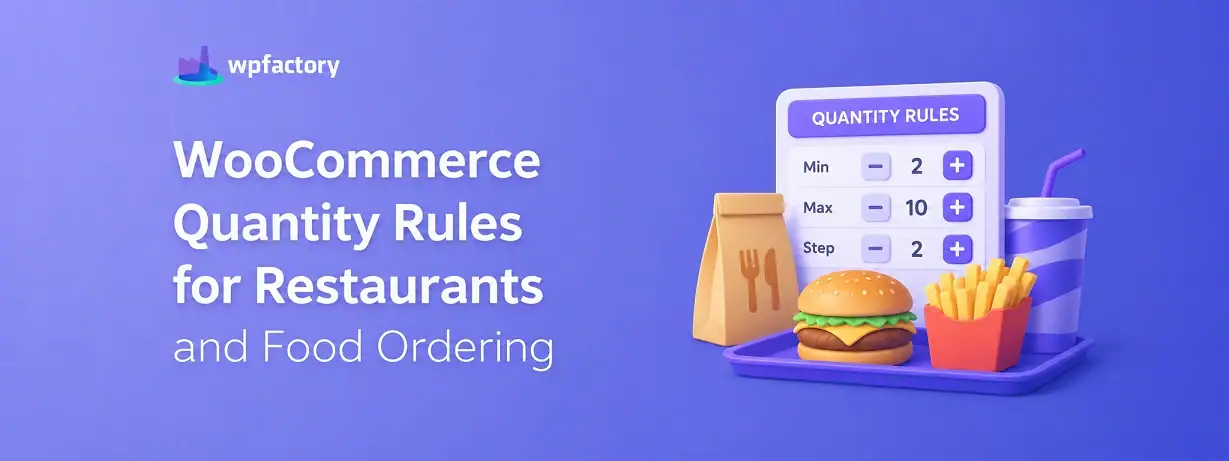
- Portion control: Set minimum, maximum, and step quantities per dish so customers order in realistic serving sizes.
- Delivery minimum: Block orders below a cart total that covers your delivery cost and prep overhead.
- Meal bundles: Sell multi-piece items (sushi sets, tasting platters) in fixed increments using step quantities.
The free quantity rule builder below lets you configure any dish and instantly preview every valid order quantity alongside whether it meets your delivery minimum.
A customer places an order for a single bowl of soup at 11:45 pm. Your delivery minimum is $20. The soup costs $8.50. WooCommerce lets the order through.
You now have a driver heading out for a $8.50 order that costs you more in fuel and time than it returns. And because WooCommerce treats a food store the same as any other product catalog, nothing in the default setup would have stopped it.
This is the core problem with using WooCommerce for restaurant ordering without proper quantity rules. The platform is flexible enough to run a food store, but it does not understand how food ordering works.
Portions come in specific sizes. Delivery only makes sense above a certain cart value. Some items must be ordered in multiples to make kitchen prep logical.
This guide covers exactly how to configure WooCommerce restaurant ordering with the right quantity rules, which settings belong on which plugin, and how to build a setup that handles portion control and delivery minimums at the same time.
Why Standard WooCommerce Falls Short for Food Stores
WooCommerce is built around a simple model.. a customer picks a product, sets a quantity, and checks out. That model works well for most retail categories.
Food ordering breaks it in several ways.
First, portion sizes are not arbitrary. A half-rack of ribs is not a valid order. A quarter of a sushi roll is not how your kitchen works. WooCommerce has no concept of “this item must be ordered in multiples of six” unless you tell it explicitly.
Second, delivery economics depend on cart value, not just item count. A $9 order that costs $4 to deliver leaves you with a margin that does not cover your overheads. WooCommerce will cheerfully process that order without any warning.
Third, some menu items are naturally bounded. A sharing platter that serves two to four people should not be orderable in quantities of twenty.
A tasting menu for two cannot be split into individual portions. Without a maximum quantity, a customer can order amounts your kitchen cannot fulfill.
The fix for all three problems is a combination of two plugins.. WooCommerce Quantity Manager for per-dish portion rules, and Order Minimum/Maximum Amount Limits for WooCommerce for the cart-level delivery minimum.
The Two Plugins and What Each One Controls
Understanding which plugin does what is the starting point. Mixing them up is the most common configuration mistake in WooCommerce restaurant setups.
WooCommerce Quantity Manager: Per-Dish Rules
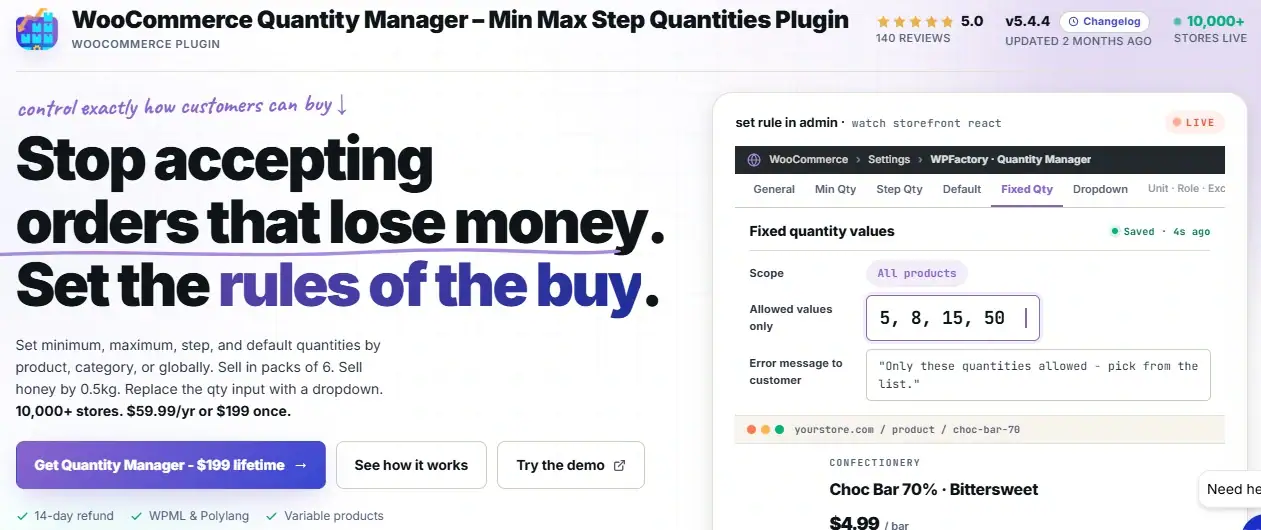
This plugin works at the individual product level. It controls how many of a specific item a customer can add to their cart, and in what increments.
For a restaurant, the relevant settings are minimum quantity, maximum quantity, and step. Minimum prevents a single bite-sized order. Maximum prevents an unrealistic bulk order. Step enforces the serving unit, so a dish that comes in portions of two can only be ordered in multiples of two.
You find the settings under the WPFactory menu in your WordPress dashboard, then Quantity. Each product also gets its own quantity fields on the product edit page.
Order Min/Max Amount: Cart-Level Delivery Minimum
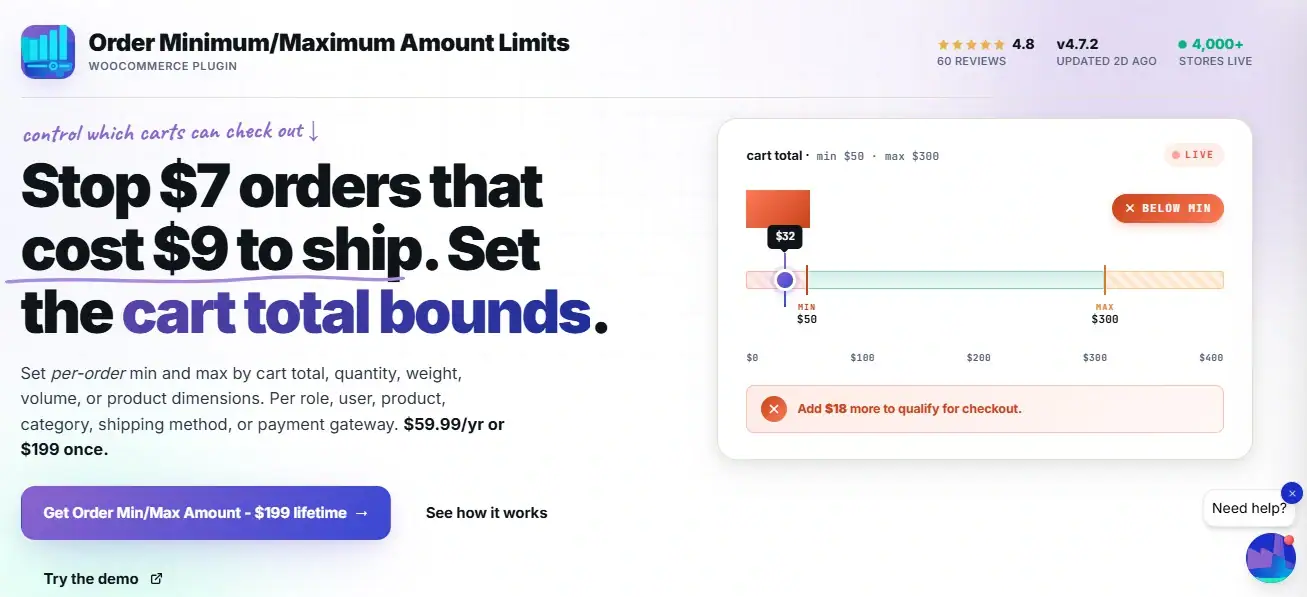
This plugin works at the cart level, not the product level. It looks at the total cart value and blocks checkout if the order falls below your configured threshold.
For a restaurant, this is your delivery minimum. Set it to the lowest cart total that covers your delivery cost while leaving a workable margin.
The plugin enforces it at both the cart page and checkout, and you can customize the message customers see when they fall short.
The settings live under WooCommerce → Settings → Order Min/Max Amount.
Both Plugins, One Setup, Full Restaurant Control
Use WooCommerce Quantity Manager for per-dish portion rules and Order Minimum/Maximum Amount Limits for WooCommerce for your delivery minimum. Active on 10,000+ and 4,000+ stores respectively. Both are available individually or through the All Access bundle.
A Worked Example: Setting Up a Real Restaurant Menu
Here is a concrete example with three menu items that cover the most common restaurant ordering scenarios.
The restaurant is a casual Japanese place. Delivery minimum is $25. The menu items below each need different quantity rules for different reasons.
| Menu Item | Price | Min Qty | Max Qty | Step | Why |
|---|---|---|---|---|---|
| Edamame | $5.00 | 1 | 10 | 1 | Single portions fine; cap at 10 for kitchen manageability |
| Sushi Roll (8 pieces) | $14.00 | 1 | 6 | 1 | Sold as a complete roll; max 6 per order for freshness |
| Nigiri (sold per piece) | $3.50 | 2 | 30 | 2 | Chef plates in pairs; orders must be in multiples of 2 |
| Sharing Platter | $42.00 | 1 | 2 | 1 | Large format item; maximum of 2 per order to manage prep |
On top of all of this, the $25 delivery minimum applies at the cart level.
A customer who only orders edamame at $5 cannot check out for delivery until they bring their cart to $25 or above.
This table is worth reading column by column.
The step setting is the one most food stores overlook, and it is the reason a sushi order arrives as a fractional roll or a nigiri count comes back odd.
How to Configure Per-Dish Quantity Rules
Here is the step-by-step setup for the Quantity Manager, applied to a restaurant menu.
Step 1: Install WooCommerce Quantity Manager
Install from your WPFactory account or search for “Min Max Step Quantity” in the WordPress plugin directory.
Step 2: Set Global Defaults (Optional)
- Go to WPFactory then Quantity in your dashboard.
- Under the General tab, you can set global minimum and maximum quantities that apply to all products unless overridden per product.
For most restaurants, leaving the global minimum at 1 and setting per-product rules is the cleaner approach.
Step 3: Set Per-Dish Rules on Each Product
- Open each menu item in the product editor.
- Scroll to the Product Data section.
- You will find the Quantity Manager fields there.. Minimum Quantity, Maximum Quantity, Step, and Default Quantity.
- Set the minimum to the smallest logical portion.
- Set the maximum to what your kitchen can handle in a single order.
- Set the step to the serving unit. For the nigiri example above, minimum 2, maximum 30, step 2.
Step 4: Test the Quantity Selector
- Visit the product page on the front end.
- Confirm the quantity selector starts at your minimum, increments by your step, and stops at your maximum.
- Try entering an invalid number manually to confirm the plugin resets it to the nearest valid value.
How to Configure the Delivery Minimum
Step 1: Install Order Min/Max Amount Plugin
- Install from your WPFactory account or the plugin directory.
- Go to WooCommerce → Settings → Order Min/Max Amount after activation.
Step 2: Enable and Set the Minimum
- In the General tab, check the Enable box.
- Under Amount Limits, select Min.
- Under Amount Types, select Sum.
- Then go to the Amounts tab and enter your delivery minimum in the Minimum Order Amount field.
Step 3: Write a Clear Customer Message
- Go to the Messages tab.
- Replace the default message with something specific to your store.
- Use the
%amount%placeholder for your threshold and%diff%for how much the customer still needs to add. - A message like “Your order is %diff% short of our $25 delivery minimum.
- Add another dish to continue” converts better than a generic error.
Step 4: Set the Message Position
- Choose to show the message on the cart page, the mini-cart, and at checkout.
- Showing it early on the cart page gives customers a chance to add items before they reach checkout.
Free Tool: Restaurant Quantity Rule Builder
Enter your dish settings below to see every valid order quantity and whether each one meets your delivery minimum.
Comparison: Per-Dish Quantity Rules vs Cart Minimum
Both controls are necessary for a well-run WooCommerce restaurant ordering setup.
They solve different problems and fail differently when misconfigured.
Reading each row here is worth the time.
The failure modes in the last row are the ones that show up most often in support forums, and they are always the result of using one control where the other was needed.
| Factor | Per-Dish Quantity Rules | Cart Minimum Order Value |
|---|---|---|
| What it controls | How many of one item a customer can order | The total cart value before checkout is allowed |
| Plugin | WooCommerce Quantity Manager | Order Min/Max Amount |
| Settings location | WPFactory → Quantity, plus per-product fields | WooCommerce → Settings → Order Min/Max Amount |
| Free or Pro | Min, max, step per product: free | Global cart minimum: free |
| Failure mode if missing | Customers order partial portions or unrealistic quantities | Single low-value items clear checkout without meeting delivery cost |
| Use together? | Yes. Per-dish rules and cart minimum solve different problems. One without the other leaves a gap. | |
Quantity Rules by Restaurant Type
The right configuration varies by how your restaurant actually operates. Here is how the thinking changes across four common setups.
Pizza and Burger Delivery
Whole-item ordering is the norm. Each product is a complete unit, so the step is 1 and the minimum is 1.
The cart minimum matters most here: delivery economics on a single $10 pizza do not work, so a $25 or $30 cart minimum protects the margin on every order.
Where quantity rules add value is on sides and extras.
If you sell chicken wings in portions of six, set step to 6 and minimum to 6. This stops a customer from ordering three wings and expecting the same packaging.
Sushi and Asian Cuisine
This is where step quantities earn their keep. Nigiri comes in pairs. Maki rolls are sold whole. Gyoza typically comes in sets of five or six.
Setting the step to match the plating unit means every order that comes through is one your kitchen can execute without awkward portioning decisions.
Maximum quantities also matter here. A sushi restaurant with limited fresh fish inventory cannot fulfill an order for twenty rolls placed at 7pm on a Friday.
A per-product maximum of six to eight rolls is a reasonable protection.
Meal Kit and Subscription Boxes
Meal kits are typically sold in serving sizes of two or four. The step quantity should match the serving increment.
A kit for two should be orderable in quantities of 1 (one kit serving two people), but a kit that sells by the person should have a step of 2 so customers always order an even number.
The maximum quantity for meal kits is usually tied to fulfillment capacity rather than kitchen limits.
If you prep and pack 50 kits per week, a per-product maximum of 5 per order stops any single customer from taking a disproportionate share of weekly supply.
Catering and Bulk Orders
Catering orders invert the usual logic. Instead of a minimum cart value to make delivery worthwhile, a catering store often needs a minimum quantity per item to make prep worthwhile.
Setting the minimum quantity per dish to 10 or 20 means every catering order that comes through justifies the batch preparation.
A maximum order value limit also makes sense here.. very large catering orders may need manual review before confirmation.
Capping the cart value and routing those customers to a quote form is cleaner than processing an order your team cannot fulfill without prior coordination.
Common Mistakes in WooCommerce Restaurant Ordering
A few configuration errors come up consistently when restaurant stores first set up WooCommerce ordering.
Setting a cart minimum without per-dish steps.
The cart minimum stops the $8.50 soup order, but it does not stop a customer from ordering 2.5 sushi rolls. Both controls need to be in place.
Using the same quantity rules for every dish.
A sharing platter and a side of fries need very different maximums. Applying a global rule to the whole menu creates problems at both ends of the scale.
Forgetting to test the quantity selector on mobile.
The quantity input behaves differently on mobile browsers. Test with step and min values set to confirm the selector increments correctly on touch devices.
Writing a vague minimum order message.
“Minimum order required” tells customers nothing useful. A message that includes the threshold and the shortfall (“Add $7.50 more to meet our $25 delivery minimum”) converts far better and reduces support questions.
Not updating rules when the menu changes.
Seasonal menu items often get added without quantity rules because the setup is done in a rush. Build the habit of configuring min, max, and step at the same time you add a new product.
Related Resources
- WooCommerce Quantity Rules: The Complete Guide – the full reference for every quantity rule type in WooCommerce
- Minimum Order Quantity vs Minimum Order Amount: Which to Use When – when to use each type of limit and why the distinction matters
- How to Set Quantity Step Increments in WooCommerce – full walkthrough of the step setting used for portion control
- WooCommerce Minimum Order Amount by User Role – set different delivery minimums for different customer types
- How to Limit Order Minimum and Maximum Amounts in WooCommerce – complete plugin walkthrough for the cart-level minimum
Ready to Set Up WooCommerce Restaurant Ordering Rules?
Use WooCommerce Quantity Manager to control portion sizes per dish, and Order Minimum/Maximum Amount Limits for WooCommerce to enforce your delivery minimum at the cart level. Both plugins are free for core features. Pro versions are available at $59.99 per year or $199 for a lifetime license.
All purchases include a 14-day money-back guarantee, no questions asked.
Frequently Asked Questions
Does WooCommerce support restaurant ordering out of the box?
Not with the controls a food store needs. WooCommerce handles basic product ordering, but it has no native concept of portion sizes, serving increments, or delivery minimums.
You need plugins to add those rules. The combination of WooCommerce Quantity Manager and Order Min/Max Amount covers the core requirements for most restaurant setups.
How do I set a minimum order for delivery in WooCommerce?
Install the Order Minimum/Maximum Amount plugin and go to WooCommerce → Settings → Order Min/Max Amount.
Enable the plugin, set the amount type to Sum, and enter your delivery minimum in the Amounts tab.
Add a clear customer message in the Messages tab so customers know exactly how much they need to add.
Can I sell food items in fixed portion sizes in WooCommerce?
Yes. The WooCommerce Quantity Manager plugin adds a Step Quantity field to each product.
Set the step to your serving unit.. 2 for items plated in pairs, or 6 for a six-piece set.
The quantity selector will only allow multiples of that number.
Set the minimum to the same value to prevent a customer from ordering less than one serving.
What is the best WooCommerce plugin for restaurant ordering?
There is no single plugin that handles everything a food store needs.
The practical answer is two plugins.. WooCommerce Quantity Manager for per-dish portion and quantity rules, and Order Minimum/Maximum Amount for the cart-level delivery minimum.
Both are from WPFactory and work independently without conflict.
Can I set different delivery minimums for different customers in WooCommerce?
Yes. The Order Minimum/Maximum Amount plugin includes a User Roles tab where you can set a different minimum for each role.
This is available in the free version.
A common setup is a lower minimum for registered customers and a higher one for guest orders, or no minimum at all for wholesale accounts placing large orders.
How do I stop customers from ordering too many of a dish in WooCommerce?
Set a Maximum Quantity on the product using the WooCommerce Quantity Manager plugin.
You will find the field in the Product Data section of each product edit page.
Once the customer reaches that quantity, the selector stops incrementing and the add-to-cart button adds no more of that item to the cart.