To add a custom field to your WooCommerce checkout page, enable a field and set its type in Custom Checkout Fields for WooCommerce. This guide walks through turning on your first field and choosing what it collects.
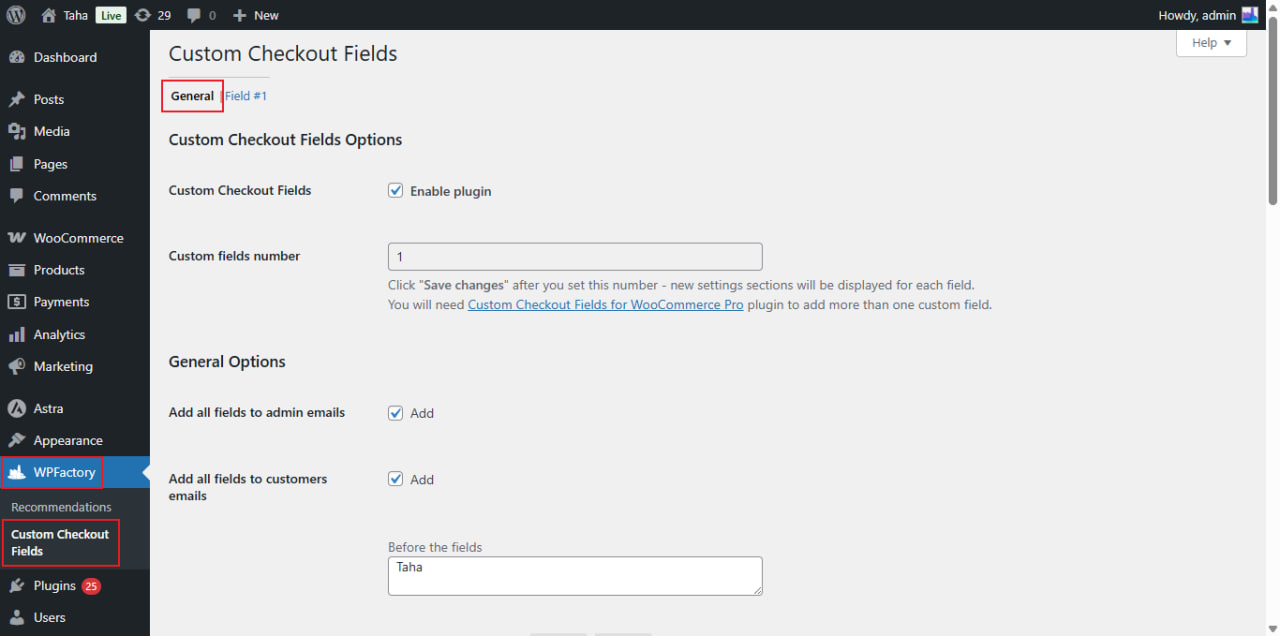
Step 1: open the settings #
Go to WPFactory > Custom Checkout Fields (also reachable at WooCommerce > Settings > Custom Checkout Fields). You land on the General tab.
Step 2: set how many fields you want #
On the General tab, Custom fields number (alg_wc_ccf_total_number) controls how many field tabs appear. Set the number, then click Save changes: a separate Field #1, Field #2, and so on tab appears for each field.
Free vs Pro: in the free version this number is locked to 1, so you get a single Field #1 tab. Custom Checkout Fields Pro makes the number editable up to 100. If you are on the free version and the field count does not change after saving, that is the field limit, not a bug.
Step 3: enable and configure the field #
Open the Field #1 tab and set the core options in the Field section:
| Label | Option ID | Default | What it does |
|---|---|---|---|
| Enable/disable field | alg_wc_ccf_enabled_1 |
No | Turns the field on. Nothing appears at checkout until this is ticked. |
| Type | alg_wc_ccf_type_1 |
Text | The input type: Text, Textarea, Number, Checkbox, Datepicker, Weekpicker, Timepicker, Select, Multiselect, Radio, Password, Country, State, Email, Phone, Color, Search, URL, or Range. |
| Label | alg_wc_ccf_label_1 |
Empty | The text shown next to the field on the checkout page. |
| Placeholder | alg_wc_ccf_placeholder_1 |
Empty | Hint text shown inside an empty field. |
| Default value | alg_wc_ccf_default_1 |
Empty | Pre-fills the field. Use 1 or 0 for a checkbox. |
| Required | alg_wc_ccf_required_1 |
No | Makes the field mandatory to place the order. |
Step 4: choose where it appears #
In the Position Options group, set Section (alg_wc_ccf_section_1) to one of Billing, Shipping, Account, or Order notes. Use Priority (i.e., order) (alg_wc_ccf_priority_1, default 200) to control its position within that section: a lower number appears higher. For reference, WooCommerce’s own First name field has priority 10 and Email address has priority 110. See Where to position your custom fields for the full breakdown.
Step 5: save #
Click Save changes, then open your checkout page to confirm the field shows up in the section you chose.
Use cases #
- A “Delivery instructions” textarea in the Order notes section.
- A required “VAT number” text field in the Billing section.
- A “Preferred delivery date” datepicker.
Get more fields #
The free version covers one field. Custom Checkout Fields for WooCommerce Pro lets you add up to 100 fields across all four checkout sections. See what Pro unlocks.