Table of Contents
The General tab of Custom Checkout Fields for WooCommerce includes an Advanced Options group that controls field sorting, duplicate-field labels, the settings-screen layout, and the meta key used for your fields. This guide explains each one.
Open the advanced options #
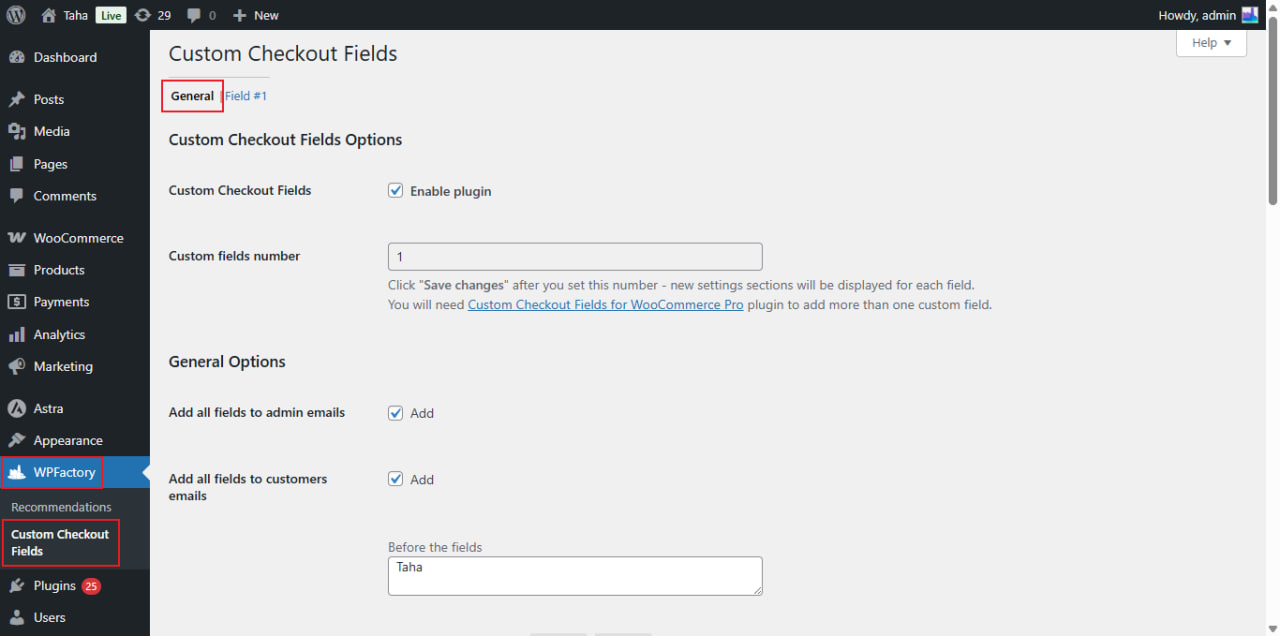
Go to WPFactory > Custom Checkout Fields (also reachable at WooCommerce > Settings > Custom Checkout Fields) and scroll the General tab down to Advanced Options.
Options reference #
| Label | Option ID | Default |
|---|---|---|
| Force fields sort by priority | alg_wc_ccf_force_sort_by_priority |
No |
| Label template for duplicated fields: For each product in cart | alg_wc_ccf_duplicate_label_template_each_product |
%product_title% |
| For each product item in cart | alg_wc_ccf_duplicate_label_template_each_product_item |
%product_title% (%item_nr%) |
| Glue | alg_wc_ccf_duplicate_label_glue |
: |
| Hide unrelated type options | alg_wc_ccf_hide_unrelated_type_options |
No |
| Fields ID | alg_wc_ccf_key |
alg_wc_checkout_field |
What each option does #
- Force fields sort by priority: some themes reorder checkout fields and ignore the Priority values you set. Enable this to force the order to follow your priorities regardless of the theme.
- Label template for duplicated fields: when a field is set to duplicate for each product (or each product item) in the cart, these templates build the per-copy label. Use
%product_title%and, for the per-item template,%item_nr%. The Glue is the text placed between the field’s own label and the product suffix. - Hide unrelated type options: this is an admin-screen convenience only. When enabled, a field’s settings tab hides the type-specific option groups (Select/Multiselect/Radio, Checkbox, Datepicker/Weekpicker, Timepicker) that do not match the field’s selected Type, so you see only the options that apply. It does not change anything on the checkout page shown to customers.
- Fields ID: the middle part of each field’s key and meta key. With the default value, a billing Field #1 uses the key
billing_alg_wc_checkout_field_1. Change this only if you understand the effect on stored order data, since existing orders keep the key they were saved with.
Related #
Get more fields #
These advanced options apply whether you run one field or many. Custom Checkout Fields for WooCommerce Pro raises the field limit to 100. See what Pro unlocks.