To enable or disable WooCommerce payment methods by date and time, use Conditional Payment Methods for WooCommerce: go to WPFactory > Conditional Payment Gateways > Date/Time, enable Require Date/Time or Exclude Date/Time, enter one date or time range per line next to the gateway and save.
Examples: offer Cash on delivery only during business hours, switch off bank transfer on weekends, or run a gateway for a seasonal period only.
Before you start #
- Conditional Payment Methods installed and active.
- Free version: date and time rules work for Direct bank transfer, Check payments, Cash on delivery and PayPal Standard. Other gateways need Pro.
- Check your site timezone at Settings > General > Timezone. Ranges are compared with the current time in that timezone. The Date/Time section shows the Current date in its notes so you can confirm it.
Schedule a payment method #
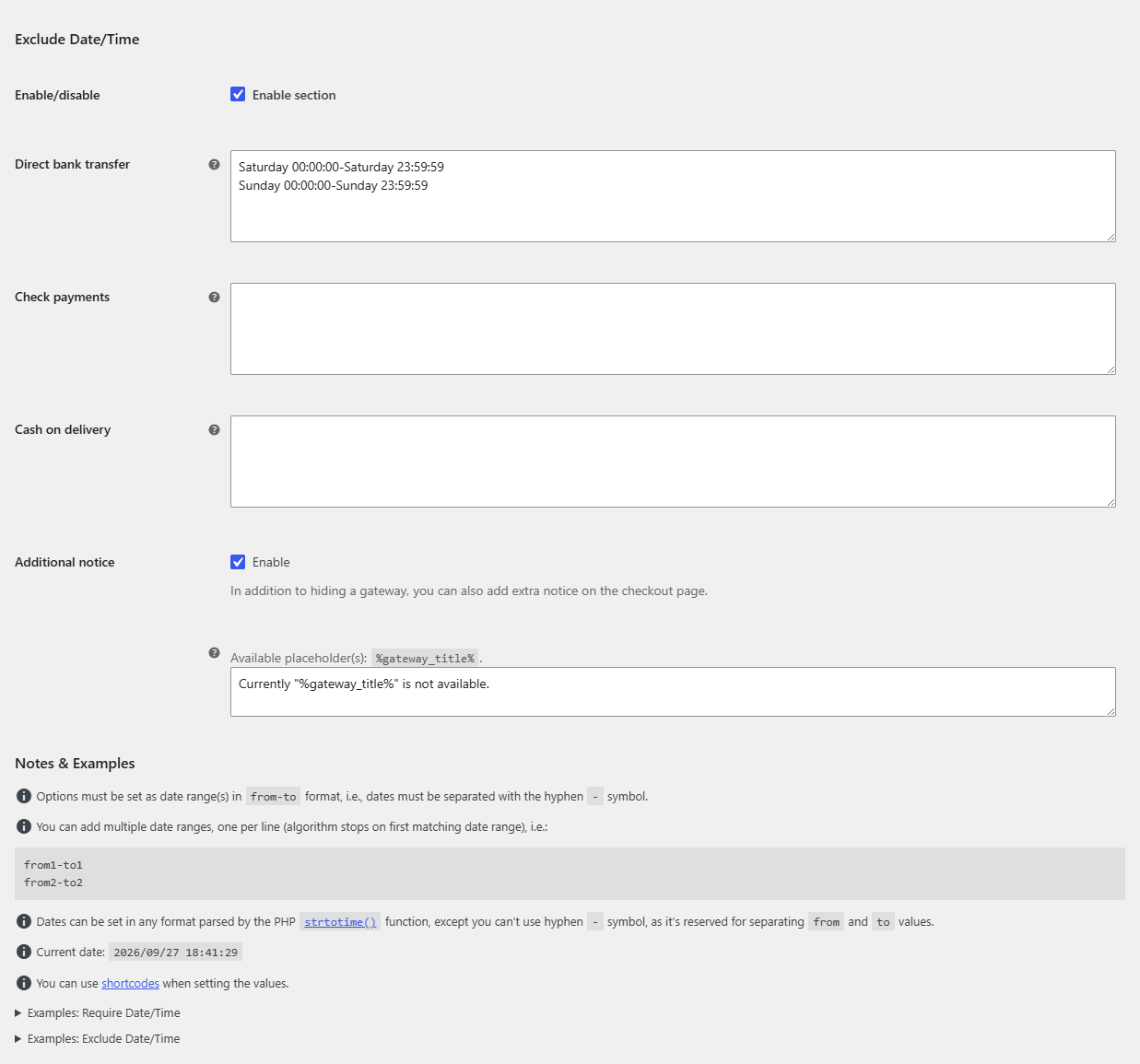
- Go to WPFactory > Conditional Payment Gateways (also reachable at WooCommerce > Settings > Conditional Payment Gateways) and open the Date/Time section.
- To show a gateway only inside certain periods, tick Enable section under Require Date/Time.
- To hide a gateway during certain periods, tick Enable section under Exclude Date/Time.
- Next to the gateway, enter each range as
from-to, one range per line. - Optionally edit the Additional notice. The default reads
Currently "%gateway_title%" is not available. - Click Save changes.
Range format and examples #
The hyphen separates the start and end of each range, so do not use hyphens inside a date. Each side can be anything PHP’s strtotime() understands, such as times, weekdays or relative dates. When several lines are entered, the rule matches if the current time falls in any of them.
| Goal | Block | Value |
|---|---|---|
| Available only before 3:00 PM each day | Require | 00:00:00-14:59:59 |
| Hidden after 4:00 PM each day and all weekend | Exclude | 16:00:00-23:59:59Saturday 00:00:00-Saturday 23:59:59Sunday 00:00:00-Sunday 23:59:59 |
| Available in summer only | Require | first day of June - last day of August 23:59:59 |
| Hidden during February | Exclude | first day of February - last day of February 23:59:59 |
More examples are shown under Notes & Examples at the bottom of the section.
FAQ #
Can I enter dates like 2026-12-24? #
No, because the hyphen is reserved for splitting the range. Use a format without hyphens, such as 24 December 2026 or 2026/12/24. A date without a time means midnight at the start of that day, so add 23:59:59 to an end date to include the whole day.
Can a range span midnight, such as 22:00 to 06:00? #
Not in one line, because the end would come before the start. Split it into two lines: 22:00:00-23:59:59 and 00:00:00-05:59:59.
Why should each weekday get its own line? #
Weekday names are read relative to today. On a Sunday, Saturday points to the next Saturday, so a single Saturday 00:00:00-Sunday 23:59:59 line would not match on Sundays. One line per day, as in the table above, always works.
Get more control #
Date and time rules are free for the four built-in WooCommerce gateways. Conditional Payment Methods for WooCommerce Pro applies them to any payment gateway. See what Pro unlocks.
Need a hand? Our team answers every ticket on the Conditional Payment Methods support forum.