To restrict payment methods by user role in WooCommerce, use Conditional Payment Methods for WooCommerce: go to WPFactory > Conditional Payment Gateways > User Role, enable Require User Role or Exclude User Role, select roles for each gateway and save. The User and Customer IP sections work the same way for user IDs and IP addresses.
Common uses: offer invoice or bank transfer payment to wholesale customers only, hide Cash on delivery from guests, allow a test gateway only for your own account, or block a gateway for IP ranges you have had fraud from.
Before you start #
- Conditional Payment Methods installed and active.
- Free version: these rules work for Direct bank transfer, Check payments, Cash on delivery and PayPal Standard. Other gateways need Pro.
Restrict payment methods by user role #
- Go to WPFactory > Conditional Payment Gateways (also reachable at WooCommerce > Settings > Conditional Payment Gateways) and open the User Role section.
- To offer a gateway only to certain roles, tick Enable section under Require User Role and select the roles next to that gateway, for example a wholesale role next to Direct bank transfer.
- To hide a gateway from certain roles, tick Enable section under Exclude User Role and select those roles next to the gateway.
- Optionally edit the Additional notice. The default reads
"%gateway_title%" is not available for the current user. - Click Save changes.
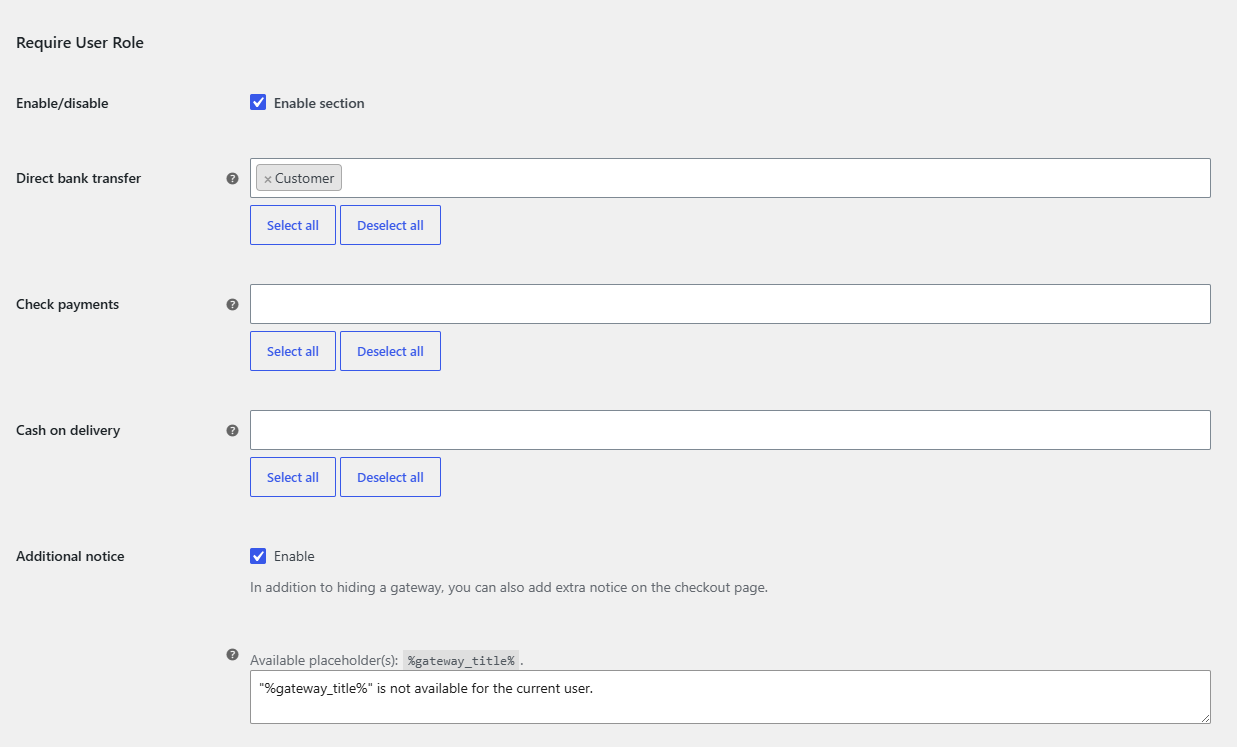
The role list comes from your site, so custom roles added by other plugins appear too. A user with several roles matches if any one of their roles is selected. Guests have no role, so they never match a Require User Role rule.
Restrict payment methods for specific users or guests #
- Open the User section.
- Enable Require User or Exclude User.
- Next to the gateway, enter user IDs, one per line, for example
100and101. Use0for guests (visitors who are not logged in). - Click Save changes.
Example: to hide Cash on delivery from guests, enable Exclude User and enter 0 next to Cash on delivery.
Restrict payment methods by IP address #
- Open the Customer IP section.
- Enable Require Customer IP or Exclude Customer IP.
- Next to the gateway, enter IP addresses, one per line. CIDR ranges such as
10.0.0.0/8are accepted. - Click Save changes.
The IP address is read through WooCommerce, which also checks common proxy headers. Behind a CDN or proxy that hides the real visitor IP, the rule sees the proxy address instead.
FAQ #
Where do I find a user’s ID? #
Go to Users in the WordPress admin and open the user. The ID is shown in the address bar as user_id=.
Can I combine a role rule with a cart total rule? #
Yes. Every enabled condition must pass, so a gateway can be limited to wholesale customers and to orders above a minimum at the same time. See hide a payment method based on cart total.
Can I show a different notice per language? #
Yes. Notices accept shortcodes, so you can use [alg_wc_cpg_translate] with WPML or Polylang. See the shortcodes and developer reference.
Get more control #
Role, user and IP rules are free for the four built-in WooCommerce gateways. Conditional Payment Methods for WooCommerce Pro applies them to any payment gateway. See what Pro unlocks.
Need a hand? Our team answers every ticket on the Conditional Payment Methods support forum.