To install Rename Media Files: Improve Your WordPress SEO, go to Plugins > Add New in your WordPress dashboard, search for File Renaming on Upload, find the plugin by WPFactory, and click Install Now, then Activate. You can also upload the ZIP with Upload Plugin. The settings then live at WPFactory > File Renaming.
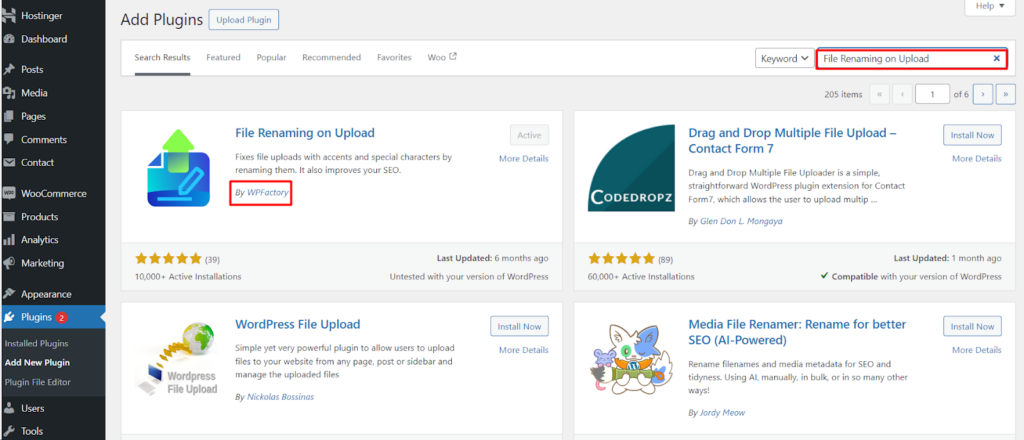
Step-by-step installation #
- Open the Plugins menu: In your WordPress dashboard, go to Plugins in the left-hand menu.
- Click Add New: Choose the Add New sub-menu to start installing a plugin.
- Search for the plugin: In the search bar, type File Renaming on Upload.
- Identify the correct plugin: Look for the plugin by WPFactory. This guide covers the free version, Rename Media Files.
- Install and activate: Click Install Now, then click Activate to enable the plugin on your site.
Alternative install (upload the ZIP) #
- Download the plugin: Get the free version from the WordPress.org plugin directory and save the ZIP file to your computer.
- Go to Add New: Back in your dashboard, open Plugins > Add New.
- Upload the ZIP: Click Upload Plugin, choose the downloaded ZIP file, then click Install Now.
- Activate: When the install finishes, click Activate Plugin.
Where to go next #
Go to WPFactory > File Renaming in your WordPress admin. The settings page is titled File Renaming on Upload and is split into tabs: General Settings, Rules, Advanced, and (in Pro) Compatibility and Background Process. From here you can set your filename structure and turn individual naming rules on or off.
Prefer to watch? #
This short video summarizes the installation in just a few minutes: https://youtu.be/PUnloZCHXvo.
Get more control #
The core renaming rules are free. Rename Media Files: Improve Your WordPress SEO Pro adds manual filename and permalink editing, bulk renaming of existing media, automatic ALT text and titles, custom field, taxonomy and SKU rules, and more. See what Pro unlocks.