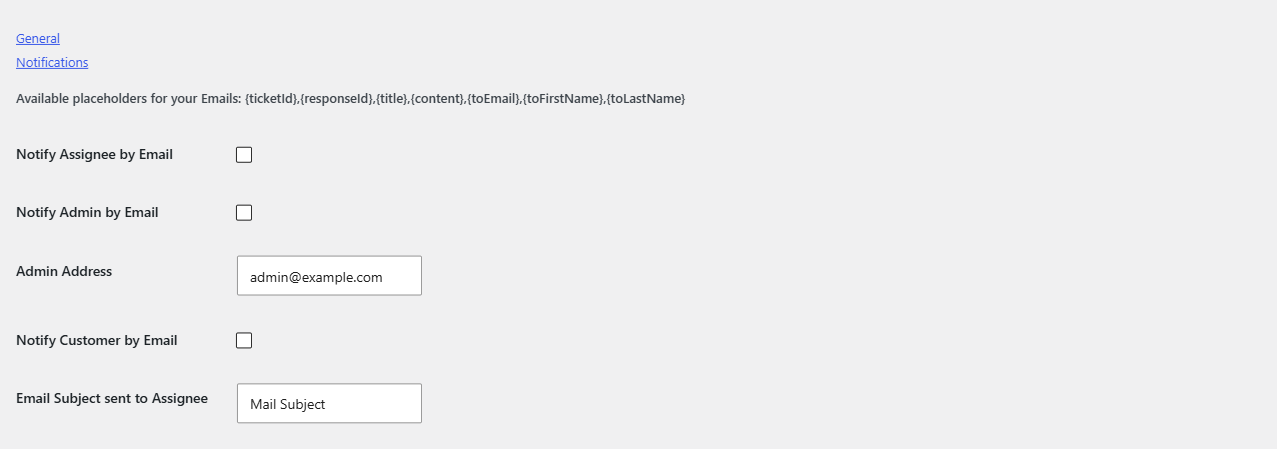
To send email notifications for WooCommerce support tickets, go to WPFactory > Support Tickets > Settings (also under Support Tickets > Settings) in Helpdesk Support Ticketing System for WooCommerce and open the Notifications sub-tab. Tick who should be emailed, optionally write custom subjects and messages, and save.
Before you start #
- All notifications are off by default.
- Helpdesk sends HTML emails through the standard WordPress mail function. If your site does not send email reliably, set up an SMTP plugin first.
How to turn on ticket emails #
- Go to WPFactory > Support Tickets, click the Settings tab, then the Notifications sub-tab.
- Tick Notify Assignee by Email to email the agent who owns the ticket.
- Tick Notify Admin by Email to email a fixed address, and enter it in Admin Address. The field is prefilled with the site admin email.
- Tick Notify Customer by Email to email the customer who opened the ticket.
- Optionally fill in Email Subject sent to Assignee, Email Content sent to Assignee, Email Subject sent to Customer and Email Content sent to Customer. Leave them empty to use the built-in messages.
- Click Save Changes, then submit a test ticket from a customer account.
When each email is sent #
| Event | Admin | Assignee | Customer |
|---|---|---|---|
| Customer opens a new ticket | Yes | Yes | Yes |
| Customer replies from My Account | Yes | Yes | Yes |
| You reply from the wp-admin ticket screen | No | Yes | Yes |
| You add a private note | No | No | No |
Each column only applies when its checkbox is ticked. The assignee is the ticket’s assigned user, or the Default Assignee when none is set. All emails are sent from your site name and the Admin Address (or the site admin email when Admin Address is empty).
Placeholders #
You can use these placeholders in the custom subjects and messages. They are listed at the top of the Notifications sub-tab.
| Placeholder | Replaced with |
|---|---|
{ticketId} |
The ticket ID |
{responseId} |
The response ID (empty for a new ticket) |
{title} |
The ticket title (empty when a customer replies) |
{content} |
The ticket message, or the reply text when a customer replies |
{toEmail} |
The customer’s email address |
{toFirstName} |
The customer’s first name |
{toLastName} |
The customer’s last name |
{responseContent} |
Your reply text, in emails sent when you reply from wp-admin |
Example assignee subject: New ticket #{ticketId}: {title}. Example customer message: Hi {toFirstName}, we received your ticket #{ticketId} and will reply soon.
Built-in messages #
When you leave a subject or content field empty, Helpdesk uses its own text. For a new ticket the subject is “New Ticket to [site name] – #[ticket ID] [title]” and the message contains the title, the message and a link to the customer’s Tickets page. Replies use subjects such as “New Response to ticket #[ticket ID]”.
FAQ #
Why does the admin email use the assignee template? #
There is no separate admin template. Email Subject sent to Assignee and Email Content sent to Assignee are used for both the admin and the assignee emails, so write them for your team.
Do {toFirstName} and {toEmail} refer to the person receiving the email? #
No. They always hold the customer’s details, including in the emails sent to the admin and the assignee. This lets your team see who opened the ticket.
Why does the customer email for my admin reply only contain a single line? #
In version 3.0.4, when Email Subject sent to Customer is filled in, emails for replies you send from wp-admin use that subject text as the message body. Leave the customer subject empty to send the built-in reply email, which includes the title, message, your last response and a link.
Can I send ticket emails to more than one admin address? #
The Admin Address field is meant for one address. For a team inbox, use a shared mailbox or a forwarding address.
Get Helpdesk #
Ticket notifications are part of Helpdesk Support Ticketing System for WooCommerce Pro. If emails do not arrive, see the Helpdesk troubleshooting guide.
Need a hand? Our team answers every ticket on the Helpdesk support forum.