To let WooCommerce customers open support tickets, activate Helpdesk Support Ticketing System for WooCommerce and flush your permalinks. Logged-in customers then submit tickets from My Account > Tickets. Customize the tab and button labels at WPFactory > Support Tickets > Settings (also under Support Tickets > Settings).
Where customers can open a ticket #
Helpdesk gives customers four entry points. All of them show the same ticket area:
- My Account > Tickets: a new tab added to the WooCommerce My Account menu.
- Get Help button: shown next to each order in My Account > Orders. It opens the Tickets tab with that order already linked to the new ticket.
- Single order page: when a customer views an order, a Tickets section appears below the order details, listing tickets for that order and a form to open a new one.
- Any page with the shortcode: add
[stsw_user_tickets]to a page to show the ticket area there, for example on a dedicated Support page.
The Orders table in My Account also gets a Tickets column. When an order has tickets, it shows how many, linked to the ticket list for that order.
How to enable customer tickets #
- Activate Helpdesk. The Tickets tab and the Get Help button are added automatically, no setting is required.
- Go to Settings > Permalinks and click Save Changes so WordPress registers the
ticketsendpoint. - Go to WPFactory > Support Tickets and open the Subject tab. Add the topics customers should choose from. If no subjects exist, the Subject field is hidden from the form.
- Open the Settings tab. Optionally set Rename Tab Link in My Account Page for Tickets (default label: Tickets) and Rename Button on Orders Table in My Account Page for Tickets (default label: Get Help).
- Optionally tick Enable Priority Field to Ticket Creation so customers can choose a priority, and Enable Attachments to Ticket so they can upload files.
- Edit Text to display once Ticket is saved and Text to display once Response is saved to set the confirmation messages, then click Save Changes.
- Optionally create a page, add the
[stsw_user_tickets]shortcode and link it from your menu or footer.
What the customer sees #
The new ticket form #
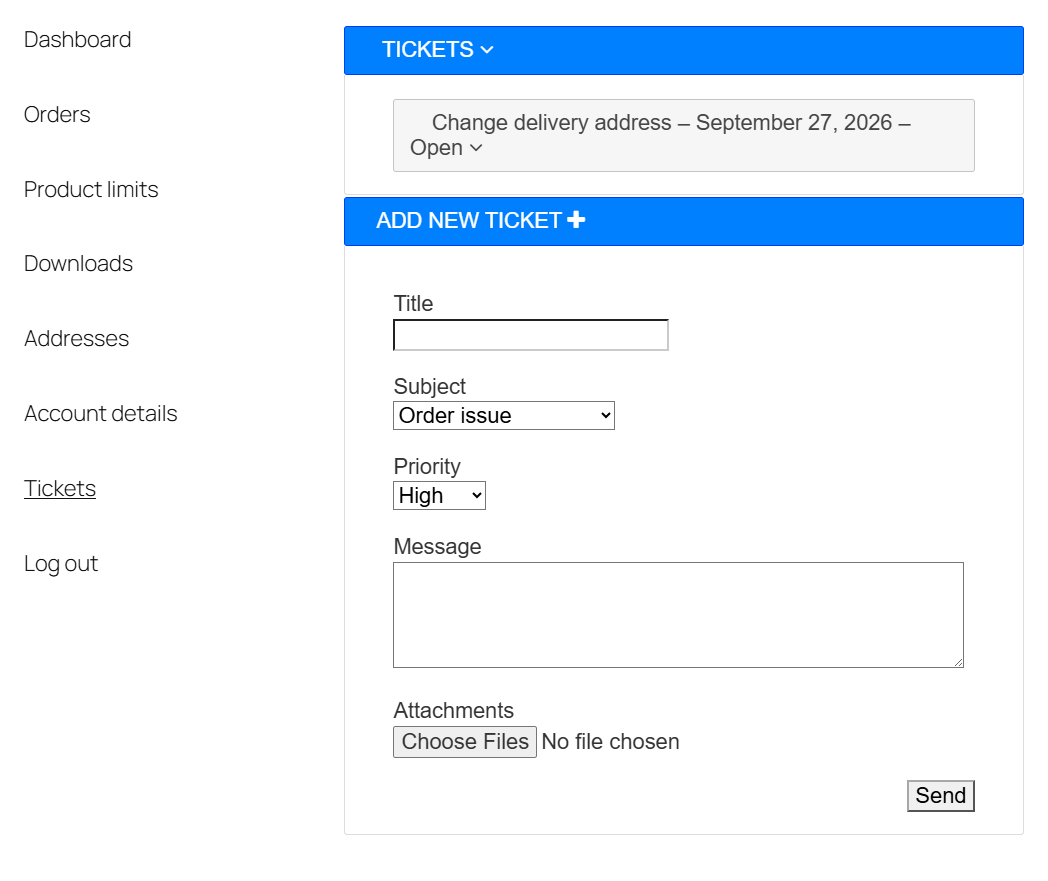
The ADD NEW TICKET form contains:
- Title: required, at least 3 characters.
- Subject: a dropdown of your subjects, shown when at least one subject exists.
- Priority: a dropdown of your priorities, shown only when the priority field is enabled.
- Message: required.
- ORDER: the linked order number, shown when the customer came from the Get Help button or an order page.
- Attachments: a file upload field, shown when attachments are enabled (see how to allow file attachments).
After the customer clicks Send, the ticket is saved with the Open status, the confirmation text is shown, and the notification emails you enabled are sent.
The ticket list and replies #
Above the form, a TICKETS section lists the customer’s tickets as expandable rows showing the title, date and status. Each ticket shows the original message, subject, attachments and all public responses. Private notes written by your team are never shown to customers.
For tickets that are not closed, the customer can expand Add a response, write a reply and click Send. Ticking Close Ticket before sending marks the ticket as Closed. Closed tickets no longer show the reply form.
Who sees which tickets #
| Logged-in user | Tickets shown in the front-end ticket area |
|---|---|
| User with the Customer role | Only the tickets they opened |
| Administrator | All tickets |
| Any other role (for example Shop Manager or a support agent) | Only the tickets assigned to them |
| Not logged in | No tickets. The WooCommerce login and registration form is shown instead |
When Show only Open in Frontend is ticked, tickets with the Closed status are hidden from this list for everyone.
FAQ #
Can I rename the Tickets tab to Support? #
Yes. Enter the new label in Rename Tab Link in My Account Page for Tickets and save. The same label is used as the heading of the Tickets section on single order pages.
Can a customer open a ticket that is not about an order? #
Yes. A ticket opened directly from the Tickets tab or from a shortcode page has no order attached. Only tickets opened from the Get Help button or an order page are linked to an order.
Why is the page title hidden on my shortcode page? #
The ticket area adds a small style rule that hides elements with the entry-title class, which most themes use for the page title. Add your own heading inside the page content if you need one.
A customer says they cannot see the tickets they opened. Why? #
Customers only see their own tickets when their account has the Customer role. If the account has another role, such as Subscriber, the list shows tickets assigned to that user instead. Change the user’s role to Customer in Users.
Get Helpdesk #
The customer ticket area is part of Helpdesk Support Ticketing System for WooCommerce Pro. Next, learn how to reply to and manage tickets from wp-admin.
Need a hand? Our team answers every ticket on the Helpdesk support forum.