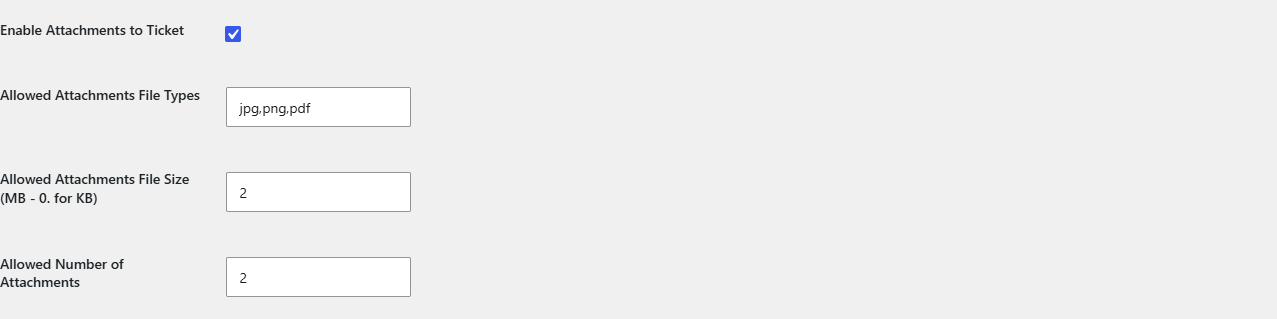
To allow file attachments on WooCommerce support tickets, go to WPFactory > Support Tickets > Settings (also under Support Tickets > Settings) in Helpdesk Support Ticketing System for WooCommerce. Tick Enable Attachments to Ticket and Enable Priority Field to Ticket Creation, set the allowed file types and size, and save.
Before you start #
- In the current version (3.0.4), the upload field only appears when both Enable Attachments to Ticket and Enable Priority Field to Ticket Creation are ticked. Enabling attachments alone is not enough.
- Your server’s PHP upload limit (
upload_max_filesize) still applies. Files larger than that limit never reach the plugin. - WordPress only accepts file types it allows by default. Types that WordPress blocks, such as executables, are rejected even if you list them.
How to enable attachments #
- Go to WPFactory > Support Tickets and click the Settings tab.
- Tick Enable Attachments to Ticket.
- Tick Enable Priority Field to Ticket Creation. This is required for the upload field to show.
- In Allowed Attachments File Types, enter the extensions you accept, separated by commas with no spaces and in lowercase, for example
jpg,png,pdf. The field showsjpg,pnguntil you change it. - In Allowed Attachments File Size (MB – 0. for KB), enter the maximum size per file as a whole number of megabytes, for example
2. Leave it empty to rely only on your server’s upload limit. - Click Save Changes.
How attachments work for customers #
- An Attachments field appears in the new ticket form and in the Add a response form. Customers can select several files at once.
- The file picker opens filtered to JPG, GIF and PNG images. Customers can switch the picker to show all files to choose another allowed type, such as PDF.
- Each uploaded file is saved to the WordPress Media Library and attached to the ticket.
- Files show as links under Attachments in the customer’s ticket view and in the Ticket Content and Responses boxes in wp-admin.
What happens when a file is rejected #
| Situation | Result |
|---|---|
| The extension is not in Allowed Attachments File Types | That file is skipped and the customer sees “type file is Not Allowed, try different please.” after the file name. Other files are still uploaded. |
| The file is larger than the size you set | The ticket or reply is saved, but that file and any files after it are not attached. No error message is shown. |
| The file is larger than the server’s PHP limit | The file is not attached. Raise the PHP limit with your host if customers need to send larger files. |
FAQ #
Can I allow files smaller than 1 MB, as the “0. for KB” hint suggests? #
Not reliably in version 3.0.4. The size is read as a whole number of megabytes, so a value such as 0.5 is treated as 0 and every file is rejected. Use 1 or higher.
Does “Allowed Number of Attachments” limit how many files a customer can upload? #
The option is saved (default 2), but version 3.0.4 does not enforce it. Customers can select several files per ticket or reply.
Why does my PDF get rejected when pdf is in the list? #
Check the list for spaces or capital letters. Write jpg,png,pdf, not jpg, png, PDF. The plugin compares the lowercase file extension with each entry exactly as typed.
Can I attach files when replying from wp-admin? #
No. The New Response box on the ticket screen has no upload field. Attachments are a customer-side feature.
Get Helpdesk #
Ticket attachments are part of Helpdesk Support Ticketing System for WooCommerce Pro. If uploads still fail, see the Helpdesk troubleshooting guide.
Need a hand? Our team answers every ticket on the Helpdesk support forum.