To set up ticket subjects and priorities, go to WPFactory > Support Tickets (also under Support Tickets in the admin menu) in Helpdesk Support Ticketing System for WooCommerce. Add topics on the Subject tab, edit the colored levels on the Priorities tab, then enable the priority field in Settings.
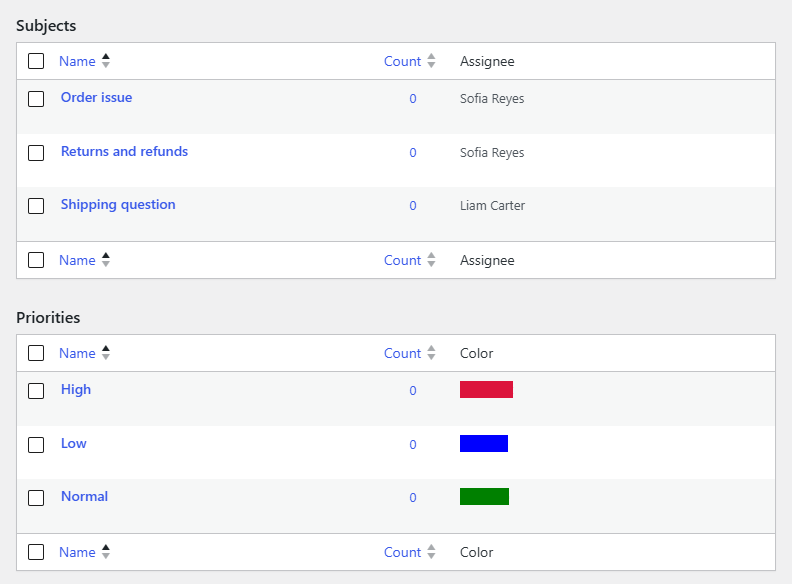
Subjects and priorities at a glance #
| Item | Created by default | Extra field | Shown to customers |
|---|---|---|---|
| Subjects | None | Assignee (a user who automatically receives tickets on this subject) | As a Subject dropdown, whenever at least one subject exists |
| Priorities | Low (#0000FF), Normal (#008000), High (#DC143C) | Color | As a Priority dropdown, only when Enable Priority Field to Ticket Creation is ticked |
| Statuses | Open, In Progress, Closed | None | As text next to each ticket in the customer’s list |
How to add ticket subjects #
- Go to WPFactory > Support Tickets and click the Subject tab.
- Enter a Name, for example Shipping, Payment or Technical issues.
- Optionally choose a user in Assignee to route every ticket on this subject to that person.
- Click Add New Subject. Repeat for each topic.
Subjects appear in the customer’s new ticket form in a Subject dropdown. To change a subject’s assignee later, click the subject name, choose another user in Assignee and click Update.
How to customize priorities #
- Go to WPFactory > Support Tickets and click the Priorities tab.
- Click a priority to edit its name, slug, description or Color (a color picker), or fill in the form on the left to add a new one.
- Save the priority. The color is used as the background of the priority label in the Tickets list.
- Click the Settings tab and tick Enable Priority Field to Ticket Creation so customers can choose a priority when they open a ticket.
- Click Save Changes.
Note: keep a priority named Normal. When the priority field is off, Helpdesk assigns the Normal priority to every new ticket.
Use subjects and priorities to sort your queue #
- On the Tickets tab, filter by priority to work on High tickets first.
- Filter by subject to hand a whole topic, such as Shipping, to one teammate.
- Change a ticket’s priority or subject from the boxes on the right of the ticket screen if the customer picked the wrong one.
FAQ #
Can customers open a ticket without choosing a subject? #
If you have created at least one subject, the dropdown always has one selected, so every ticket gets a subject. If no subjects exist, the field is hidden and tickets are saved without one.
Can I add more statuses, such as Waiting for Customer? #
Statuses have no tab of their own, and the Dashboard only counts Open and In Progress tickets. You can still set any of the three default statuses from the Status box on the ticket screen.
Does the priority field affect attachments? #
Yes, in the current version. The attachment upload field only appears when both Enable Attachments to Ticket and Enable Priority Field to Ticket Creation are ticked. See how to allow file attachments.
What happens to tickets if I delete a subject? #
Subjects are standard WordPress terms, so deleting one removes it from the tickets that used it. The tickets themselves are not deleted.
Get Helpdesk #
Subjects and priorities are part of Helpdesk Support Ticketing System for WooCommerce Pro. To route subjects to people, read how to assign support tickets to agents.
Need a hand? Our team answers every ticket on the Helpdesk support forum.