To set up a WooCommerce support ticket system, install Helpdesk Support Ticketing System for WooCommerce, open WPFactory > Support Tickets (also in the admin menu as Support Tickets) and configure the Settings tab. Logged-in customers then open and track tickets from a Tickets tab in My Account.

What Helpdesk adds to your store #
- A Tickets tab in the WooCommerce My Account area where customers open new tickets, read replies, respond and close tickets.
- A Get Help button next to each order in My Account > Orders, so a ticket can be linked to a specific order.
- A ticket dashboard in wp-admin with open and in-progress counts, a filterable ticket list, replies and private notes.
- Ticket subjects and color-coded priorities, plus automatic assignment of tickets to a support agent.
- Email notifications to the admin address, the assigned agent and the customer.
- Optional file attachments on tickets and replies.
Before you start #
- WooCommerce must be active. Helpdesk does not load without it.
- Customers need a store account and must be logged in to open tickets. Visitors who are not logged in see the WooCommerce login form instead.
- You need an Administrator account to change the Helpdesk settings.
How to set up Helpdesk #
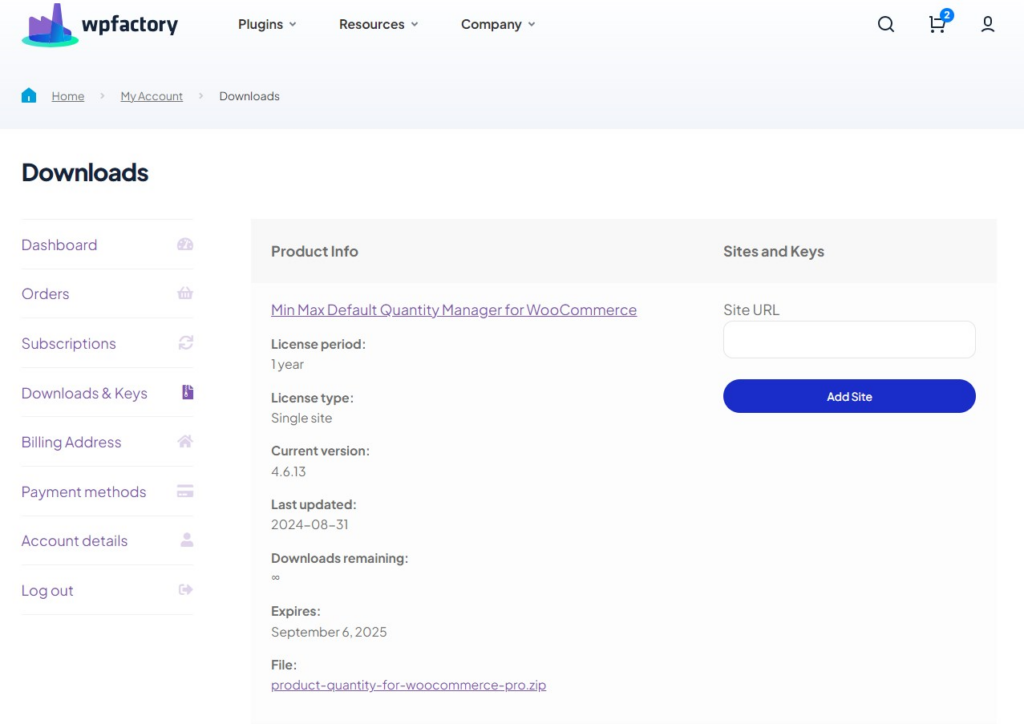
- Install and activate the plugin. Download the plugin ZIP from your WPFactory account, go to Plugins > Add New > Upload Plugin, upload it and click Activate. If the free edition of the plugin is active, Helpdesk deactivates it automatically. To receive updates, add your license key under WPFactory > Key Manager.
- Flush your permalinks. Go to Settings > Permalinks and click Save Changes without changing anything. This registers the new
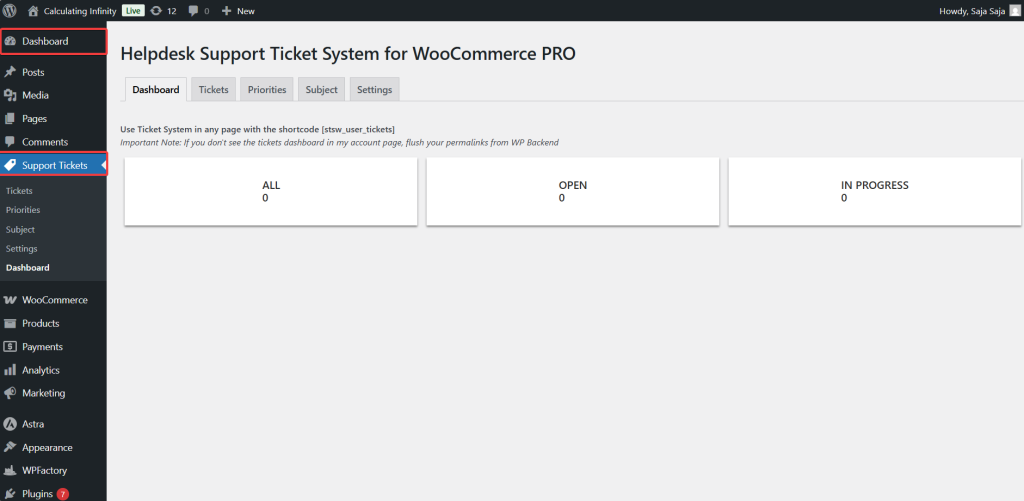
ticketsaddress in My Account. If you skip this, the Tickets tab can return a “page not found” error. - Open the Support Tickets dashboard. Go to WPFactory > Support Tickets or click Support Tickets in the admin menu. The screen has five tabs: Dashboard, Tickets, Priorities, Subject and Settings. The Settings tab is only shown to administrators.
- Configure the General settings. Click Settings, stay on the General sub-tab, and set the My Account tab name, attachments, the priority field and the default agent. Check the Default User Role for Ticket Assignment field before you save, because the role shown there gets access to the ticket screens. See the Helpdesk settings reference for every option.
- Turn on email notifications. Open the Notifications sub-tab, tick who should be emailed and click Save Changes. Details are in how to configure ticket email notifications.
- Add subjects. On the Subject tab, add topics such as Shipping or Payment so customers can classify their tickets. No subjects exist until you add them.
- Test it as a customer. Log in with a customer account, open My Account > Tickets and submit a test ticket. It appears on the Dashboard and in the Tickets list.
The Dashboard tab #
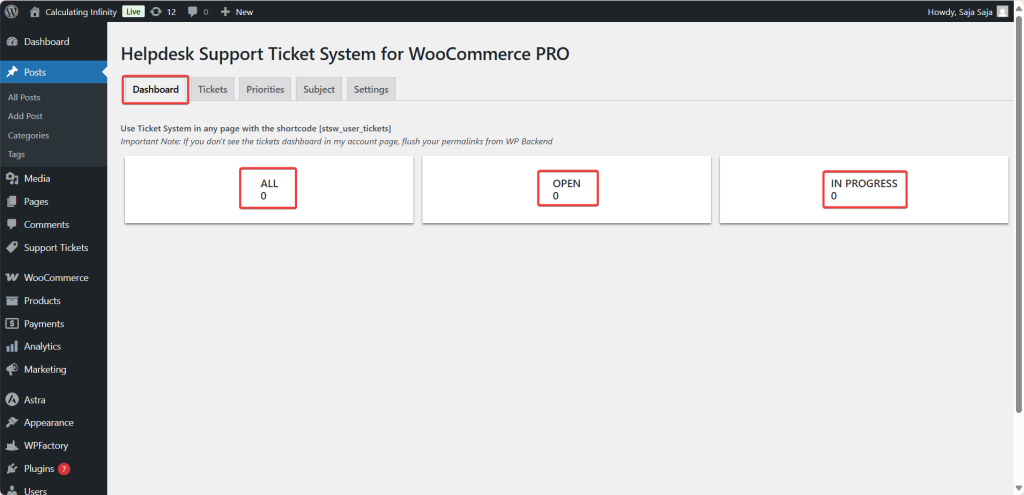
The Dashboard gives a quick overview of the support workload. Each counter links to a filtered ticket list:
- ALL: every ticket, whatever its status.
- OPEN: new tickets. Every ticket a customer submits starts with the Open status.
- IN PROGRESS: tickets you have moved to the In Progress status while working on them.
Show tickets to customers #
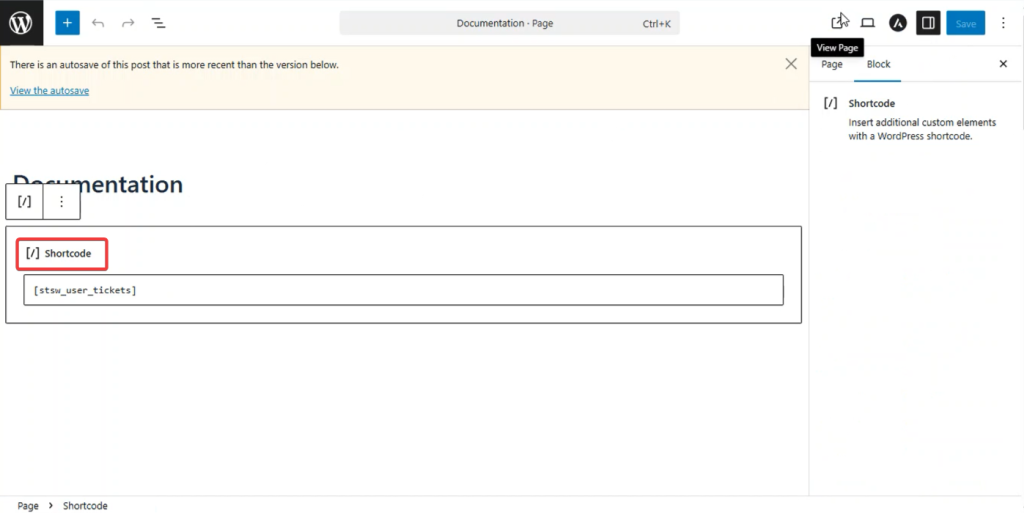
Helpdesk adds a Tickets tab to the My Account page automatically. You can also show the same ticket area on any page with the shortcode [stsw_user_tickets], as the note at the top of the dashboard reminds you.
In the Tickets area, customers see their previous tickets with replies, and an ADD NEW TICKET form to open a new one.
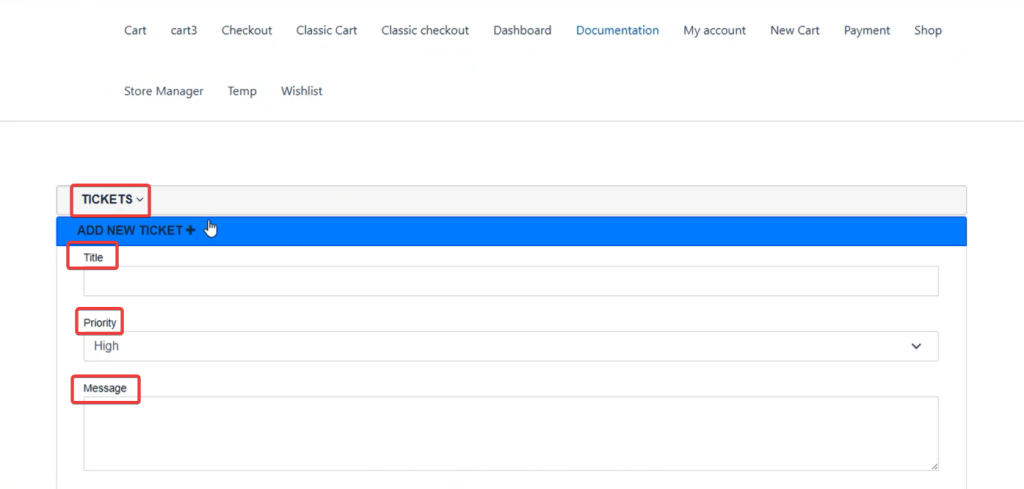
The full customer flow is covered in how to let WooCommerce customers open support tickets.
The Tickets tab #
This is where your team works. The list shows every submitted ticket with its subject, priority, status, customer, linked order, assignee and last response date. Open a ticket to reply, add a private note, change its status or reassign it.
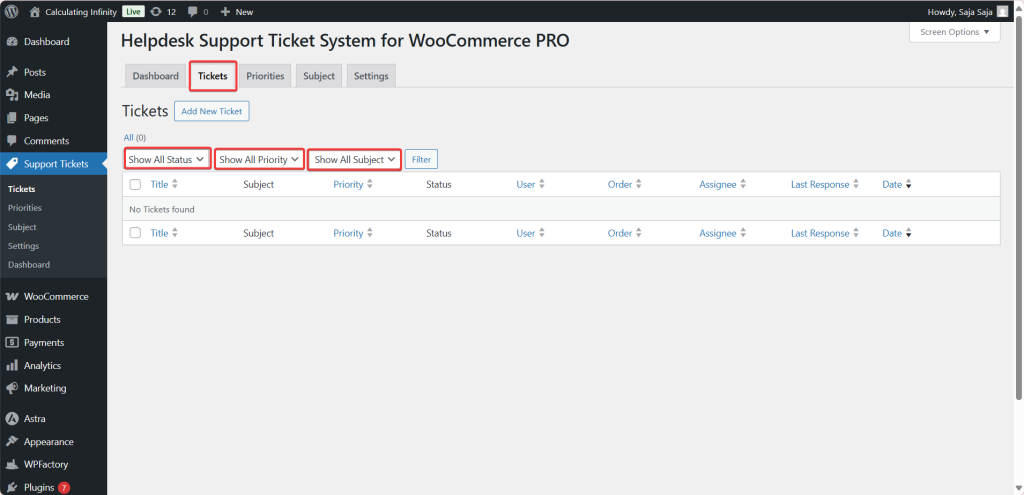
See how to reply to and manage support tickets for the full workflow.
The Priorities tab #
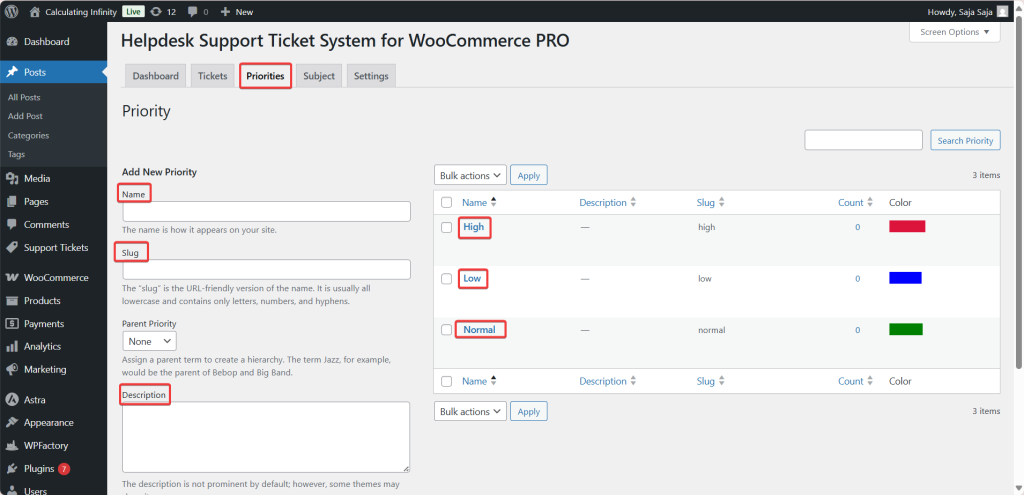
Helpdesk creates three priorities on first run: Low (blue), Normal (green) and High (red). You can rename them, change their color, description and slug, or add your own. Priority colors are shown in the ticket list so urgent tickets stand out.
The Subject tab #
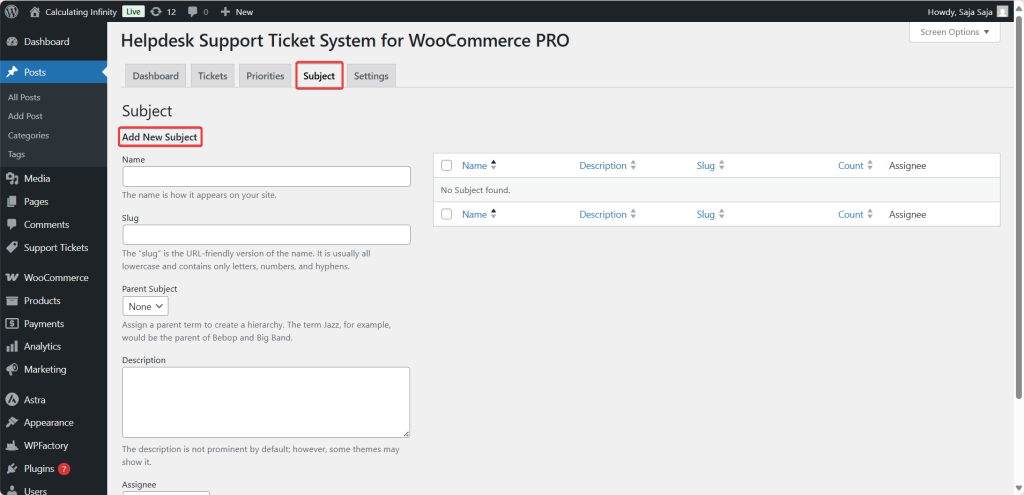
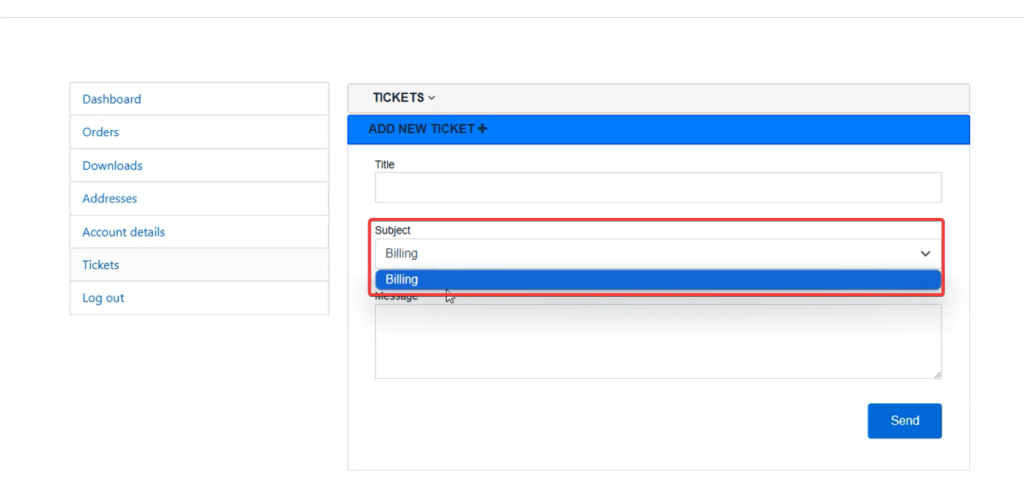
Subjects are the topics customers pick when they open a ticket, for example:
- Shipping
- Payment
- Technical issues
Each subject can also have an Assignee, so tickets on that topic go straight to the right person.
The subjects appear like this to the customer when they submit a ticket.
More detail: how to set up ticket subjects and priorities.
The Settings tab #
The General sub-tab controls what customers see and who handles tickets:
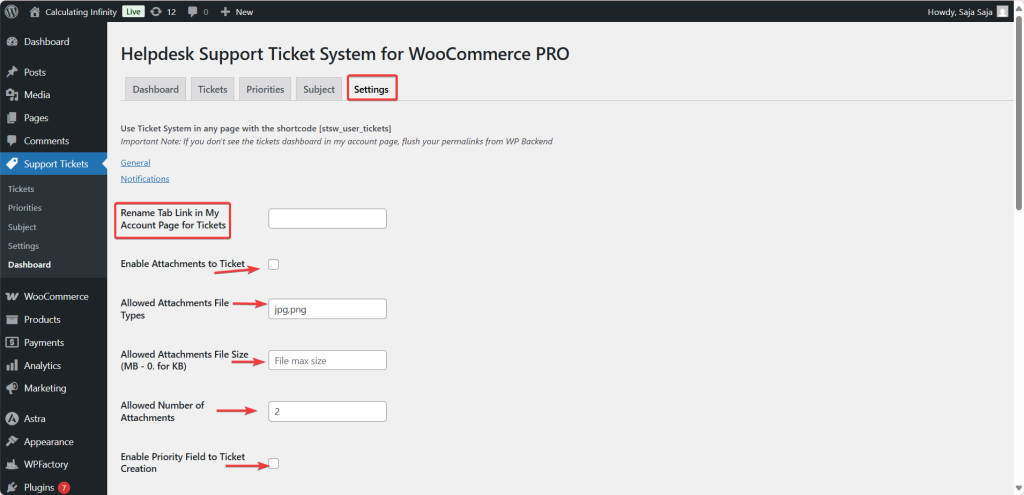
- Rename Tab Link in My Account Page for Tickets: changes the label of the Tickets tab, for example to Support or Help. Leave it empty to keep “Tickets”.
- Enable Attachments to Ticket: lets customers attach files to tickets and replies. In the current version, Enable Priority Field to Ticket Creation must also be ticked for the upload field to appear.
- Allowed Attachments File Types: comma-separated extensions, for example
jpg,png. - Allowed Attachments File Size (MB – 0. for KB): the maximum size per file. Enter a whole number of megabytes, for example 2 for 2 MB.
- Enable Priority Field to Ticket Creation: adds a Priority dropdown (Low, Normal, High) to the new ticket form. When it is off, tickets are saved as Normal.
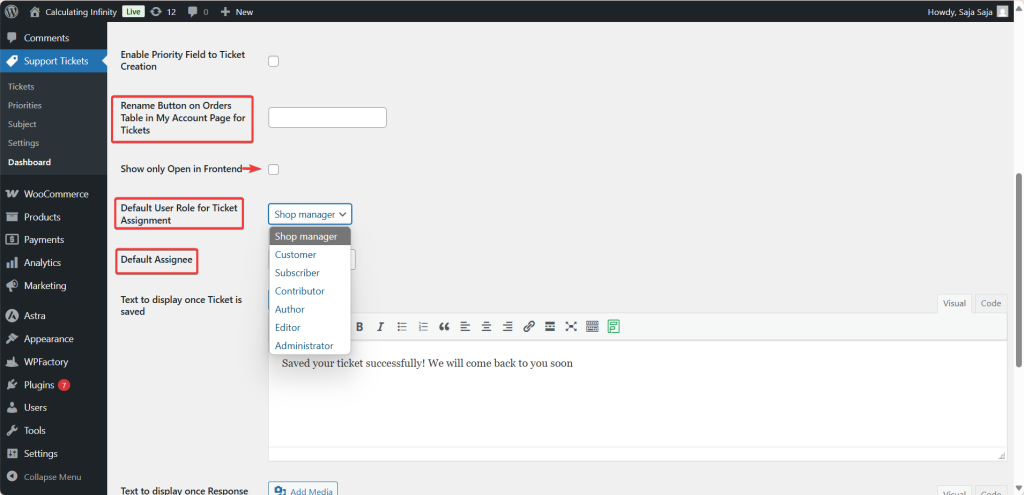
- Rename Button on Orders Table in My Account Page for Tickets: changes the label of the button next to each order in My Account > Orders. The default label is “Get Help”.
- Show only Open in Frontend: hides tickets with the Closed status from the customer’s ticket list. Open and In Progress tickets stay visible.
- Default User Role for Ticket Assignment: the role your support agents have. Users with this role get access to the Support Tickets screens and appear in the assignee lists.
- Default Assignee: the agent who receives a ticket when no subject assignee applies, so no ticket is left without an owner.
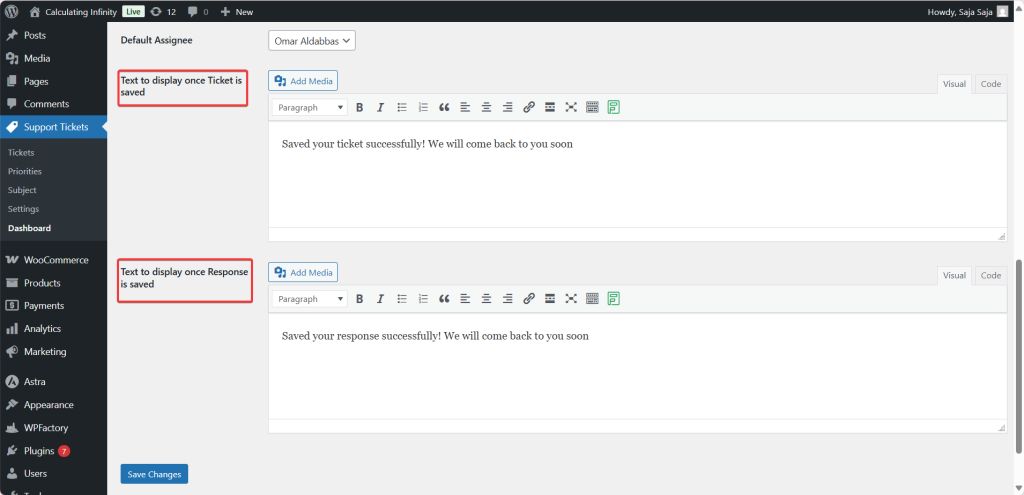
- Text to display once Ticket is saved: the confirmation message shown after a customer submits a ticket. For example: Thank you! Your ticket has been submitted successfully.
- Text to display once Response is saved: the message shown after a customer sends a reply.
The Notifications sub-tab controls the emails sent to the admin, the assignee and the customer.
FAQ #
Where do customers find their tickets? #
In My Account > Tickets, or on any page where you add the [stsw_user_tickets] shortcode. They can also click Get Help next to an order, or scroll to the Tickets section on a single order page.
Why does the Tickets tab show a “page not found” error? #
The tickets endpoint has not been registered yet. Go to Settings > Permalinks and click Save Changes to flush the rewrite rules.
Can my support staff use Helpdesk without being administrators? #
Yes. Set their role in Default User Role for Ticket Assignment and save. That role gets access to the Dashboard, Tickets, Priorities and Subject tabs. Only administrators see the Settings tab. See how to assign tickets to agents.
Can guests open tickets without an account? #
No. The ticket form is only shown to logged-in users. Visitors who are not logged in see the WooCommerce login and registration form in its place.
Get Helpdesk #
Everything in this guide is part of Helpdesk Support Ticketing System for WooCommerce Pro. If something is not working, the Helpdesk troubleshooting guide covers the most common issues.
Need a hand? Our team answers every ticket on the Helpdesk support forum.