PDF Invoices & Packing Slips Generator for WooCommerce creates PDF invoices for your orders from an HTML template you control, with your numbering, header, logo and footer. Configure it at WPFactory > PDF Invoicing (also reachable at WooCommerce > Settings > PDF Invoicing). The Invoice document is ready to use as soon as you activate it.
What it does #
PDF Invoicing adds a PDF Invoicing box to each order, where you create, view, download, print or delete the order’s documents. Documents can be created manually or automatically on an order event, attached to WooCommerce emails, and shown to customers under My Account. The free version handles one document (the Invoice); Pro adds packing slips, credit notes and any other document types you define.
| Feature area | What it does |
|---|---|
| Document automation | Generate PDFs manually from the order edit screen, or automatically on new order, on payment complete, on checkout order processed, on a chosen order status, or on partial refund. |
| Customer communication | Attach documents to WooCommerce emails, and let customers view them under My Account > Orders. |
| Customization and branding | Control page orientation, format, and top, left and right margins, add a header image, header and footer text, colors, fonts, and a page background or foreground image. |
| Numbering and sequencing | Build custom, sequential, or date-based numbering with shortcodes, backed by a per-document counter you can view and reset. |
| Advanced content | Use a large shortcode set for dynamic content, conditional logic ([if]), item loops ([each_item]), multi-language text ([translate]), and a developer filter for custom values. |
Install and activate #
- Free: go to Plugins > Add New, search for PDF Invoices & Packing Slips Generator for WooCommerce by WPFactory, then install and activate it.
- Pro: download PDF Invoices & Packing Slips Generator for WooCommerce Pro from your WPFactory account, upload the ZIP at Plugins > Add New > Upload Plugin and activate it. When Pro is active, the free version stops loading. WooCommerce must be active.
For more detail, see Installation and Activation.
First setup #
- Go to WPFactory > PDF Invoicing. On the General section, confirm PDF Invoicing > Enable plugin is ticked (on by default).
- Open the Doc: Invoice section. Enable/Disable is on and the Title is
Invoiceby default. - In Create, keep Manually (the default) or add a trigger such as On payment complete or On order status Completed.
- In Emails, pick the WooCommerce emails that should carry the PDF, for example Completed order (none by default).
- Optionally tick My account > Enable so customers can view the PDF in My Account > Orders (off by default), then save changes.
- Open an order. In the PDF Invoicing box, create the invoice and view it. With the default Number format
INV-[doc_counter format="%06d"], the first invoice is numbered like INV-000001.
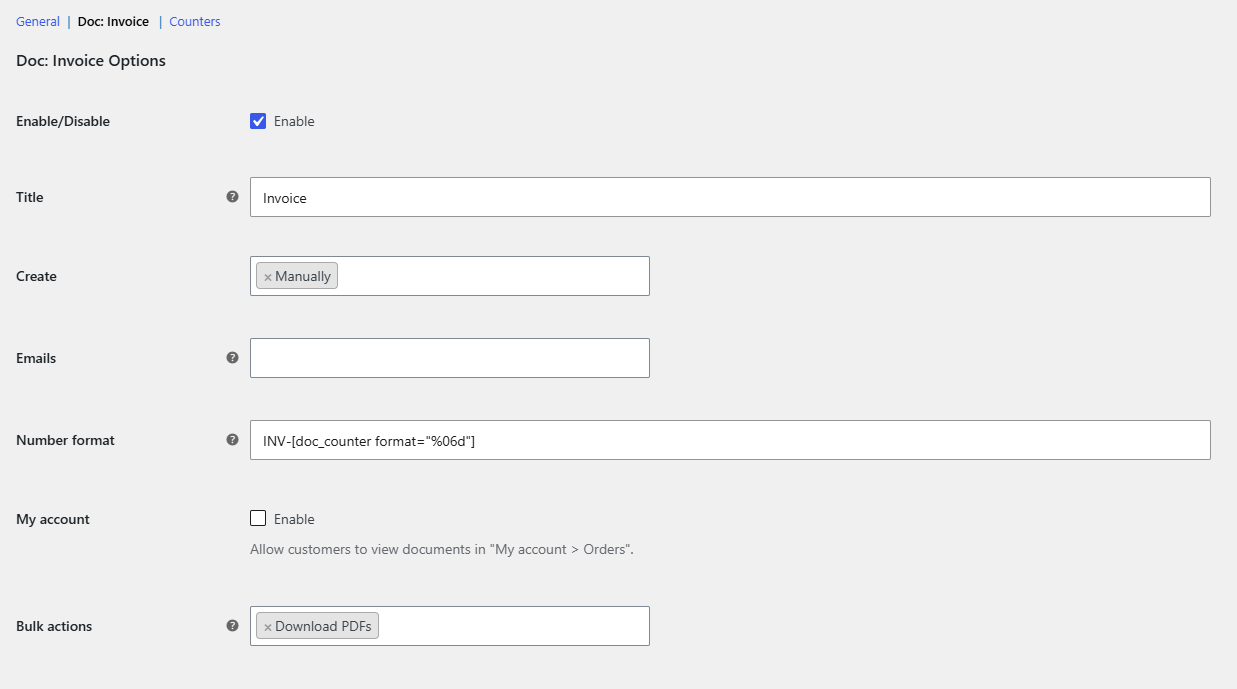
See General settings configuration and document-specific configuration.
Main features #
Create and manage invoices #
Each order has a PDF Invoicing box with create, view, download, print and delete actions, and the Orders list shows the document too. See create and manage PDF invoices.
Bulk view and download #
The Bulk actions option adds View PDFs and Download PDFs to Orders > Bulk actions (Download PDFs is on by default). See bulk view and download PDF invoices.
Email attachments and My Account #
Attach the PDF to any WooCommerce email with the Emails option, and let customers download it from My Account. See attach PDF invoices to emails and PDF invoices in My Account.
Numbering and counters #
Number format accepts shortcodes, and the Counters section shows and resets each document’s counter. See invoice number format and counters.
Layout, logo, header and footer #
Page Options set orientation (Portrait by default), format (A4 by default) and margins. Header Options add a header image, title and text; Footer Options add footer HTML content. There is no footer image and no bottom margin option. See add a logo, header and footer, layout and styling and page background or watermark.
Template content and shortcodes #
The HTML content field under Content Options is the document template. Shortcodes fill in order data, and [if], [each_item] and [translate] add logic, item loops and multilingual text. See the shortcode reference, conditional content and item loops and multilingual PDF invoices.
Multiple document types (Pro) #
Raise Total documents on the General section to add a Doc: section for each extra document, such as a packing slip or credit note, each with its own counter. See multiple PDF document types.
Advanced and developers #
The General section’s Advanced Options cover the shortcode prefix, custom TCPDF config, Print.js and View PDFs in a new tab. See advanced TCPDF configuration and hooks and filters.
Free vs Pro #
The free version generates one document type (the Invoice), with all of its layout, content, numbering, email, My Account, and bulk-action options. The only Pro feature is more than one document type.
| Feature | Free | Pro |
|---|---|---|
| Invoice document with all layout, content, numbering, email, My Account and bulk options | Yes | Yes |
| All shortcodes, counters and developer filters | Yes | Yes |
| More than one document type (Total documents above 1) | No (read-only, 1) | Yes |
FAQ #
Why is no invoice created for new orders? #
The default Create value is Manually. Add an automatic trigger, such as On payment complete, in the Doc: Invoice section.
Why is the invoice not attached to the order email? #
The Emails option is empty by default. Select the emails that should carry the PDF, and make sure the invoice is created before that email is sent, for example with a matching Create trigger.
Can I add a packing slip in the free version? #
No. Total documents is fixed at 1 in the free version. You can rename the one document, but running an invoice and a packing slip together needs Pro.
How do I put the year in the invoice number? #
Use [current_time datetime_format="Y"] in Number format, for example INV-[current_time datetime_format="Y"]-[doc_counter format="%04d"]. There is no [Y] shortcode.
Prefer watching? This short video summarizes the article in just a few minutes.
Get started #
The Invoice document is free. PDF Invoices & Packing Slips Generator for WooCommerce Pro adds packing slips, credit notes and any other document types, each with its own settings and counter. See what Pro unlocks.
Need a hand? Our team answers every ticket on the PDF Invoicing support forum.