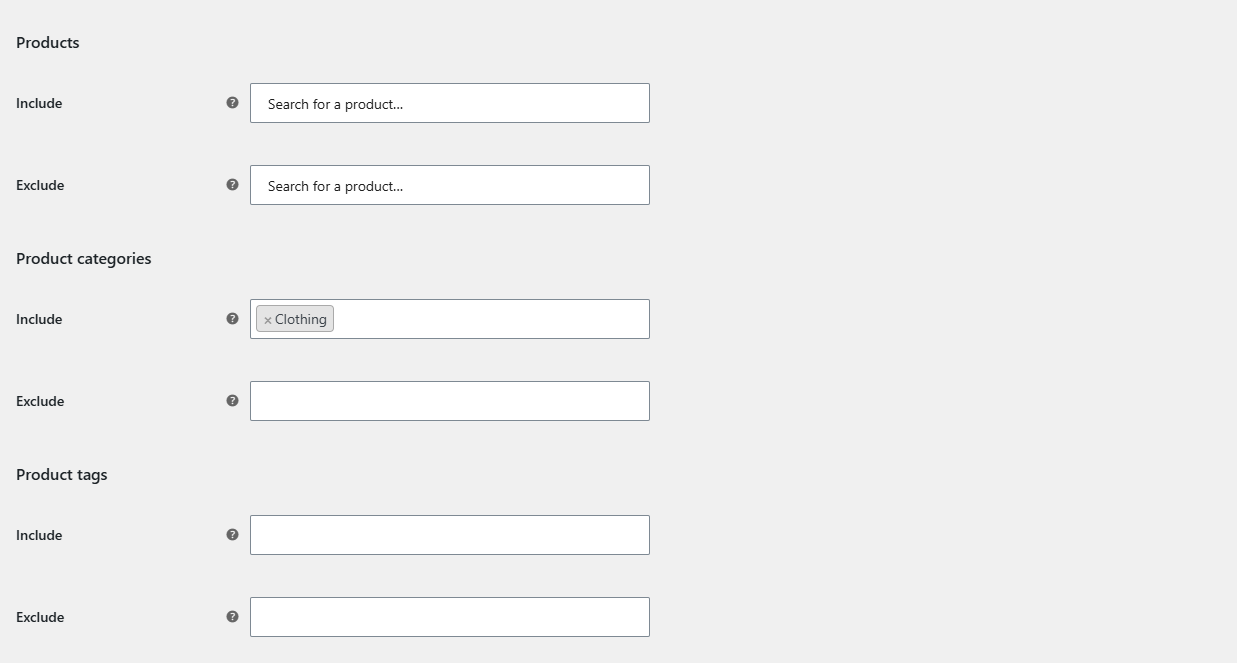
To discount specific categories or products in WooCommerce, open a discount group in Sitewide Discount for WooCommerce at WPFactory > Global Shop Discount > Discount Group #1, set the discount, then choose items in the Include or Exclude fields under Products, Product categories or Product tags, and save.
Before you start #
- These filters work in both the free and Pro versions.
- By default each group shows filters for Product categories and Product tags. To filter by another product taxonomy, such as brands, add it first (see below).
Discount one or more categories #
- Go to WPFactory > Global Shop Discount (also reachable at WooCommerce > Settings > Global Shop Discount) and open a discount group.
- Set Type and a negative Value.
- Under Product categories, choose the categories in Include. Subcategories show their parent path in brackets to help you pick the right one.
- Click Save changes. Only products in the selected categories are discounted.
Discount everything except some products #
- Open the discount group and set the discount.
- Under Products, search for products in Exclude. You can pick individual variations as well as whole products.
- Or, under Product categories or Product tags, pick terms in Exclude.
- Click Save changes.
How the filters combine #
- An empty field means “no restriction”. A group with every field empty applies to all products.
- Include: the product must match at least one selected item in that field.
- Exclude: the product must not match any selected item in that field.
- Every filter you fill in must pass. For example, Include category “Shoes” plus Exclude tag “New” discounts shoes that are not tagged New.
- For variations, a match on either the variation or its parent product counts.
Filter by brand or another taxonomy #
- Go to the General section and find Taxonomies under Advanced Options.
- Add the taxonomy you need, for example your brand taxonomy or a product attribute. The list shows every taxonomy registered for products on your site.
- Optional: change Taxonomies sorting in admin settings to sort terms by Name (default), ID or Parent.
- Click Save changes. Each discount group now has Include and Exclude fields for that taxonomy.
If you remove Product categories or Product tags from this list, their fields disappear from the groups and they are no longer checked.
Give different categories different discounts #
- On the General section, set Total groups to the number of discounts you need, for example
2, and click Save changes. New sections, Discount Group #2 and so on, appear. - In Discount Group #1, set
-30and include the “Clearance” category. - In Discount Group #2, set
-10and leave the filters empty (or exclude Clearance). - Save each group.
Groups are checked in number order, #1 first. Stop on first matching discount group on the General section (on by default) decides what happens when a product matches more than one group:
- On: the first matching group applies and the rest are skipped. In the example, Clearance items get 30% off and everything else gets 10% off. Put your most specific groups first.
- Off: every matching group applies, one after another, each to the already discounted price. Clearance items would get 30% off and then another 10% off.
Frequently asked questions #
Can I discount a single variation of a variable product? #
Yes. The Products Include and Exclude fields search products and variations, so you can pick one variation on its own.
I selected a parent category. Are products in its subcategories included? #
Only products actually assigned to a selected term are matched. If products are assigned only to a subcategory, select that subcategory too.
Can I apply one discount to products on sale and another to the rest? #
Yes. Use two groups: set Product scope to Only products that are already on sale in one and Only products that are not on sale in the other.
Is there a limit on the number of groups? #
No limit is set in the settings. Every group adds checks to each price calculation, so keep the number to what you need.
Related guides #
- How to Apply a Discount to All Products in WooCommerce
- How to Give a Discount to Specific User Roles or Customers in WooCommerce
- Sitewide Discount settings reference
Get Sitewide Discount #
Product, category and taxonomy filters are included in the free version of Sitewide Discount for WooCommerce. See the plugin page for plans and updates.
Need a hand? Our team answers every ticket on the Sitewide Discount support forum.