To start using Sitewide Discount for WooCommerce, install and activate it, then go to WPFactory > Global Shop Discount (also reachable at WooCommerce > Settings > Global Shop Discount), open Discount Group #1, enter a negative Value such as -10 and save. Your whole catalog then shows the discounted price.
What Sitewide Discount does #
Sitewide Discount lowers product prices across your store without editing each product. It changes prices on the fly when WooCommerce reads them, so your saved regular and sale prices stay untouched. Customers see the discounted price in the shop, on product pages, in the cart and at checkout. Because the discount is applied as a sale price, shop and product pages show the original price crossed out.
Discounts are organized in discount groups. Each group has its own amount (percent or fixed), optional active dates, and optional filters for products, categories, tags, other product taxonomies such as brands, users and user roles.
Requirements #
- WordPress 4.8 or later.
- WooCommerce, installed and active. The plugin does nothing if WooCommerce is not active.
Free and Pro #
In the current version (2.3.0), the free and Pro builds contain the same discount features: multiple discount groups, dates, all include and exclude filters, the shortcode and the tools are all available in the free version. The Pro build adds license key management for updates. If both are installed, the free copy steps aside while Pro is active.
Install and activate #
- In your WordPress admin, go to Plugins > Add New Plugin.
- Search for the plugin name to install the free version, or click Upload Plugin and choose the Pro zip file from your WPFactory account.
- Click Install Now, then Activate.
- Click Settings under the plugin name on the Plugins screen, or go to WPFactory > Global Shop Discount.
Set up your first discount #
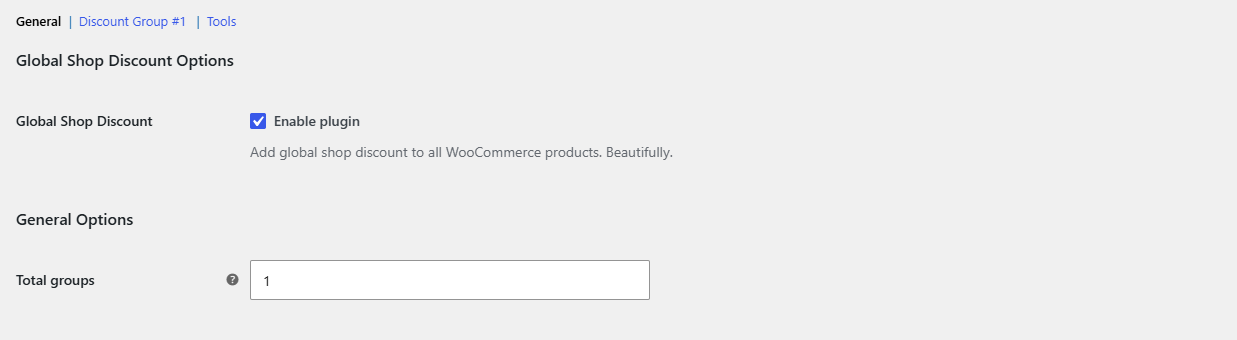
- On the General section, check that Global Shop Discount (Enable plugin) is ticked. It is on by default.
- Click the Discount Group #1 section link.
- Leave Type on Percent, or choose Fixed to subtract an amount in your store currency.
- In Value, enter a negative number. For example,
-10with Percent means 10% off. The default is0, which applies no discount. - Click Save changes.
- Open your shop in a private browser window to see the new prices.
With no other fields filled in, the discount applies to every product for every visitor, at all times.
The settings screen at a glance #
- General: the master on/off switch, Total groups (how many discount groups you want), and advanced options for admin display, group stacking, taxonomies and price caching.
- Discount Group #1, #2 …: one section per group. If you set an Admin title, the section link shows that title instead.
- Tools: delete the plugin’s cached data, or write discounted prices into your products permanently.
Every section except Tools ends with a Reset section settings checkbox that restores that section’s defaults when you save.
Where to go next #
- How to Apply a Discount to All Products in WooCommerce
- How to Schedule a Sitewide Sale in WooCommerce
- How to Discount Specific Categories or Products in WooCommerce
- How to Give a Discount to Specific User Roles or Customers in WooCommerce
- Sitewide Discount settings reference
Get Sitewide Discount #
See the Sitewide Discount for WooCommerce plugin page for plans and the latest features.
Need a hand? Our team answers every ticket on the Sitewide Discount support forum.