Table of Contents
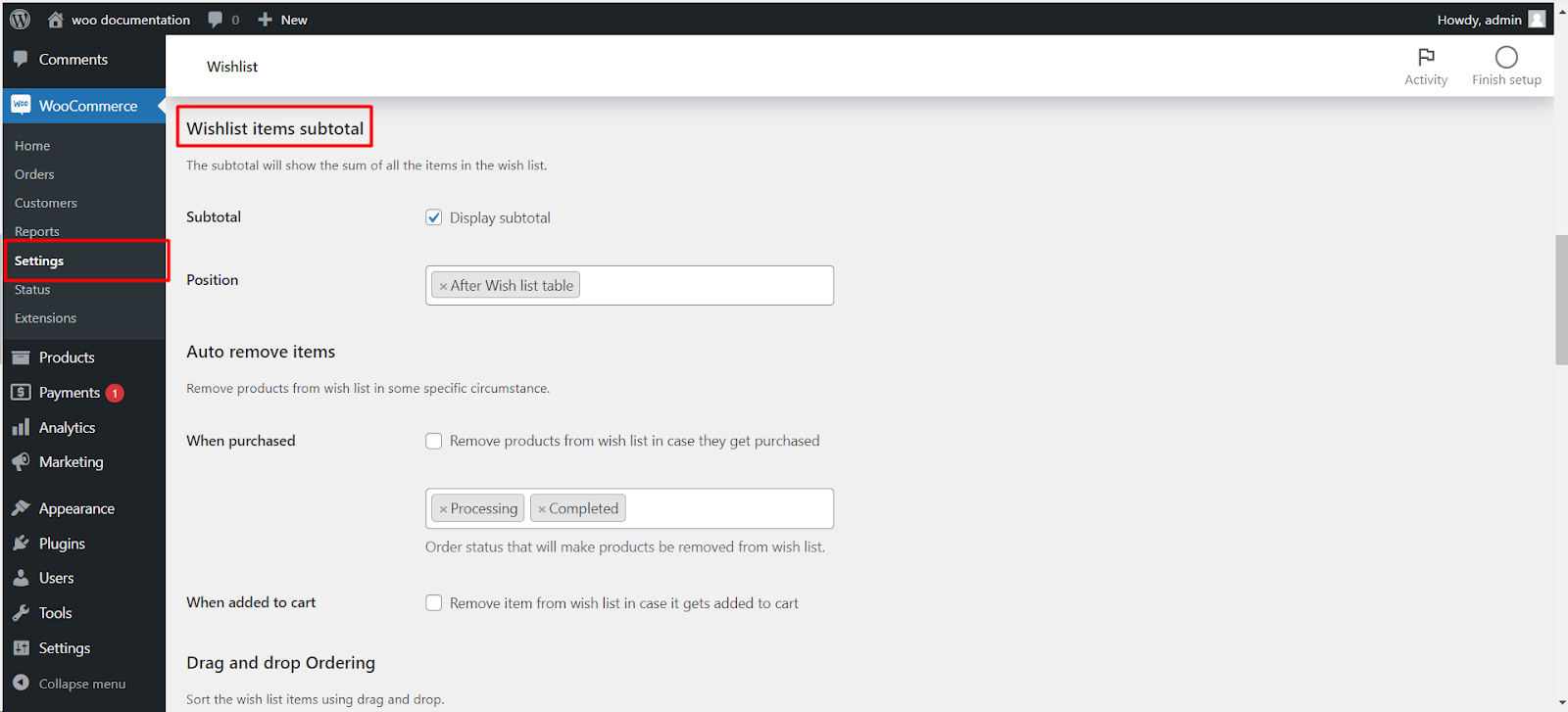
To display item subtotals on the wishlist page in Wishlist for WooCommerce, go to WooCommerce > Settings > Wishlist, find the Wishlist Page settings, enable the Wishlist Item Subtotal option, and save your changes. The wishlist page then shows a subtotal for each item.
Step 1: Navigate to WooCommerce Wishlist Settings #
- Log in to your WordPress dashboard.
- Find and click on “WooCommerce” in the left-hand menu.
- Locate the “Wishlist” tab and click on it.
Step 2: Access Wishlist Page Settings #
- Under the Wishlist tab, look for the “Wishlist Page” or similar option.
Step 3: Enable Wishlist Item Subtotals #
- Within the Wishlist Page settings, find the option labeled “Wishlist Item Subtotal.”
Step 4: Save Changes #
- Don’t forget to save your changes to apply the new settings.
Now, your WooCommerce Wishlist page will show subtotals for each item, providing a clear overview of the accumulated cost of the desired products.
