To choose which WooCommerce notifications appear as pop-ups, go to WPFactory > Popups in Popups for WooCommerce: Add to Cart, Checkout & More. Use Notice types to pick error, success and info notices, Notice hiding to remove the inline duplicates, and Device types to target mobile or desktop. All are free.
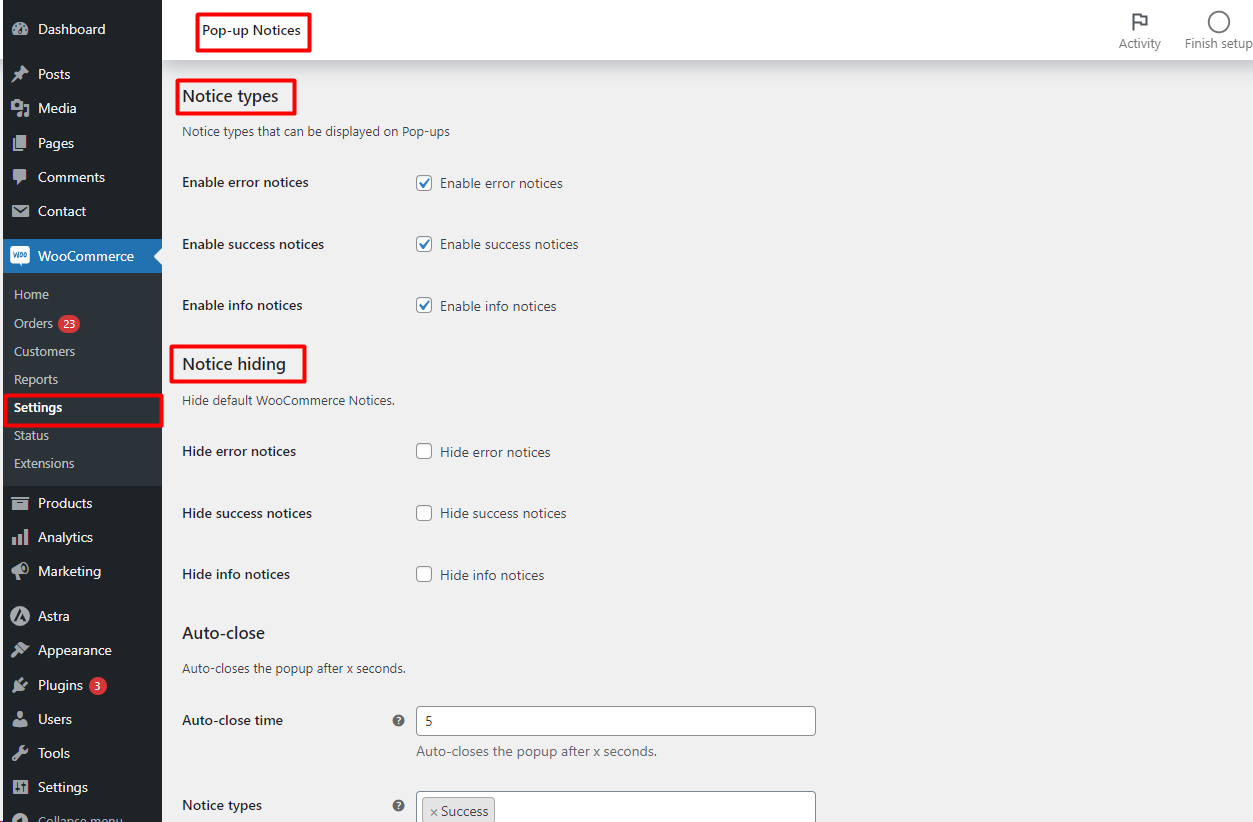
Open the settings #
Go to WPFactory > Popups (also reachable at WooCommerce > Settings > Pop-up Notices).
Notice types #
Under Notice types you decide which of WooCommerce’s three notice categories are shown as pop-ups. Each is a separate checkbox and all three are on by default. Error notices cover problems such as an invalid coupon or a missing checkout field; success notices cover messages such as “added to your cart”; info notices cover prompts such as “Have a coupon?”.
| Setting | Option ID | Default |
|---|---|---|
| Enable error notices | ttt_pnwc_opt_type_error_enable |
Yes |
| Enable success notices | ttt_pnwc_opt_type_success_enable |
Yes |
| Enable info notices | ttt_pnwc_opt_type_info_enable |
Yes |
Notice hiding #
By default WooCommerce still prints its own inline notice as well as the pop-up. Use the Notice hiding group to hide the native notice for each type, so the customer sees only the pop-up. All three are off by default.
| Setting | Option ID | Default |
|---|---|---|
| Hide error notices | ttt_pnwc_opt_hide_error_enable |
No |
| Hide success notices | ttt_pnwc_opt_hide_success_enable |
No |
| Hide info notices | ttt_pnwc_opt_hide_info_enable |
No |
Device targeting #
The Device types option (ttt_pnwc_opt_allowed_device_types) lets you load the pop-ups only on mobile, only on desktop, or on both. Leave it empty to load on all devices. This option is free.
For a walkthrough of hiding native notices to avoid duplicate messages, see Remove default WooCommerce notices to avoid duplicate pop-up messages.
Ignore specific messages #
To keep one particular message out of the pop-up while the rest of its type still pops up, use the Ignore messages group. Pick a Search method (Partial comparison, Full comparison or Regular expression) and enter the message in Ignored messages. The free version takes one message; Pro accepts several. See hide specific notices from pop-ups.
Common setups #
- Pop-ups for everything, no duplicates: keep all three notice types on and tick all three Hide options.
- Errors only: untick success and info under Notice types, and tick only Hide error notices. Success and info messages stay inline as usual.
- Mobile only: set Device types to Mobile. Desktop visitors keep WooCommerce’s normal notices.
If it does not behave as expected #
- A message disappears completely: its type is hidden under Notice hiding but not enabled under Notice types (or it is ignored), so it shows neither inline nor as a pop-up.
- A notice still appears twice: its type is not hidden, or it uses markup other than WooCommerce’s standard notice boxes.
- Nothing pops up on some devices: check Device types.
FAQ #
Can I show only error messages as pop-ups? #
Yes. Untick Enable success notices and Enable info notices. This is free.
Can I control where pop-ups appear by page? #
Yes, with Pro Restrictive Loading, which loads pop-ups only on selected pages or conditions. See load pop-ups only on specific pages.
Can pop-ups close by themselves? #
Yes, with the Pro Auto-close time option, which can also be limited to certain notice types. See auto-close pop-ups after a set time.
Get more control #
These options are free. Popups for WooCommerce: Add to Cart, Checkout & More Pro adds auto-close, restrictive loading, message customization, and full styling. See what Pro unlocks.
Need a hand? Our team answers every ticket on the Popup Notices support forum.