Use template variables in pop-up messages #
Template variables let you insert dynamic details, like the product title or a cart link, into a customized pop-up message. Popups for WooCommerce: Add to Cart, Checkout & More supports these variables in the Modified HTML Content field of a customized message. Message customization is a Pro feature.
Before you start #
- WooCommerce, active.
- Popups for WooCommerce: Add to Cart, Checkout & More Pro (message customization is a Pro feature).
- Customize Messages enabled in the Messages section.
Where to use them #
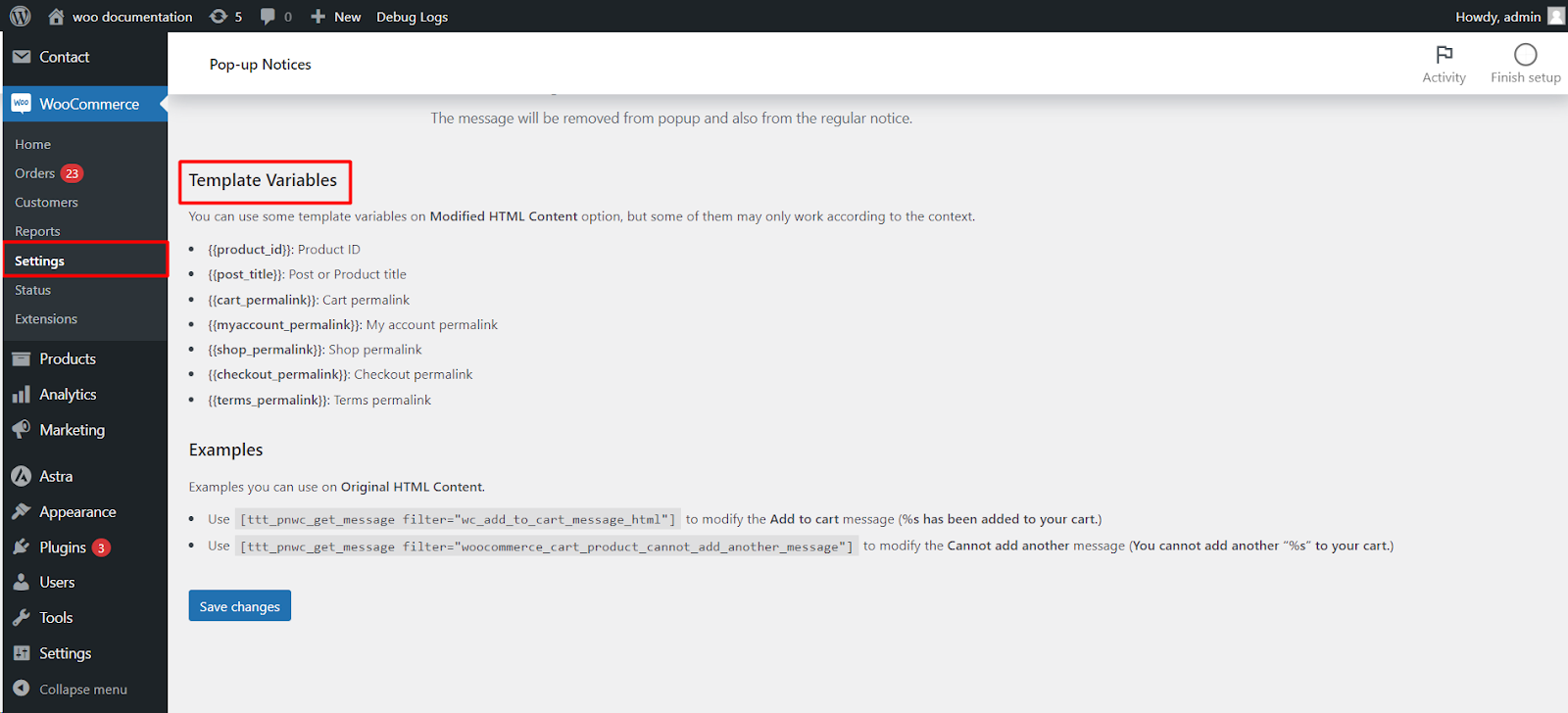
Go to WPFactory > Popups (also reachable at WooCommerce > Settings > Pop-up Notices), open the Messages section, and add a variable to the Modified HTML Content field of any message you are customizing. Write each variable in double curly braces.
Available template variables #
| Variable | Inserts |
|---|---|
{{product_id}} |
The ID of the product tied to the message. |
{{post_title}} |
The post or product title tied to the message. |
{{cart_permalink}} |
The URL of the cart page. |
{{myaccount_permalink}} |
The URL of the My Account page. |
{{shop_permalink}} |
The URL of the shop page. |
{{checkout_permalink}} |
The URL of the checkout page. |
{{terms_permalink}} |
The URL of the terms and conditions page. |
Note: {{product_id}} and {{post_title}} are only filled when the message runs in a context that has a product, such as the add-to-cart message. Permalink variables work anywhere.
Examples #
- Original “Add to cart” message: “%s has been added to your cart.” Modified with a variable:
{{post_title}} has been added to your cart. View your cart: {{cart_permalink}} - Original “Cannot add another” message: “You cannot add another "%s" to your cart.” Modified:
You cannot add another {{post_title}}. Browse similar products: {{shop_permalink}}
Ready to set this up? #
Template variables are part of the Pro message customization toolkit in Popup Notices. Get Popup Notices Pro.