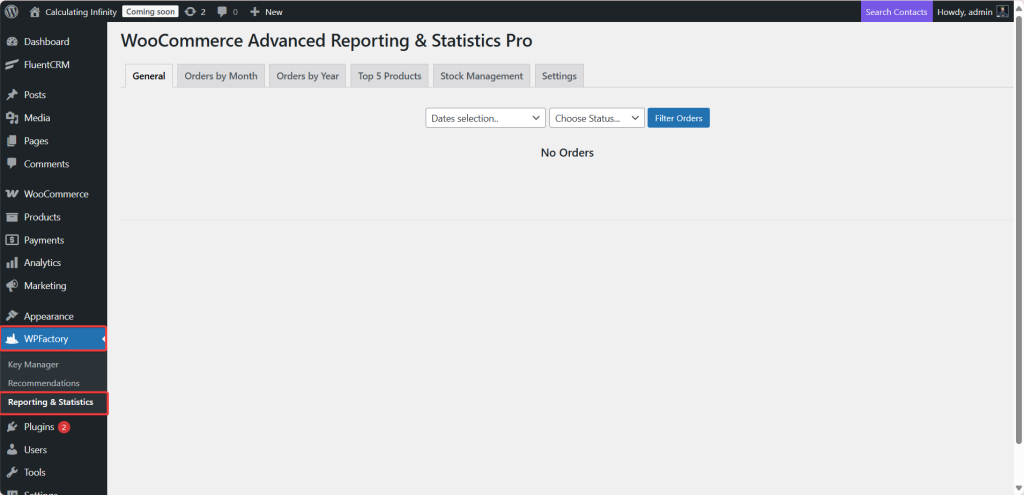
WooCommerce Advanced Reporting and Statistics adds sales reports, monthly and yearly totals with a sales forecast, a top products list, low stock alerts and scheduled email reports to your WordPress dashboard. Everything, including the settings, lives on one page at WPFactory > Reporting & Statistics. There is no tab under WooCommerce > Settings.

What it does #
Advanced Reporting reads your WooCommerce orders and turns them into reports you can filter and export to Excel: headline sales totals, breakdowns by customer, product, category, country, payment method and coupon, month and year summaries with a forecast, your five best sellers, and stock warnings based on recent sales.
Install and activate #
- Download WooCommerce Advanced Reporting & Statistics Pro from your WPFactory account.
- In WordPress, go to Plugins > Add New > Upload Plugin, upload the ZIP and click Activate. WooCommerce must be active.
- If the free version (plugin folder
webd-woocommerce-reporting-statistics) is installed, you do not need to remove it first. Activating Pro deactivates the free plugin automatically.
On activation, Pro saves sensible starting values: the report order statuses (Completed, Processing, On hold, Refunded), 500 orders per query, a set of 14 order fields for the custom orders table, and a weekly email report sent to your site’s admin email address.
First setup #
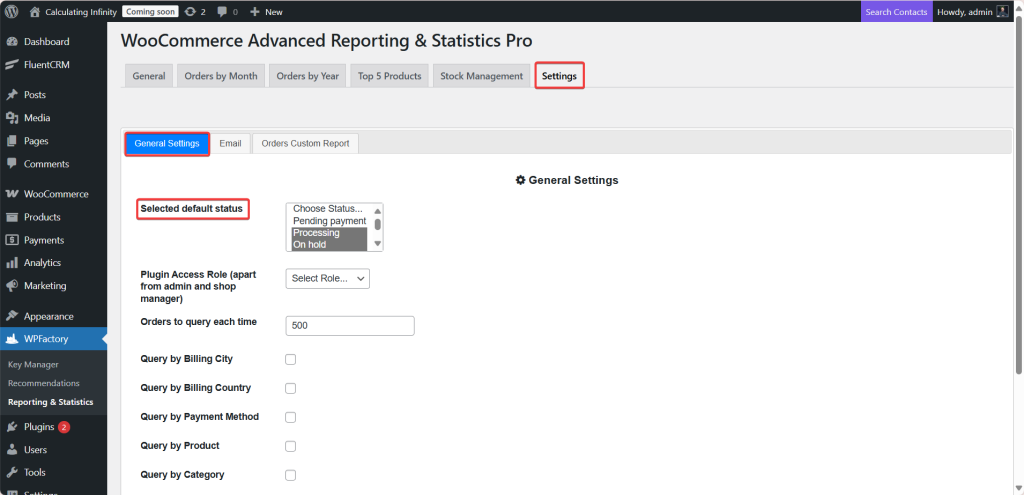
- Go to WPFactory > Reporting & Statistics and open the Settings tab. It has three sections: General Settings, Email and Orders Custom Report.
- In General Settings, check Selected default status. These are the order statuses every report uses when you do not pick one. The default is Completed, Processing, On hold and Refunded.
- Leave Orders to query each time at 500 unless reports load slowly on a large store, in which case lower it.
- Optional: tick any Query by boxes (Billing City, Billing Country, Payment Method, Product, Category, Customer, Paid Date) to add those filters to the report toolbar.
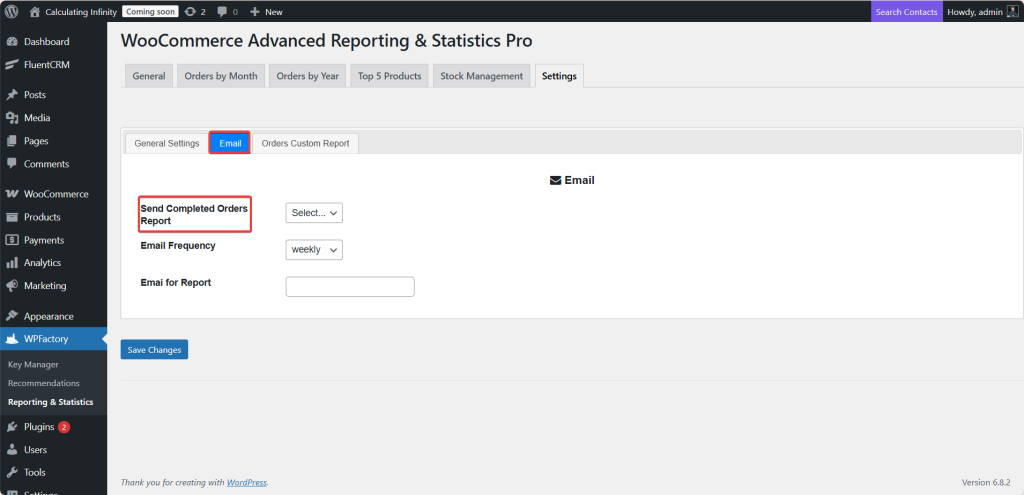
- In Email, decide whether you want the scheduled report. Set Send Completed Orders Report to no to stop it, or pick an Email Frequency (Daily, Weekly or Monthly) and a recipient in Emai for Report (the label is spelled this way in the plugin).
- Save, then open the General tab, choose a period in Dates Selection and click Filter Orders to load your first report.
Main features #
Every report is a tab across the top of the page: General, Orders by Month, Orders by Year, Top 5 Products, Stock Management and Settings.
General sales report #
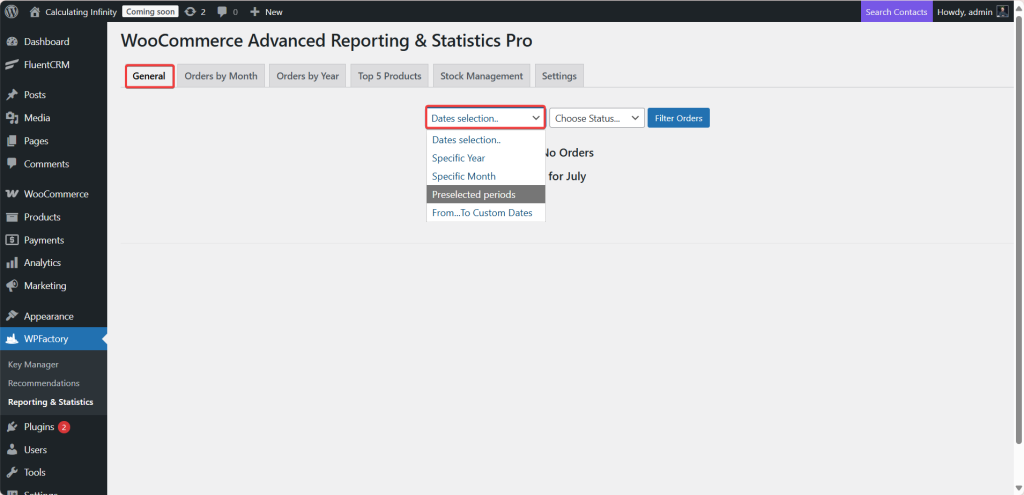
Pick a period (Specific Year, Specific Month, Preselected Periods or From…To Custom Dates) and optionally one order status, then click Filter Orders. You get headline totals such as Net Sales, Gross Sales, Total Sales, Refunds and Discounts, plus tables for Orders, Customers, Products, Categories, Countries, Payment Methods and Coupons. See how to read the sales report and overview and how Net, Gross and Total sales are calculated.

Report filters #
Each Query by box you enable in Settings adds a matching dropdown to the toolbar, so you can narrow a report to one country, city, product, category, customer or payment method, or filter by paid date. See how to filter reports by country, product, customer and more.
Orders by Month and Orders by Year #
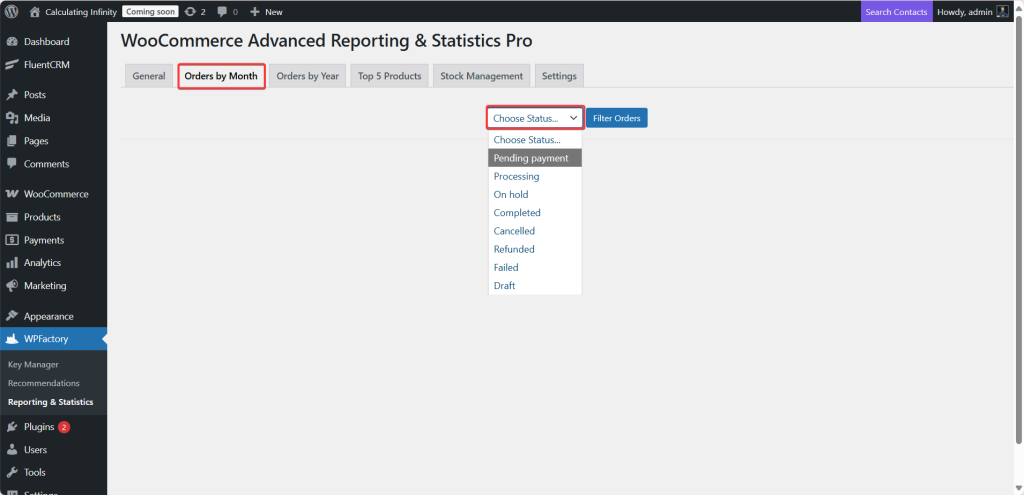
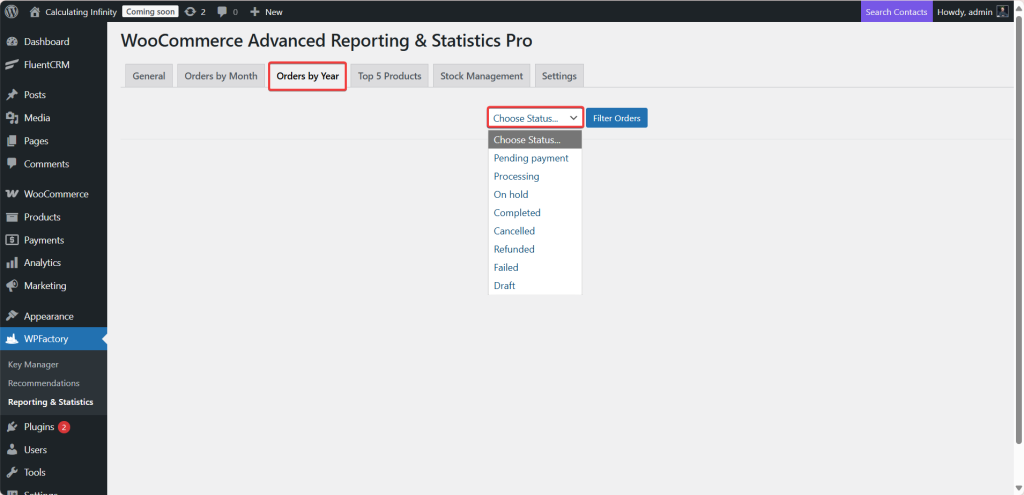
These tabs group sales by month or by year, with orders, tax, shipping, discounts, refunds and net, gross and total sales, plus an average and a forecast for the next month or year. See the sales report by month and year.
Top 5 Products #
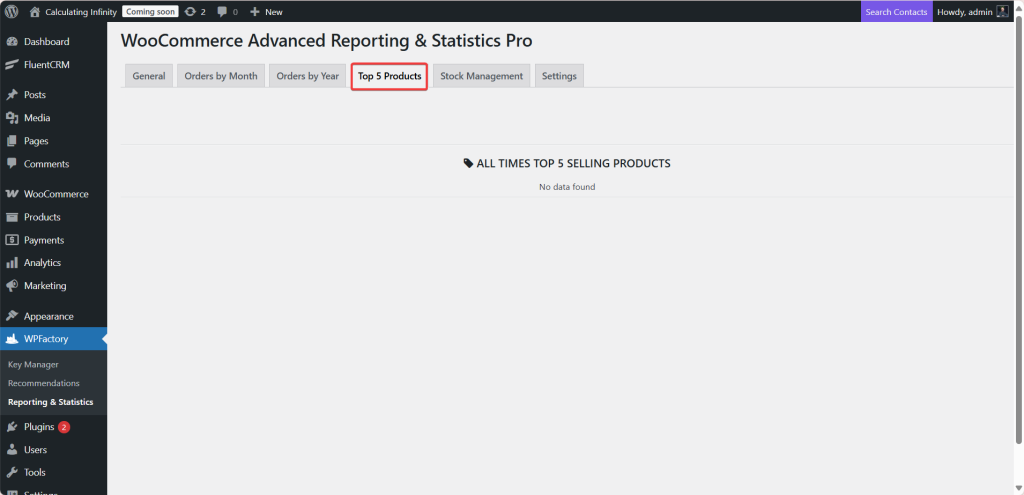
Lists your five best-selling products. See how to see your top selling products.
Stock Management #
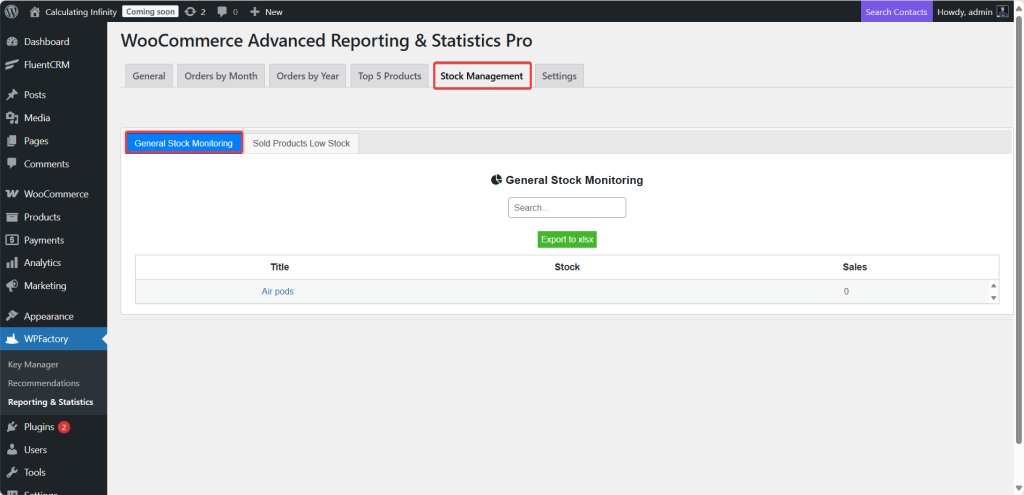
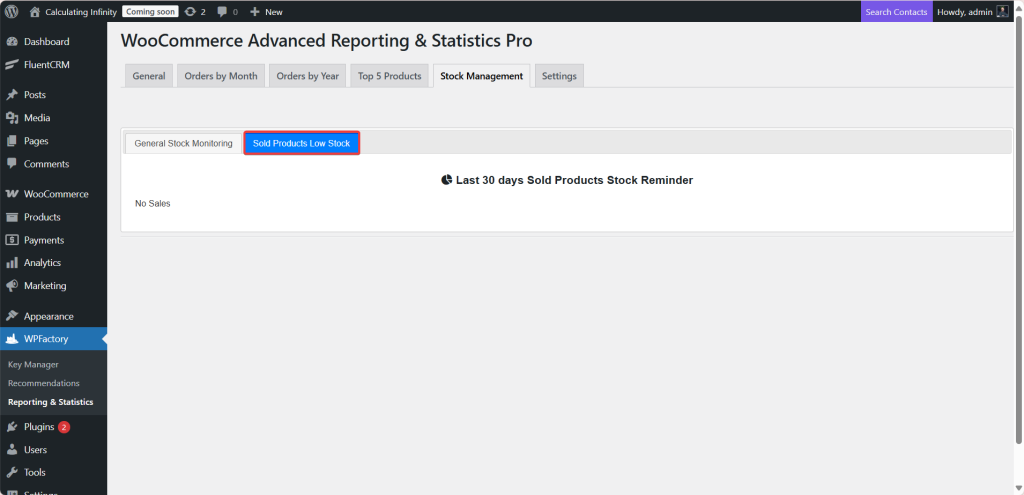
General Stock Monitoring lists products running low, and Sold Products Low Stock checks products sold recently against current stock and estimates how many days are left. See the low stock report and stock forecast.
Custom orders report #
The Orders Custom Report section of Settings controls which order fields appear as columns in the Orders table on the General tab. See how to build a custom orders report.
Excel export #
The report tables can be downloaded as .xlsx files. See how to export reports to Excel.
Scheduled email reports #
The plugin emails a sales and stock summary on a Daily, Weekly or Monthly schedule. See how to schedule automated sales email reports.
Staff access #
Administrators and shop managers can always open the reports. Plugin Access Role (apart from admin and shop manager) grants one more role access, for example an accountant. See how to give staff access to reports.
Every option is listed in the settings reference, and developers can use the hooks and filters reference.
Free vs Pro #
The Pro plugin does not lock any of its options behind a license check: every feature described here is part of the Pro plugin. The free version is a separate plugin, so the exact list of what it lacks cannot be confirmed from the Pro code, and this guide does not label individual options as Free or Pro.
FAQ #
Where are the settings? #
On the Settings tab of WPFactory > Reporting & Statistics. The plugin does not add anything under WooCommerce > Settings.
Why do I get a weekly email I never set up? #
On activation the plugin sets the frequency to Weekly and the recipient to your admin email, and it schedules the report unless Send Completed Orders Report is set to no. Set it to no and save to stop the email.
Which orders are counted? #
Orders in the statuses selected in Selected default status (Completed, Processing, On hold and Refunded by default), unless you pick a single status in the report toolbar.
Why is the Orders table asking me to check the settings page? #
No fields are selected in Orders Custom Report. Select at least one field and save.
Can other staff see the reports? #
Yes. Administrators and shop managers always can, and you can add one more role with Plugin Access Role (apart from admin and shop manager).
Get the full picture #
WooCommerce Advanced Reporting and Statistics turns your store data into exportable reports, forecasts and stock alerts inside your dashboard. See everything it can do.
Need a hand? Our team answers every ticket on the Advanced Reporting support forum.