This reference lists every setting in Weight-Based Shipping for WooCommerce with its type, default and stored key. All settings live inside each zone’s method instance: go to WPFactory > Weight-Based Shipping (also reachable at WooCommerce > Settings > Shipping), open a zone and edit Weight-Based Shipping.
There is no global settings page. Add the method to three zones and you have three independent copies of everything below.
Free vs Pro #
Weight-Based Shipping has no Free/Pro split in its code. Every setting on this page, including weight tiers, the handling fee, both free shipping thresholds and the maximum weight limit, is available in every install. Nothing on this page is locked or labeled as a Pro option.
Basic #
| Setting | Type | Default | Key | Notes |
|---|---|---|---|---|
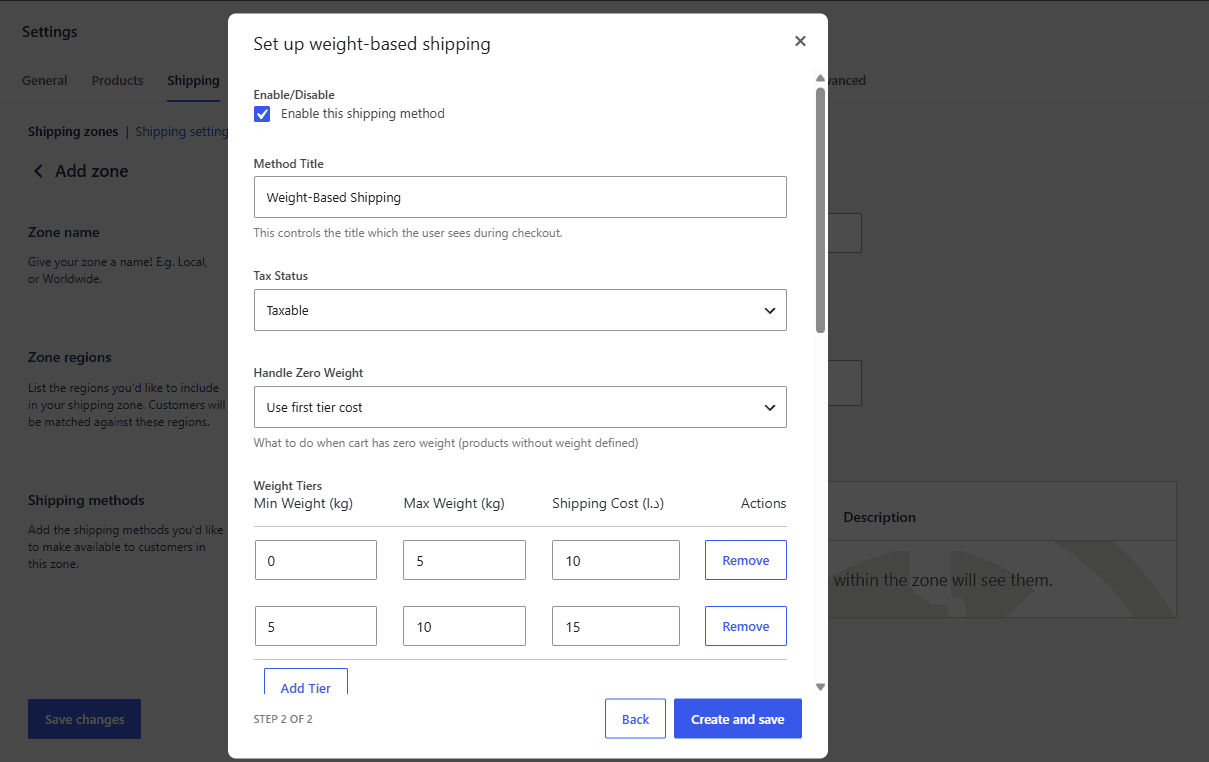
| Enable/Disable | Checkbox | Enabled | enabled |
Unticked, the method returns no rate at all. This is the method’s own checkbox, separate from the on/off toggle in the zone’s method list; both must be on. |
| Method Title | Text | Weight-Based Shipping |
title |
What the customer sees at checkout. (Free) is appended automatically when a free-shipping threshold fires. |
| Tax Status | Select | Taxable |
tax_status |
Taxable or None. WooCommerce applies the tax; the method only declares whether the rate is taxable. |
| Handle Zero Weight | Select | Use first tier cost |
handle_zero_weight |
What to do when the cart weighs exactly zero. Use first tier cost prices the cart as weight 0, which lands in your first tier. Hide shipping method returns no rate. |
Weight tiers #
| Setting | Type | Default | Key |
|---|---|---|---|
| Weight Tiers | Custom table | Three rows: 0 to 5 costs 10, 5 to 10 costs 15, 10 and up costs 25 | tiers |
Each row has three fields:
| Column | Notes |
|---|---|
| Min Weight | Inclusive. Blank is stored as 0. |
| Max Weight | Exclusive. Blank means no upper limit. |
| Shipping Cost | In store currency. Blank is stored as 0. |
Behavior worth knowing:
- Rows are sorted by minimum weight when saved, so the order you type them in does not matter.
- Rows where all three fields are empty are dropped on save.
- The defaults are live values, not placeholders: a method you never configure quotes 10/15/25.
- Values are normalized with WooCommerce’s
wc_format_decimal()when saved. A blank Min Weight or Shipping Cost is saved as0; a blank Max Weight stays blank (no limit). - If you save the table with no rows at all, the three default tiers are used again.
- The admin warns about rows where max is not greater than min, and about overlapping ranges, but still saves them.
Full rules, including what happens to weights that match nothing, are in set up your weight tiers.
Handling fee #
| Setting | Type | Default | Key | Notes |
|---|---|---|---|---|
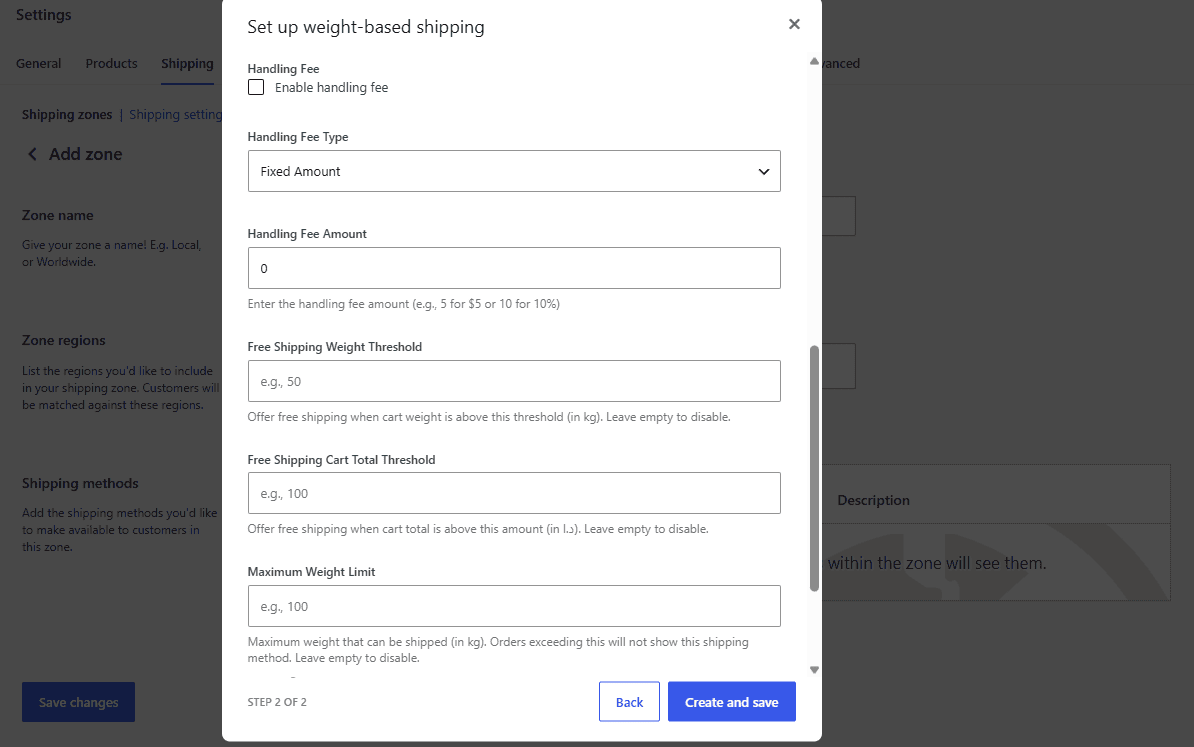
| Handling Fee | Checkbox | Off | handling_fee_enabled |
Master switch for the two settings below. |
| Handling Fee Type | Select | Fixed Amount |
handling_fee_type |
Fixed Amount or Percentage. |
| Handling Fee Amount | Number | 0 |
handling_fee_amount |
Step 0.01, minimum 0. 5 means 5.00 fixed, or 5% when the type is Percentage. A percentage is taken of the tier cost, not of the cart total. |
The fee is never applied when a free-shipping threshold has fired.
Free shipping #
| Setting | Type | Default | Key | Notes |
|---|---|---|---|---|
| Free Shipping Weight Threshold | Number | (empty) | free_shipping_weight |
Shipping becomes free when the cart weight is at or above this. Note the direction: heavier carts ship free. Empty disables it. |
| Free Shipping Cart Total Threshold | Number | (empty) | free_shipping_amount |
Shipping becomes free when the package contents total is at or above this. The figure is the value of the goods before tax and after coupon discounts. Empty disables it. |
Either threshold firing is enough. There is no way to require both.
Weight limit #
| Setting | Type | Default | Key | Notes |
|---|---|---|---|---|
| Maximum Weight Limit | Number | (empty) | max_weight |
The method withdraws when the cart weighs more than this. Exactly the limit is allowed. Empty disables it. |
| Maximum Weight Exceeded Message | Textarea | Sorry, your order exceeds our maximum shipping weight. Please contact us for a custom shipping quote. |
max_weight_message |
Added to the cart as an error notice when the limit is exceeded. |
Where the values are stored #
WooCommerce stores each instance’s settings as one serialized option:
woocommerce_weight_based_shipping_{instance_id}_settings
{instance_id} is the id WooCommerce assigns when you add the method to a zone (stored in the instance_id column of the woocommerce_shipping_zone_methods table). The keys inside that option are the Key column above.
These keys are part of the plugin’s compatibility contract and do not change between versions, so an existing configuration survives every update.
Related store settings #
Two WooCommerce settings the method depends on but does not own:
| Setting | Where | Why it matters |
|---|---|---|
| Weight unit | WooCommerce > Settings > Products > General | Every weight in the method is read in this unit, and nothing is converted if you change it. |
| Shipping zones | WooCommerce > Settings > Shipping | Decides which customers are offered this instance at all. |
Where to go next #
Get Weight-Based Shipping #
Every setting covered here is included in Weight-Based Shipping for WooCommerce, with no locked Pro options. Get Weight-Based Shipping.
Need a hand? Our team answers every ticket on the Weight-Based Shipping support forum.